


Create a new bassline from existing audio
Use the phrase you already have as the reference, then build a bass part that supports its harmony and groove.
Updated · Wingman 3.0
The short answer
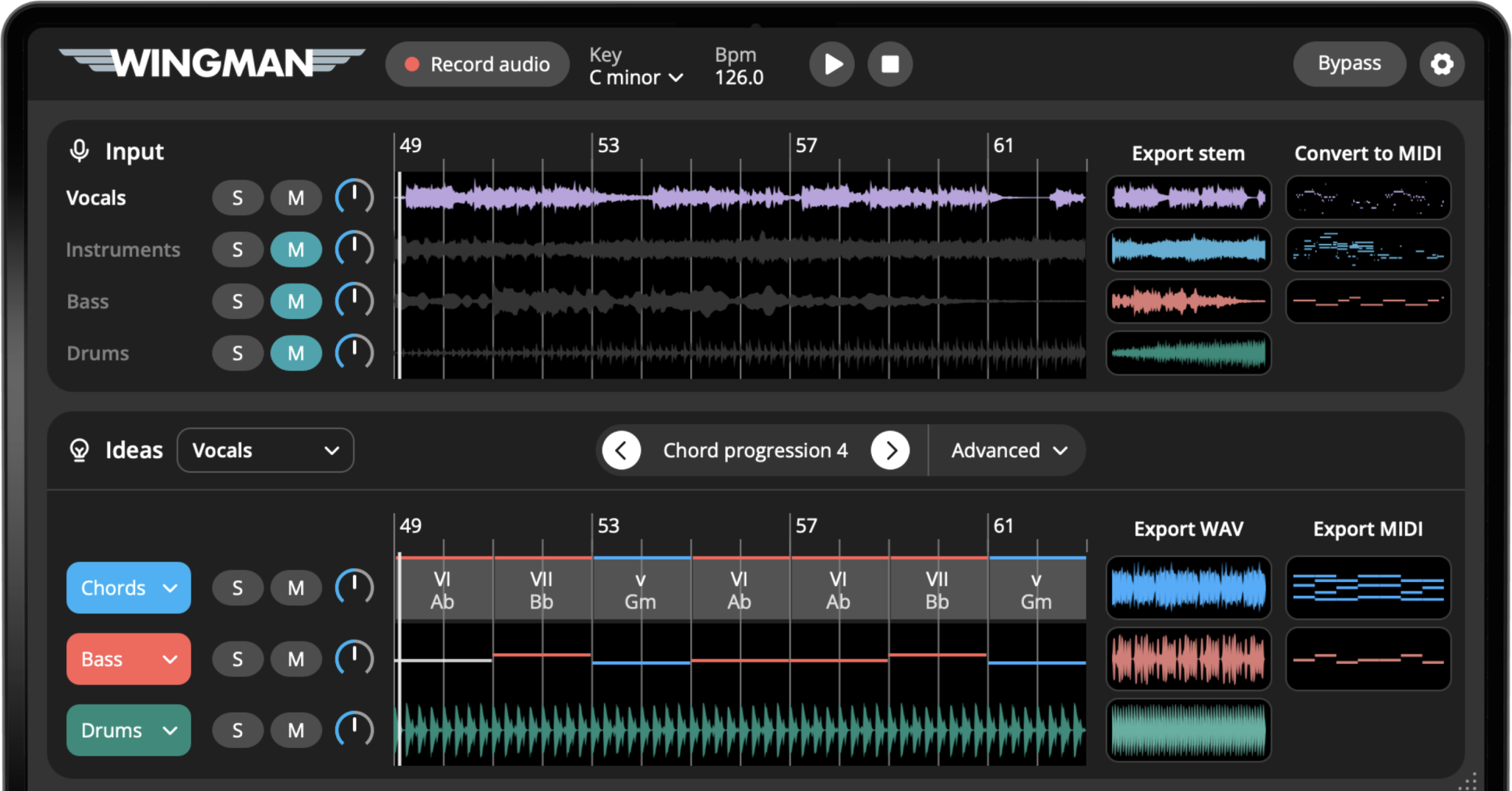
To create a new bassline from existing audio, capture a useful phrase in Wingman, choose a chord idea that works with the source, then shape the bass rhythm and sound beneath it. Audition the new line with the kick and melody before exporting MIDI or WAV. If the source already contains bass, separate or mute that part while you judge the replacement.
A new bassline is different from the original bass stem
There are three distinct jobs you might mean by “bass from audio.” You can isolate the bass that was played, estimate its notes as MIDI, or write a different bassline around the recording. This guide covers the third job.
Wingman’s accompaniment workflow uses your captured audio as context for musical ideas. It is useful for a vocal demo that needs low-end support, a loop that needs a different groove, or a remix where you are replacing the backing. If you want the original performance instead, start with stem separation or audio-to-MIDI conversion.
1. Choose the phrase and decide what stays
Pick a short section that represents the part of the song you are developing. Four or eight bars is a practical starting length, not a requirement. Include the pickup or final note if it affects how the phrase connects.
Decide whether you are keeping the original harmony. If the chord instruments stay, the bass needs to work with them. If you are keeping only the vocal, you have more room to try a different progression. Make this choice before browsing sounds.
- Vocal only: judge the new harmony against the sung notes and phrase endings.
- Piano, guitar or synth loop: listen for the chord changes already present.
- Finished mix: use a suitable separated part where possible, and check it for bleed or artifacts.
2. Align and capture the audio
Set the DAW tempo to the source and line up the phrase with the grid before capture. Load Wingman and route the intended audio to it using the setup for your host. Record the phrase, then check that the beginning and end are what you meant to capture.
If the groove seems wrong before you have changed any notes, check the tempo and start position first. Repeatedly generating patterns will not fix a phrase that begins halfway through the intended bar.
The DAW setup guide covers capture. The official Wingman 3 walkthrough also shows source alignment before recording.
3. Choose the harmony before the bass sound
Audition chord progression ideas with the source playing. Wingman’s bass follows the chosen progression, so a chord change can alter what the bass needs to do. If you are retaining chord instruments from the original recording, compare the new progression with them throughout the phrase.
Keep the sound simple while making this decision. Listen to the longer melody notes and the first beat after each change. A clash may call for a different chord or change point, not more effects on the bass.
Use the chord controls to refine the progression when a promising idea needs a different change or duration. The chords-from-audio guide goes deeper into this step.
4. Shape the bass around the kick and phrase
Open the bass controls and compare rhythm choices with the original phrase playing. The official walkthrough demonstrates changing the bass sound, octave and rhythm after selecting the chord progression. You do not need to keep the first pattern you hear.
Begin with a relatively simple line. Listen for a clear relationship with the kick: the bass might reinforce its main beats or answer in the spaces between them. A busy chord rhythm often leaves less room for a busy bassline.
Compare the sustained notes with shorter ones. Long notes can hold the harmony together, but they can also blur a fast change or fill space the vocal needed. If the part feels too heavy, try less activity before reaching for processing. The bass-from-chords guide covers developing the line once the progression is established.
5. Remove the old bass from the comparison
If the source contains an existing bassline, avoid judging the replacement on top of it. Mute the original bass track when you have the multitrack session. With a finished mix, audition a stem-based arrangement that leaves out the original bass.
Separation may leave some low notes or artifacts behind. Listen carefully before concluding that the new line is wrong. A filter can reduce low frequencies, but it does not cleanly remove every bass note or preserve every other instrument. If the source cannot be separated well enough, work from a cleaner stem or a different phrase.
6. Choose a sound that belongs in the track
Once the notes and rhythm work, compare bass sounds at a similar level. Check the register against the kick and listen on more than one playback system if you can. A tone that is large in headphones may lose its definition in the full arrangement.
You can use the available sounds or audition a compatible installed VST, then continue with MIDI in your DAW if you prefer. See using your own synths for that route. Keep the source playing while choosing the sound; solo playback answers a different question.
7. Export, align and review
Export MIDI if you want to edit the notes further or use another instrument. Export WAV if you want the rendered bass sound. Put the result on the appropriate DAW track, check its start position, then listen through the transition into the next section.
Keep the earlier version while you compare. If you change the harmony later, revisit the bass rather than assuming the exported part will update itself. The export guide explains the two formats.
A useful finish is one clear musical decision: this is the bassline for the verse, and this is how it leaves room for the chorus. That is more valuable than collecting variations without committing one to the arrangement.
Watch the bass controls in context
The existing Wingman 3 walkthrough at 7:07 shows the bass controls after the chord progression is chosen. Watch the rhythm and sound changes, then repeat the comparison with your own phrase. The later export section begins around 14:26.
Common questions
Can I use a finished song as the source?
Wingman can capture full-track audio, but a dense mix can make the musical relationship harder to judge. Start with a useful section, use the clearest relevant part, and avoid playing the original bass underneath the replacement.
Will this reproduce the original bassline?
No. This workflow develops new accompaniment. Isolating the original bass or estimating its notes as MIDI is a different task.
Can I change the MIDI after export?
Yes. Export the bass as MIDI, place it on a DAW instrument track and edit the notes there. Check the timing and assigned sound after the transfer.
Why does the new bass clash even when the key looks correct?
A key label does not describe every chord, melody note or phrase change. Check the progression against retained instruments, listen at chord changes, and make sure the original bass is not also playing.
Explore Wingman 3
Build chords, bass and other parts around the audio in your DAW.