


Can I use my own VST synths inside Wingman?
Choose the part you want to hear, open its sound selection, and select a compatible installed VST synth. Audition the same notes through different presets before choosing a sound. If you prefer to use the instrument in your DAW, export the part as MIDI and load the synth on the destination track.
See the workflow in Wingman 3
Follow the relevant part of the official walkthrough, then use the steps below with your own audio.
Watch this section in the official Wingman 3 walkthrough. The demonstration uses Logic; the musical controls are shown inside Wingman.
When to use this workflow
Use this workflow when you already have synth plugins, presets, or sounds that define your style. Wingman can help you create the musical idea while your own VSTs provide the sound.
Good starting points
- A favorite synth plugin
- Your own preset collection
- A bass sound you already like
- A chord sound from your sound library
- A production template in your DAW
What you can create
- Chord ideas with your own synths
- Basslines using your favorite bass sounds
- Production-ready sound combinations
- MIDI ideas that already fit your style
- Audio exports using custom sounds
What you need before you start
Wingman 3.0 installed as a plugin inside a supported DAW.
At least one compatible VST synth installed on your computer.
A chord, bass, or instrument idea in Wingman that you want to audition with your own sound.
Choose between a hosted instrument and recorded guitars
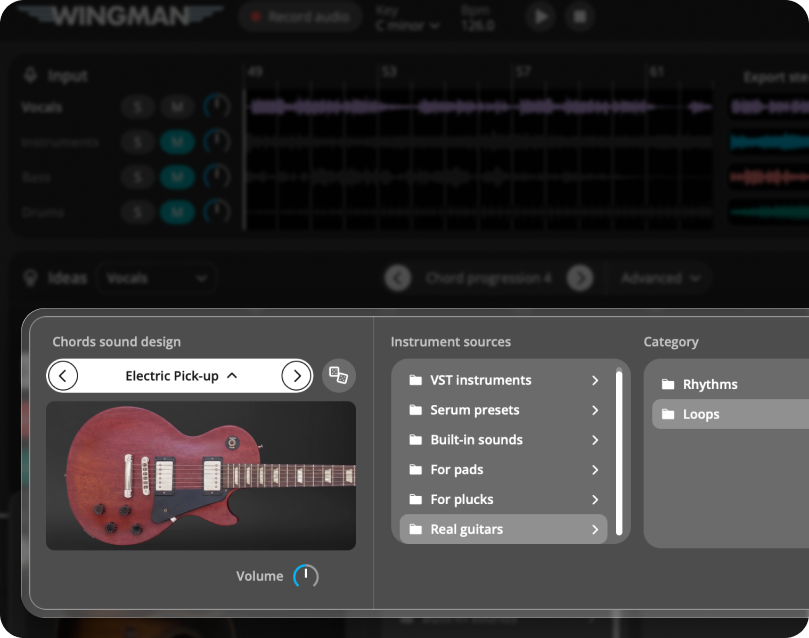
Wingman 3 retains instrument choices alongside its new recorded guitar performances. The official walkthrough also shows Serum presets when Serum is installed.
A preset option does not supply a third-party instrument or licence, and support for a particular instrument still needs to be checked. If hosting is not suitable, export the MIDI to a DAW instrument track. For a guitar texture, audition the built-in Real Guitars options against your progression instead of treating them as another external VST installation.
How to use your own VST synths inside Wingman
Open Wingman in your DAW
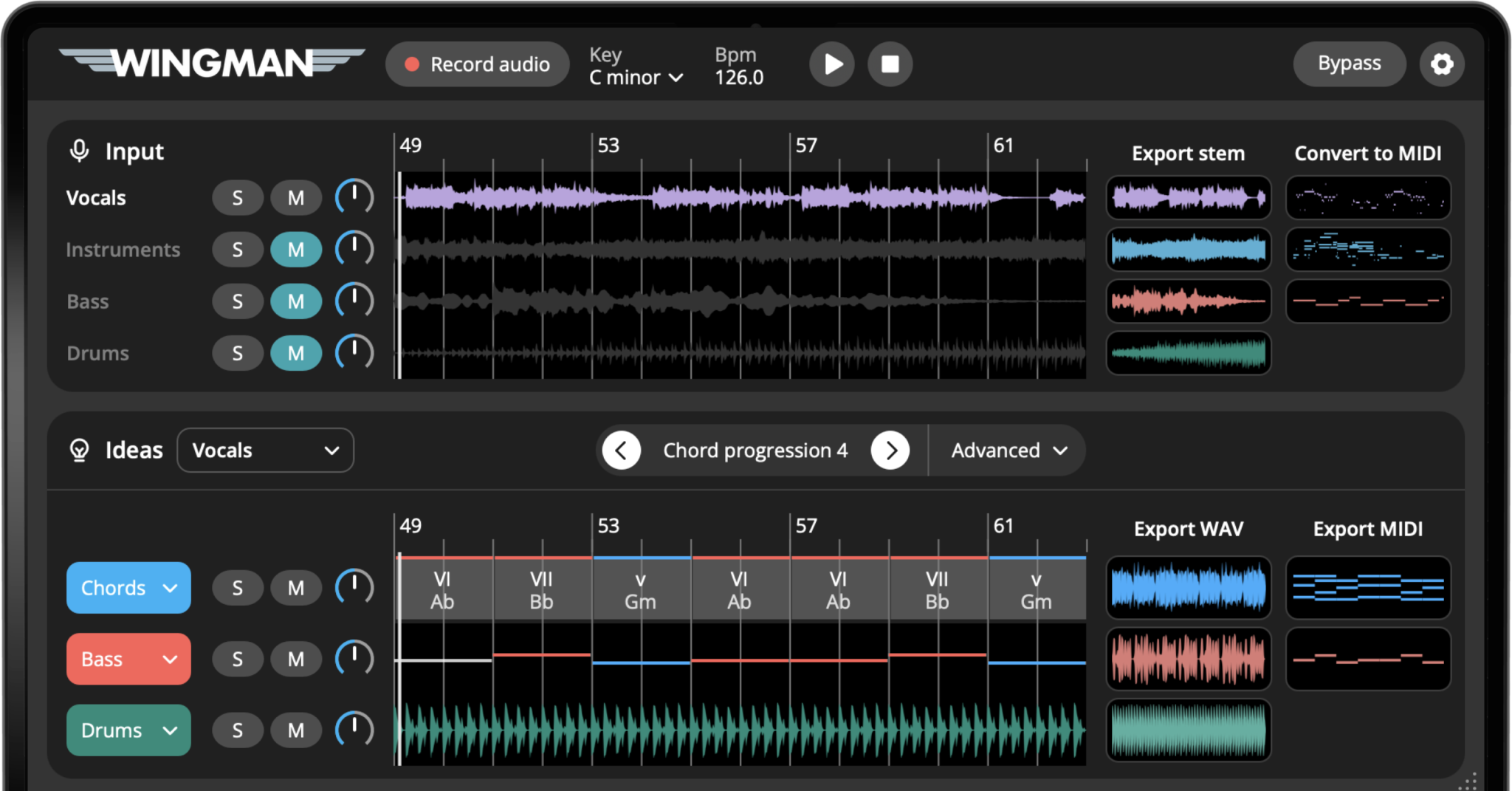
Start by opening Wingman on a track in your DAW. You can begin from an audio recording, an existing idea, or a new chord and bassline workflow.
The goal is to create or load a musical idea first, then choose the sound you want to hear it through.
Create or select a chord, bass, or instrument part
Generate a chord progression, bassline, or instrument idea in Wingman. You can also start from an audio idea and let Wingman suggest musical parts that fit.
Open the sound or instrument selection area
Open Wingman’s sound design panel for the part you want to change. This is where you can choose the instrument or sound source for chords or bass.
You can use Wingman’s built-in sounds, presets, or connect to your own VST synths when you want to use a sound from your existing plugin collection.
Work from the captured phrase in Wingman 3
Check the source audio, then audition only the parts you need. Keep listening to the original phrase as you refine the result.
Select your VST synth
Choose a compatible installed VST synth available in Wingman’s instrument selection for that part. Start with a preset appropriate for chords or bass, then listen with the rest of the track.
This lets you hear Wingman’s musical ideas through sounds that already match your production style.
Pick a preset inside your synth
Once your VST is selected, choose a preset that fits the part. For chords, try pads, plucks, keys, or synth stacks. For basslines, try subs, reese basses, analog basses, or short plucky bass sounds.
If you use Serum, Wingman also includes hundreds of Abletunes Serum presets, giving you a large collection of production-ready sounds to try inside the workflow.
Audition the Wingman idea with your sound
Play the progression or bassline and listen to how it feels with your chosen VST. If the sound changes the energy too much, try a different preset or adjust the notes and rhythm.
This is useful because a musical idea that feels plain with one sound can suddenly feel right with a better instrument choice.
Adjust the rhythm, notes, or sound
If the sound is right but the part needs more movement, adjust the rhythm or accents. If the rhythm is right but the sound feels wrong, try another preset.
Working this way lets you shape the musical idea and sound design together instead of treating them as separate steps.
Export MIDI or audio into your DAW
When the idea feels right, export it as MIDI or audio and continue arranging in your DAW. Export MIDI if you want to keep editing the notes. Export audio if you want to capture the sound and move forward quickly.
Tips for using VST synths with Wingman
Start with a simple sound first
When judging chords or basslines, simple sounds can make it easier to hear whether the notes are working. Then switch to a more finished preset.
Use different sounds for different roles
Chords, bass, and melodies usually need different types of sounds. Try pads or plucks for chords, focused low-end sounds for bass, and leads or keys for melodic ideas.
Export MIDI for maximum control
If you are using your own synths, exporting MIDI gives you the most flexibility because you can keep changing presets, automation, notes, and arrangement later.
Frequently asked questions
Wingman includes support for using your own VSTs. Use a compatible installed synth that is available in its instrument selection. If your synth is not available there, export MIDI and use it with that instrument in your DAW.
Use presets that load in the compatible synth you have selected. Preset availability depends on that instrument and its installed content.
Yes. You can export MIDI from Wingman and continue using it with your own instruments inside your DAW.
Using your own sounds earlier helps you judge ideas faster because the chords, basslines, and rhythms sound closer to the style of track you are actually making.
Yes. You can use Wingman’s built-in sounds or your own VST synths, depending on the workflow and the sound you want.
Choose a sound for your chord or bass part.
Generate chords, basslines, rhythms, and instrument ideas using your own VST synths and presets.