


Add real guitars to your track in Wingman 3
Audition recorded guitar performances against your chord progression, then bring the part into your DAW.
Updated · Wingman 3.0
Add real guitars to your track in Wingman 3
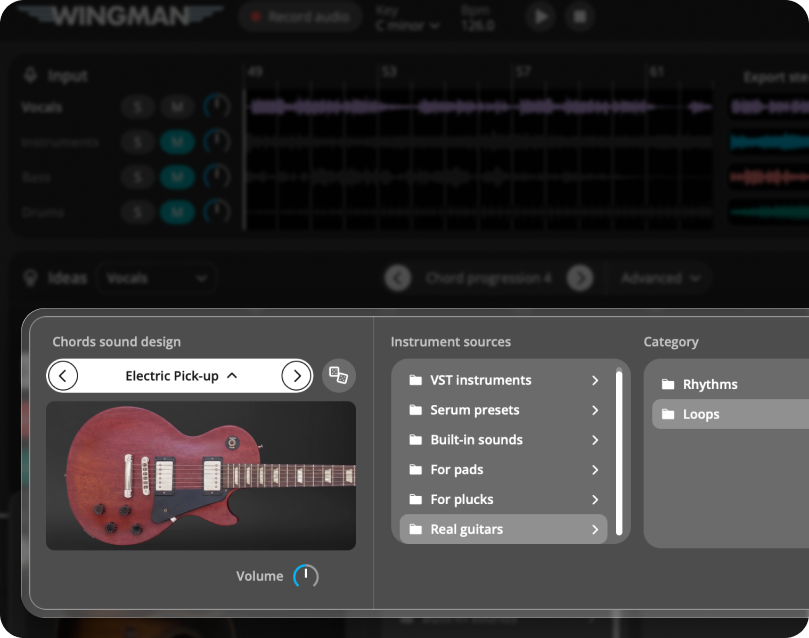
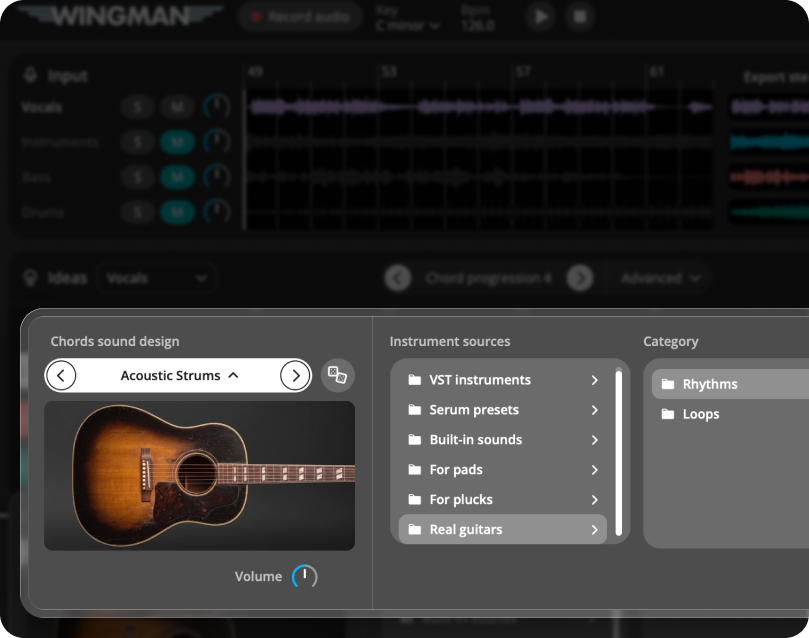
Wingman 3 includes acoustic and electric guitar performances recorded with musicians. Choose a progression, browse Real Guitars in the sound options and audition the available rhythms with your track. Refine the harmony and processing, then export audio when you want to keep the guitar sound and performance.
Watch the Wingman 3 walkthrough
Open the guitars chapter on YouTube. The demonstration uses Logic; follow the DAW setup guide for capture and routing.
When to use this workflow
Use a guitar part when your progression needs a different texture from a pad, piano or synth. Start with the harmony and phrase length you want. A recorded guitar accompaniment is a new part following the progression, not a transcription of every detail in the source recording.
Build the part, step by step
Capture the phrase and choose the harmony
Align the source with the DAW grid and match its tempo before capture. Build a chord progression around the vocal, melody or loop, then listen across the whole phrase. Establish useful chord-change points before comparing guitar performances.
Open Real Guitars in the sound options
Browse the Real Guitars choices and compare an acoustic or electric part with your progression. The official walkthrough demonstrates an electric chugging rhythm. Choose a texture that supports the track instead of adding another part simply because it is available.
Compare rhythms in context
Try the available rhythm choices with the original source, bass and drums playing. Listen for space around the vocal and the relationship between guitar attacks and the groove. If the arrangement is crowded, replace the previous chord sound or mute it while comparing.
Refine the chord changes
If a change feels awkward, return to the chord controls. Try an alternative chord or inversion, adjust the rate of changes, or split and resize a chord to fit the phrase. Audition the guitar again after each edit; a good pad progression may need different spacing on guitar.
Add only the processing the part needs
The walkthrough demonstrates OTT, sidechain, reverb and delay on a guitar part. Adjust one effect at a time and judge it in the full track. Check whether extra level, width or ambience is masking the vocal or blurring the rhythm.
Export the performed sound as audio
Export audio when you want to keep the recorded guitar sound and the rendered processing. Place it on an audio track, check its start position and compare it with the Wingman preview. MIDI contains note information; it does not carry the recorded guitar performance or its audio sound.
Listen before adding more
Compare the guitar with the full phrase, especially held vocal notes and section transitions. Keep a simple backing while choosing the rhythm. Add further layers after the part works on its own.
Common questions
Are the guitars recorded performances?
Yes. Wingman 3 uses guitar parts recorded with real musicians, with options that adapt to the chosen chord progression.
Will MIDI export reproduce the recorded guitar sound?
MIDI contains notes and performance instructions, not the rendered audio. Use an audio export to retain the guitar sound and processing you hear.
Can I change the chords after choosing a guitar?
Yes. Refine the progression with the chord editing controls and audition the guitar again. Check each change against the original vocal or melody.
Build the parts your track needs.
Work with chords, bass, drums and recorded guitars in Wingman 3.