


How to Add Effects in Wingman
Choose the sound first, then add effects while listening with your track. Keep the processing that helps the part sit in the arrangement.
Updated · Wingman 3.0
How to Add Effects in Wingman
Wingman 3.0 includes built-in effects for shaping musical parts. Start with a chord or bass sound, adjust one effect at a time and compare it with the dry version at a similar level. MIDI export carries notes rather than the instrument’s audio processing; use audio export when you want a rendered sound.
See the workflow in Wingman 3
Follow the relevant part of the official walkthrough, then use the steps below with your own audio.
Watch this section in the official Wingman 3 walkthrough. The demonstration uses Logic; the musical controls are shown inside Wingman.
When to use this workflow
Use this workflow when the notes are working, but the sound still feels too dry, flat, static, or unfinished. Effects can help an idea feel more like part of a real production.
Good starting points
- A dry chord progression
- A bassline that needs movement
- A pluck or lead that needs space
- A loop that feels too static
- An idea you want to export as audio
What you can create
- Wider chord sounds
- Delay-based movement
- Filtered transitions
- More polished audio exports
- Processed ideas for your DAW
What you need before you start
Wingman 3.0 installed as a plugin inside a supported DAW.
A chord progression, bassline, instrument part, or generated idea inside Wingman.
A sound you want to shape before exporting as MIDI or audio.
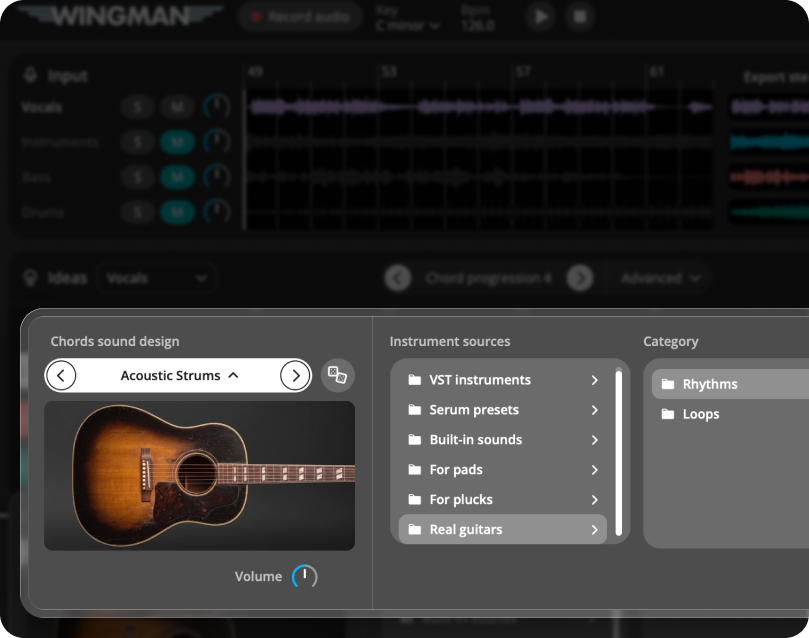
Audition effects on a Wingman 3 guitar part
The version 3 walkthrough demonstrates OTT, sidechain, reverb and delay on a recorded guitar part. Start with the guitar rhythm and sound you want, then adjust one effect at a time.
Listen with the vocal, bass and drums playing so a wider or louder sound does not hide a crowded arrangement. Export audio when you want to keep the rendered performance and processing; MIDI carries note information and does not reproduce the audio sound or effects by itself.
How to add effects in Wingman
Choose a Wingman chord or bassline idea to process
Start with a chord progression or bassline idea generated by Wingman. The built-in effects are designed to shape the sound of Wingman’s generated chord and bassline parts.
Make sure the chord or bassline idea feels useful before adding effects. Effects work best when they enhance a part that already fits the track.
Choose the sound or instrument
Select the sound you want to process. A pad, pluck, lead, bass, or chord instrument will react differently to effects, so the sound choice matters.
Work from the captured phrase in Wingman 3
Check the source audio, then audition only the parts you need. Keep listening to the original phrase as you refine the result.
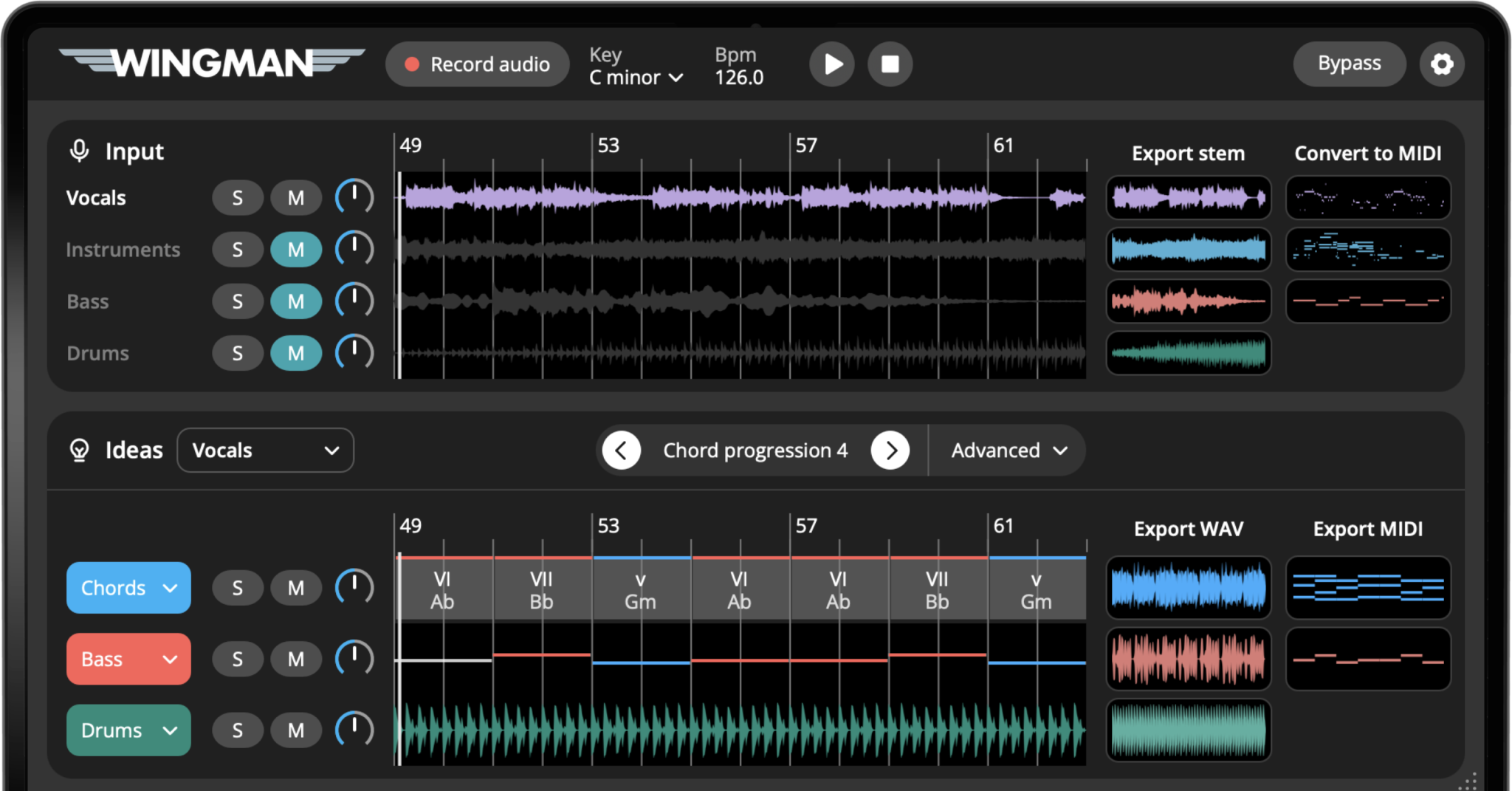
Open Wingman’s effects section
Open the effects area for the part you want to process. From there, you can start adding effects such as reverb, delay, filtering, and other processing to shape the sound.
Listen as you adjust effects so you can hear how the processing changes the part in context.
Add reverb for space
Use reverb when a sound feels too dry or too close. Reverb can make chords, pads, plucks, and leads feel wider, smoother, or more atmospheric.
Be careful with too much reverb on bass-heavy sounds, because it can make the low end feel less focused.
Add delay for movement
Use delay when you want a part to feel more rhythmic, spacious, or animated. Delay can make plucks, leads, short chord hits, and melodic ideas feel more alive.
Use filtering to shape tone and transitions
Filtering can make a part darker, brighter, cleaner, or more focused. You can use it to remove harshness, create movement, or make an idea sit better with the rest of the track.
Filters are especially useful when you want to create build-ups, breakdowns, or softer sections from the same musical idea.
Balance the effect amount
Compare the processed and dry part at a similar listening level. Listen with the drums and vocal playing, not only in solo. If reverb or delay fills the gaps you need for another part, reduce it before adding more processing.
Export the processed idea into your DAW
Use the export options available for the selected part. MIDI lets you edit notes and choose a DAW instrument; it does not contain the sound of Wingman’s effects. For audio, check the rendered result against the preview, including the start and any effect tail.
Common ways to use effects in Wingman
Different effects solve different production problems. Use them based on what the part needs in the track.
Use reverb when you want to:
- Add space to dry sounds
- Make chords feel wider
- Soften plucks or leads
- Create atmosphere
- Push a sound farther back in the mix
Use delay when you want to:
- Add rhythmic movement
- Fill space between notes
- Make leads feel more animated
- Create echoes or repeats
- Add energy without changing the notes
Use filtering when you want to:
- Make a sound darker or brighter
- Clean up harsh frequencies
- Create build-up movement
- Make a section feel more subtle
- Shape transitions
Use sidechain-style movement when you want to:
- Add bounce to chords
- Make parts feel more rhythmic
- Create space around the kick
- Make pads feel less static
- Add dance-style movement
Tips for using effects well
Start with small amounts
It is easy to overdo effects. Start subtle, then increase the amount only if the part still feels too dry, static, or plain.
Use effects differently for chords and bass
Chords often benefit from reverb, delay, and width. Bass parts usually need more control, so be careful with effects that blur the low end.
Export WAV when the effects are part of the sound
If the reverb, delay, filtering, or movement is important to the vibe, export WAV so you can keep the processed sound in your DAW.
Frequently asked questions
Yes. Wingman includes built-in effects that help you shape the sound of chords, basslines, instruments, and generated ideas.
Yes. You can use effects such as reverb and delay to add space, movement, and polish to the ideas you create in Wingman.
Yes. You can shape the sound with effects and then export the processed idea as audio if you want to keep that sound in your DAW.
Export MIDI if you want to keep editing notes and instruments. Export WAV if you want to capture the sound with effects applied.
Yes. After exporting from Wingman, you can keep processing the MIDI or audio with your DAW’s effects and plugins.
Shape your Wingman ideas with built-in effects.
Add reverb, delay, filtering, movement, and polish before exporting your ideas into your DAW.
Updated