


How to turn a melody into chords and bass in Wingman
Keep the melody you already have. Use a clear phrase to try chord progressions and basslines underneath it, then export the parts that work.
Updated · Wingman 3.0
What chords will work under your melody?
Capture a clear melody phrase in Wingman and audition the suggested chord progressions against it. Choose a progression that supports the important melody notes, then try a bassline and adjust the rhythm. Export MIDI for further note editing, or WAV when you want to keep the sound.
This creates an accompaniment; it is a different task from transcribing the original melody into MIDI. For that workflow, use the audio-to-MIDI guide.
See the workflow in Wingman 3
Follow the relevant part of the official walkthrough, then use the steps below with your own audio.
Watch this section in the official Wingman 3 walkthrough. The demonstration uses Logic; the musical controls are shown inside Wingman.
When to use this workflow
This workflow is useful when you have a melody, vocal idea, synth riff, sample, or loop, but you are not sure what chords or bassline should go with it.
Good starting points
- A vocal melody
- A synth hook
- A piano idea
- A sample or loop
- An unfinished track idea
What you can create
- Matching chord progressions
- Basslines that fit the chords
- Rhythmic chord patterns
- Ideas you can export as MIDI
- Audio you can drag back into your session
What you need before you start
Wingman 3.0 installed as a plugin inside a supported DAW.
A melody, vocal, loop, or audio idea loaded on a DAW track.
A few bars of audio that clearly represent the idea you want to build around.
Control how often the harmony changes
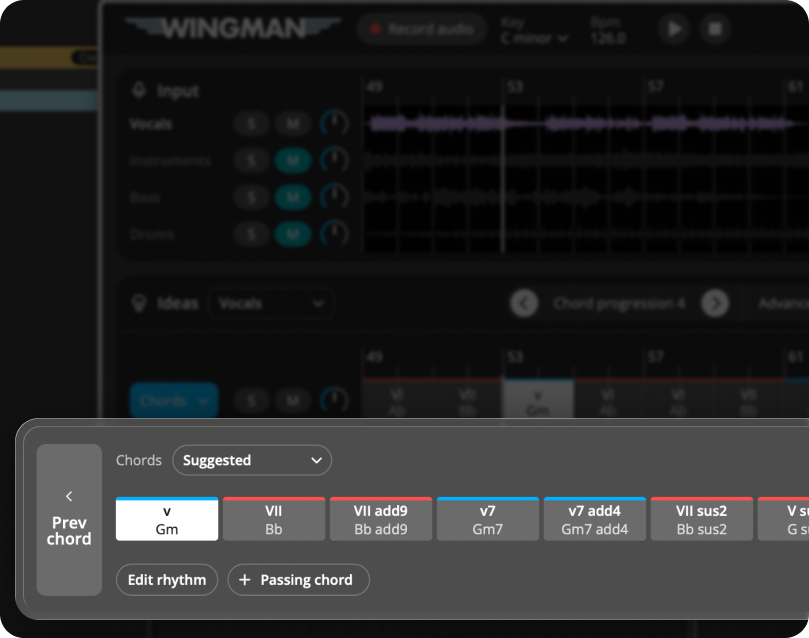
In Wingman 3, the Advanced chord options let you compare slower, normal and faster chord changes, or let Auto choose. The walkthrough shows two bars per chord, one bar per chord and a chord every two beats.
Pick the rate that follows the melody’s phrases, then audition the bass against it. Try inversions if the chord register competes with the lead. A short passing chord can connect two changes, but leave it out when the melody already supplies enough movement.
How to turn a melody into chords and bass
Add Wingman to your DAW track
Open your DAW and add Wingman to the track that contains your melody or audio idea. This could be a vocal, synth riff, piano melody, sample, or another musical part.
Wingman works inside your DAW, so you can keep the workflow close to the project you are already producing.
Record or capture the audio into Wingman
Play the part you want Wingman to hear, then use the record option inside Wingman to capture the audio. Wingman uses this recording as the musical context for its chord and bassline suggestions.
Work from the captured phrase in Wingman 3
Check the source audio, then audition only the parts you need. Keep listening to the original phrase as you refine the result.
Generate chords that fit your melody
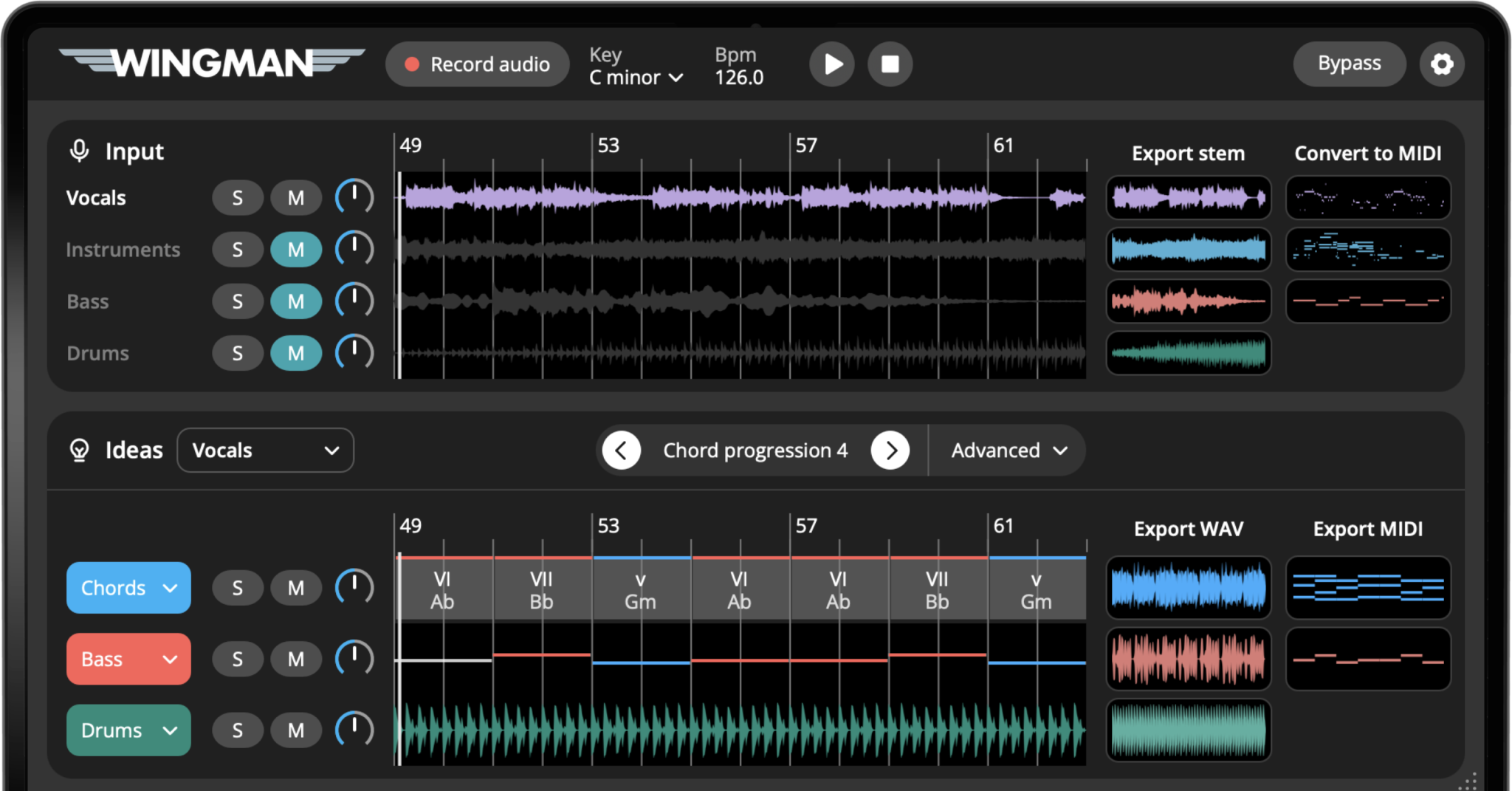
Audition each progression with the original melody playing. Listen especially to long or accented notes: a progression can fit the general key while changing the tension underneath those notes. Keep the version that supports the phrase you want.
Edit the chords until the progression feels right
Click any chord to explore alternatives. Wingman can show chord options that stay close to the original key, or let you experiment with more advanced harmonic ideas.
This is useful when the first progression is close, but you want one or two chords to feel more emotional, more simple, or more surprising.
Add a bassline that follows the musical idea
After choosing the chords, audition bassline options with the melody and drums. Keep the bass out of the melody’s way, and use MIDI export if you want to refine the notes or rhythm in your DAW.
Shape the rhythm with presets, accents, and editing
If the chords or bass feel too static, use Wingman’s rhythm presets and rhythm editing tools to add movement. You can try different rhythmic patterns, add accents, and make the part feel more natural in the groove of your track.
Change the sound or use your own VST synths
Try a built-in chord and bass sound first, then audition your own synth palette using the VST synth guide. Changing the sound should help you judge the accompaniment in the track.
Export MIDI or WAV back into your DAW
When you find a chord progression or bassline you like, export it as MIDI or WAV. Use MIDI if you want to keep editing notes, sounds, and arrangements. Use WAV if you want to quickly drag the audio idea into your project timeline.
Tips for better results
Use a clear musical input
Wingman works best when the audio you record has a clear musical idea. If the section is too busy, try recording a simpler part first.
Try more than one progression
The first idea may not always be the best one. Audition multiple chord progressions and listen for the one that supports the melody naturally.
Edit before exporting
Use Wingman to get close, then refine the chords, rhythm, sound, and bassline before bringing the idea back into your DAW.
Frequently asked questions
Yes. Wingman listens to the audio in your DAW and suggests chord progressions that fit the musical context of your melody.
Yes. Wingman can generate bassline ideas that work with the chord progression and the audio you recorded.
Yes. You can click chords, explore alternatives, adjust the progression, and shape the rhythm before exporting your idea.
Yes. Wingman supports using your own VST synths, so you can preview ideas with sounds and presets that already fit your workflow.
Export MIDI if you want to keep editing notes, instruments, and arrangements. Export WAV if you want to quickly use the generated sound as audio in your project.
Turn your next melody into a fuller musical idea.
Use Wingman to generate chords, basslines, rhythms, and sounds that fit the audio in your DAW.
Updated