


How to Convert Audio to MIDI With Wingman
Use a clear phrase, compare the detected notes with the audio and clean up the result in your piano roll. MIDI gives you notes to edit, not the original sound.
Updated · Wingman 3.0
How to Convert Audio to MIDI With Wingman
Capture a short audio phrase in Wingman 3.0, review the audio-to-MIDI result and export the useful part to an instrument track in your DAW. Compare pitch, timing and note lengths against the source before choosing a new sound. Conversion transcribes musical material; generating accompanying chords and bass is a separate workflow.
See the workflow in Wingman 3
Follow the relevant part of the official walkthrough, then use the steps below with your own audio.
Watch this section in the official Wingman 3 walkthrough. The demonstration uses Logic; the musical controls are shown inside Wingman.
When to use this workflow
This workflow is useful when you have an audio idea that you want to edit like MIDI. Instead of recreating the part by ear, you can use Wingman to convert the audio into notes and continue shaping it in your DAW.
Good starting points
- A vocal melody
- A synth loop
- A piano phrase
- A sample or hook
- An audio idea you want to rebuild
What you can do with the MIDI
- Change the sound
- Edit the notes
- Layer new instruments
- Create harmonies
- Rearrange the part in your DAW
What you need before you start
Wingman 3.0 installed as a plugin inside a supported DAW.
An audio file, vocal, loop, sample, or recorded idea on a DAW track.
A clear section of audio that contains the part you want to convert into MIDI.
Keep transcription separate from new accompaniment
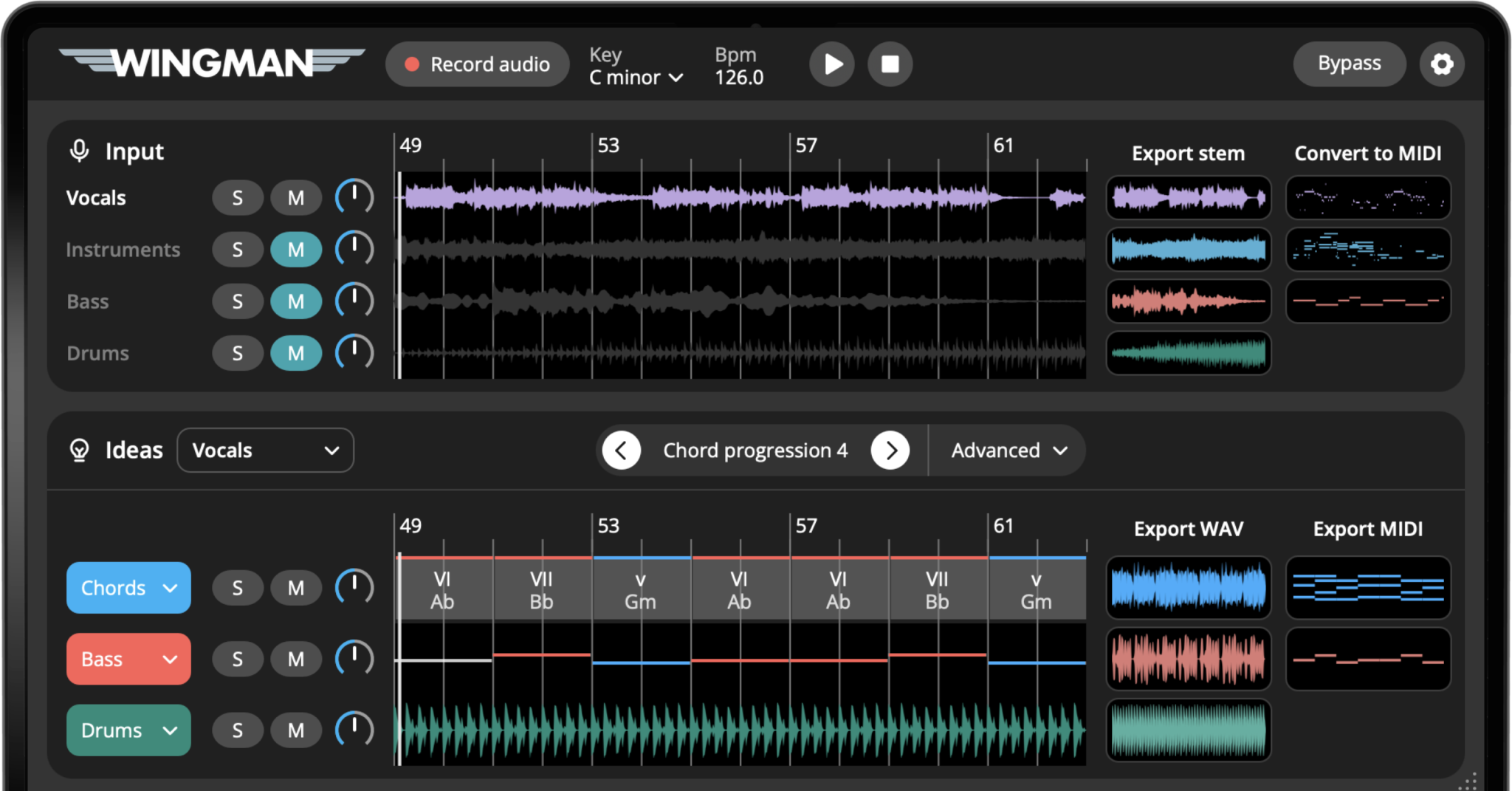
The Wingman 3 walkthrough shows stem export and audio-to-MIDI controls together. Converting an audio part to MIDI estimates the notes in that recording; choosing a chord progression creates accompaniment around the source. Decide which result you need before exporting.
For transcription, check the pitches and note boundaries against the audio. For new harmony, audition chord suggestions instead. Use a MIDI or instrument track with a sound assigned when you bring editable notes into the DAW.
How to convert audio to MIDI with Wingman
Add the audio to a track in your DAW
Start by placing the audio you want to convert on a track in your DAW. This could be a vocal phrase, synth riff, piano loop, sample, or another melodic idea.
Choose a section where the notes are clear enough to identify. A cleaner input usually gives you a more useful MIDI result.
Record the audio into Wingman
Add Wingman to the track and use Record Audio to capture the section you want to convert. Wingman uses this recording as the source for the MIDI conversion.
Let Wingman generate MIDI clips from the audio
After capture, review the available MIDI clips beside the detected audio parts. Compare the clip with the phrase you wanted to transcribe. Layered audio, distortion and overlapping notes can need cleanup; do not assume the first result is a finished transcription.
Export the MIDI from Wingman
Export the MIDI from Wingman and bring it into your DAW. You can then edit the notes, timing, velocity, and arrangement like any other MIDI clip.
Choose a new sound for the MIDI
After exporting, load the MIDI onto a software instrument in your DAW. You can use a piano, synth, bass, pad, pluck, or any other sound that fits your track.
This is one of the biggest advantages of audio-to-MIDI conversion: the musical idea can stay the same while the sound completely changes.
Edit the notes and timing in your DAW
Use a simple instrument while checking pitch, octave, starts and note lengths against the source. Remove unwanted notes before changing the sound. MIDI does not reproduce lyrics, the original instrument patch or its audio effects.
Use the MIDI to build a new part
Once the MIDI is in your DAW, use it creatively. You can layer it with the original audio, turn it into a synth part, make a bassline from it, create harmonies, or use it as the foundation for a new section.
Tips for better results
Use clear audio when possible
Audio-to-MIDI conversion works best when the source has a clear melodic or harmonic idea. Very noisy, layered, or heavily processed audio may need more editing after export.
Treat MIDI as a creative starting point
The exported MIDI does not always need to be a perfect copy of the original audio. It can be a fast way to capture the shape of an idea and turn it into something new.
Try a completely different sound
Once the audio becomes MIDI, you can use any instrument. A vocal melody can become a synth lead, a sample can become a pad, or a loop can become a new chord layer.
Frequently asked questions
Yes. Wingman can convert recorded audio into MIDI so you can export it and continue editing the notes in your DAW.
You can use vocals, melodies, loops, samples, synth parts, piano phrases, or other audio ideas. Clearer audio usually gives you a more useful MIDI result.
Yes. After exporting the MIDI from Wingman, you can edit the notes, timing, sound, and arrangement inside your DAW.
Yes. Once the audio is converted to MIDI, you can use the MIDI with any software instrument in your DAW.
No. It can be useful for melodies, vocal ideas, loops, samples, and musical phrases. The best results usually come from audio with a clear musical part.
Turn your audio ideas into editable MIDI.
Use Wingman to convert vocals, melodies, loops, and samples into MIDI you can edit inside your DAW.
Updated