


How to Turn a Vocal Sample Into MIDI With Wingman
Use the shape of a vocal melody as an editable instrument part. Compare the notes with the singer’s phrase and clean up the result before choosing a new sound.
Updated · Wingman 3.0
How to Turn a Vocal Sample Into MIDI With Wingman
Capture a clear vocal phrase in Wingman 3.0 and review the vocal MIDI result. Export it to an instrument track, then compare pitch, timing and note lengths with the singer’s performance. MIDI represents musical events; it does not contain the words or vocal timbre. If you want accompanying chords instead, use the vocal-to-chords workflow.
See the workflow in Wingman 3
Follow the relevant part of the official walkthrough, then use the steps below with your own audio.
Watch this section in the official Wingman 3 walkthrough. The demonstration uses Logic; the musical controls are shown inside Wingman.
When to use this workflow
Use this workflow when you have a vocal sample with a melody, hook, or phrase that you want to reuse musically. Converting the vocal to MIDI gives you more control than working with the audio alone.
Good starting points
- A vocal chop
- A vocal hook
- A short acapella phrase
- A topline idea
- A vocal sample from a loop pack
What you can create
- A synth lead from a vocal melody
- Harmony layers
- New instrument parts
- MIDI melodies for your DAW
- Remix ideas from vocal phrases
What you need before you start
Wingman 3.0 installed as a plugin inside a supported DAW.
A vocal sample, vocal phrase, acapella, or topline loaded on a DAW track.
A clear section of the vocal where the melody is easy to hear.
Check the notes before changing the instrument
Use the vocal audio as your reference after MIDI conversion. Check long notes, slides, repeated notes and phrase starts; the recording can contain detail that a note sequence will not reproduce.
If you want new chords underneath the vocal rather than a transcription of its melody, use the chord workflow instead. Wingman 3 also lets you add a new drum part and recorded guitar accompaniment around the chosen progression without replacing the original vocal.
How to turn a vocal sample into MIDI
Add the vocal sample to your DAW
Start by placing the vocal sample on an audio track in your DAW. Trim the clip to the phrase you want to convert, such as a hook, melody, vocal chop, or short acapella line.
A shorter phrase is usually easier to convert, review, and edit than a long vocal recording.
Record the vocal sample into Wingman
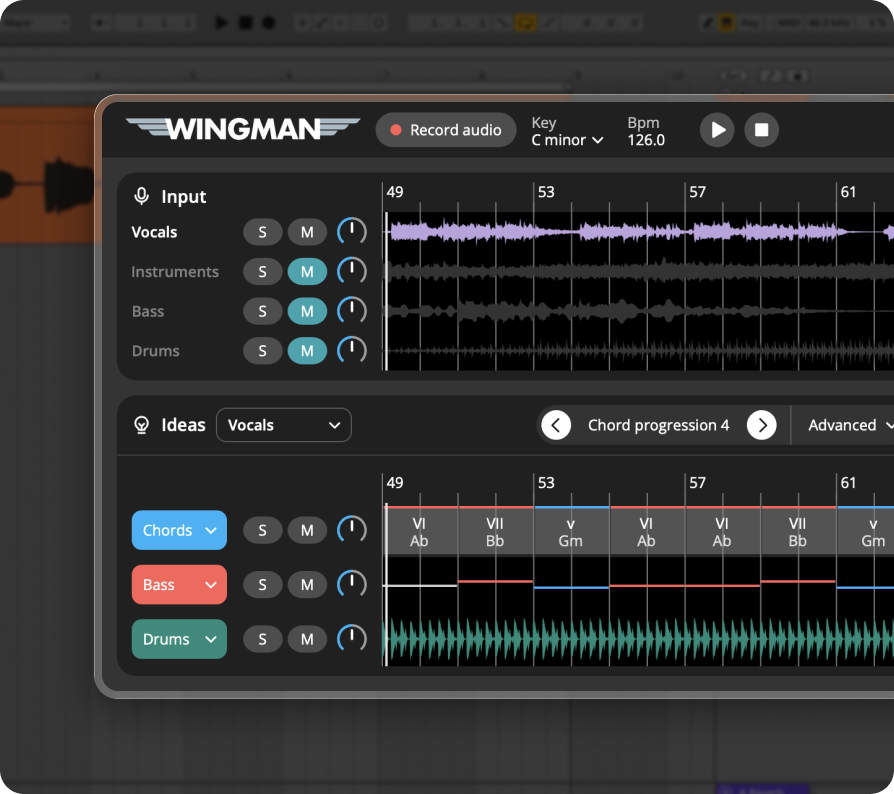
Add Wingman to the track and use Record Audio to capture the vocal sample. Wingman uses this recording as the source for the audio-to-MIDI conversion.
Work from the captured phrase in Wingman 3
Check the source audio, then audition only the parts you need. Keep listening to the original phrase as you refine the result.
Find the vocal MIDI clip next to the stems
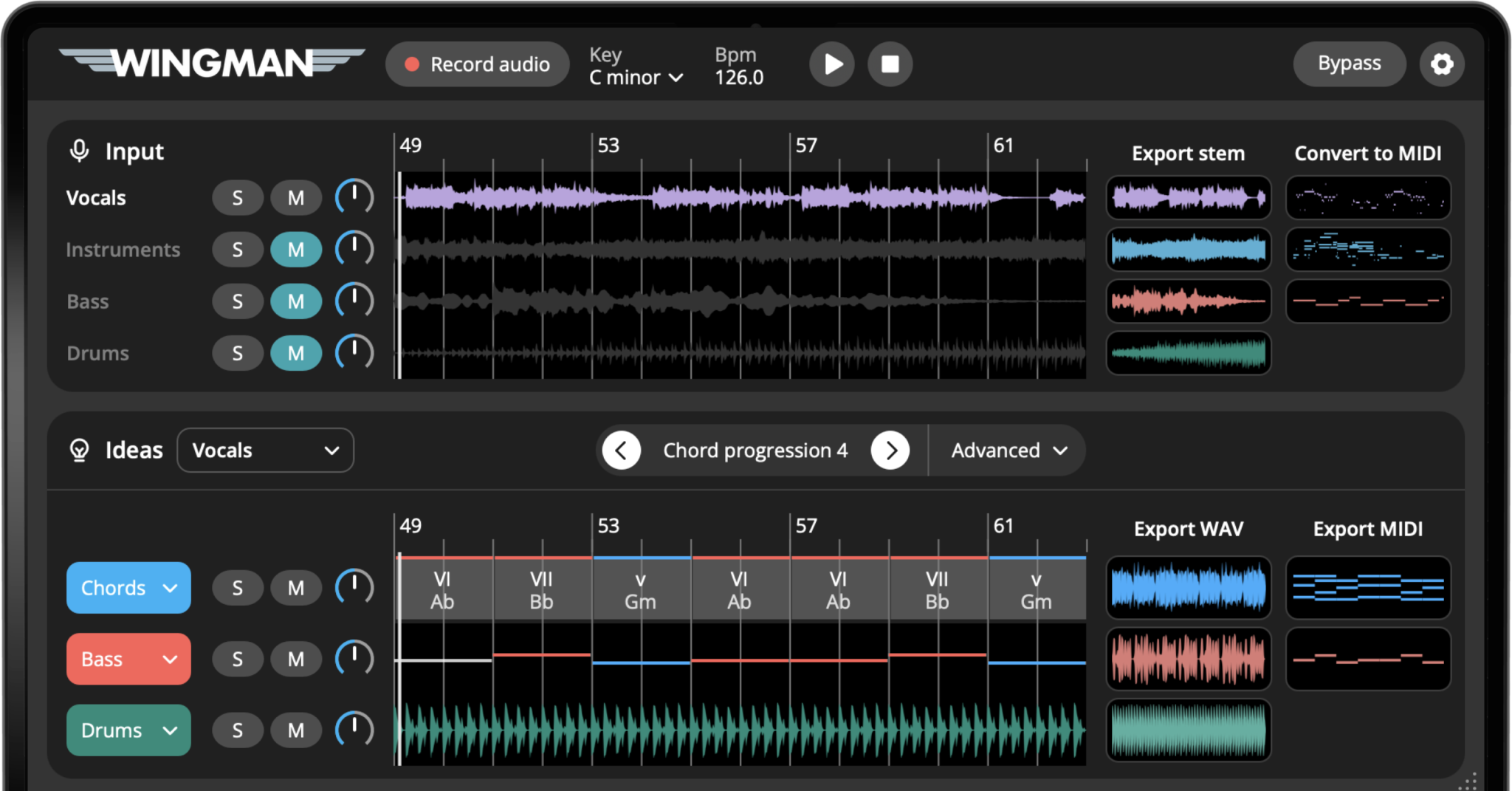
Review the available vocal MIDI clip and compare it with the phrase you captured. Vibrato, slides, breath and backing vocals can complicate the note result. Check the main melody before exporting rather than expecting every detected event to be a note you want.
Export the MIDI into your DAW
Export the vocal MIDI from Wingman and drag it into your DAW. Place it on an instrument track so you can hear the vocal melody played by a synth, piano, lead, pad, or another sound.
Choose a new sound for the MIDI
Load the exported MIDI onto a software instrument. A vocal melody can become a synth lead, piano hook, pluck pattern, pad layer, or even a bass idea depending on the sound you choose.
This is where the vocal sample becomes more than audio — it becomes reusable musical material.
Edit the melody in your piano roll
Use the original vocal as a reference while checking octave, note boundaries and timing. Remove unwanted notes and decide how much of the singer’s phrasing to keep. Avoid quantizing every note automatically if the expressive timing is part of the idea.
Use the MIDI to build a new idea
Once the vocal sample is MIDI, you can use it creatively. Try layering it with the original vocal, turning it into a lead, creating harmonies, using it as a counter-melody, or building chords and basslines around it.
This makes the vocal sample a flexible starting point for songwriting, remixing, and sound design.
Tips for better vocal-to-MIDI results
Use a clear vocal phrase
Vocal-to-MIDI works best when the vocal melody is easy to hear. Short hooks, toplines, and vocal chops are often good starting points.
Clean up the MIDI creatively
The exported MIDI does not need to perfectly copy the vocal. Use it as a starting point and edit the phrase so it works better with your chosen instrument.
Try a very different instrument
A vocal melody can feel completely new when played by a synth, piano, pad, or pluck. Try different sounds before deciding how to use the MIDI.
Frequently asked questions
Yes. Wingman can convert vocal samples and vocal phrases into MIDI so you can edit the notes and use them with instruments in your DAW.
Yes. After converting the vocal sample to MIDI, you can play the MIDI through a synth, piano, lead, pad, or any other software instrument.
A clear isolated vocal usually gives better results. If the vocal is part of a full track, separating the vocal stem first can make the MIDI conversion easier to edit.
Yes. Once exported, the MIDI can be edited in your DAW’s piano roll like any other MIDI clip.
Yes. Vocal MIDI can be used to create harmony parts, supporting melodies, layered instruments, or new musical ideas based on the original vocal phrase.
Turn vocal samples into editable MIDI.
Use Wingman to convert vocal phrases into MIDI and build new melodies, harmonies, sounds, and production ideas from them.
Updated