


How to Drag Wingman MIDI Into Your Piano Roll
Move the MIDI to an instrument track, assign a sound and open the clip in your DAW’s piano roll. Keep the original audio nearby while you check the notes.
Updated · Wingman 3.0
How to Drag Wingman MIDI Into Your Piano Roll
Create or convert a MIDI part in Wingman 3.0, drag or export that part to a MIDI/instrument track in your DAW, and open the imported clip in its piano roll. Assign a software instrument so you can hear it, then check the clip start, project tempo and notes. The exact drop target and editor controls depend on your DAW.
See the workflow in Wingman 3
Follow the relevant part of the official walkthrough, then use the steps below with your own audio.
Watch this section in the official Wingman 3 walkthrough. The demonstration uses Logic; the musical controls are shown inside Wingman.
When to use this workflow
Use this workflow when you have created a useful musical idea in Wingman and want full control over the notes inside your DAW. MIDI is the best format when you want to keep editing the part instead of committing to audio right away.
Good things to drag as MIDI
- Chord progressions
- Basslines
- Melody ideas
- Converted vocal MIDI
- Converted synth loop MIDI
What you can do next
- Edit notes in the piano roll
- Change the instrument
- Adjust timing and velocity
- Create variations
- Build a full arrangement
What you need before you start
Wingman 3.0 installed as a plugin inside a supported DAW.
A chord progression, bassline, melody, or audio-to-MIDI result created in Wingman.
An instrument track or MIDI track in your DAW where you want to place the MIDI clip.
Match the export to the destination track
The Wingman 3 walkthrough demonstrates dragging parts into the DAW and choosing between audio and MIDI exports. Put editable notes on a MIDI or instrument track with a sound assigned; put rendered audio on an audio track.
A MIDI clip does not contain the sound of the instrument or its effects. Check the start position and tempo against the original capture. For the Drums channel, inspect the export choices for the full mix, kicks, tops and transitions rather than assuming every export is the same kind of file.
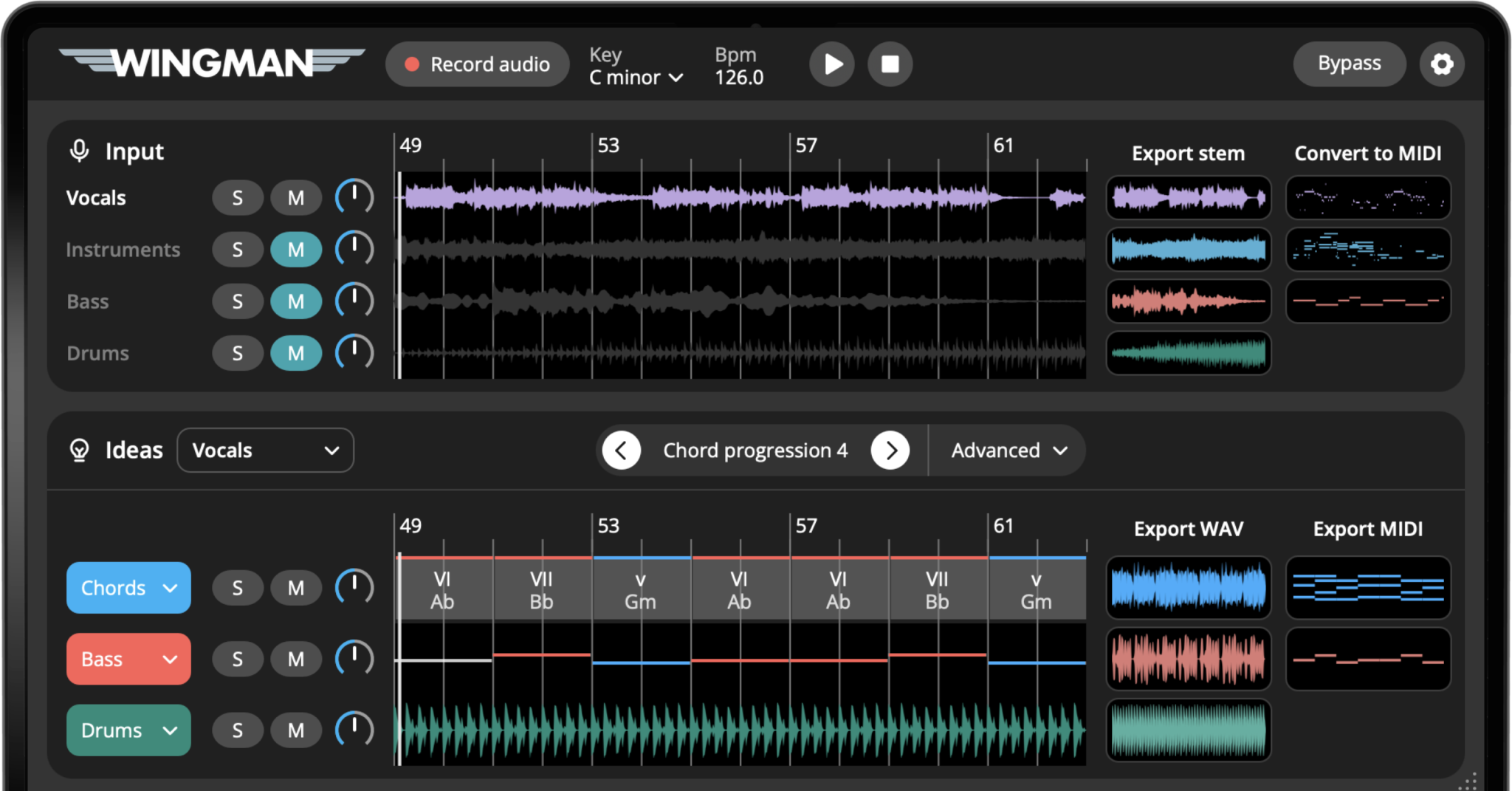
How to drag MIDI from Wingman into your piano roll
Create or convert a MIDI idea in Wingman
Start with a musical idea inside Wingman. This could be a generated chord progression, a bassline, a melody, or MIDI converted from audio.
Before moving it into your DAW, play it back and make sure the idea is useful enough to keep editing.
Decide which part you want to export
Choose the specific MIDI part you want to move into your DAW. For example, you may want only the chords, only the bassline, or a converted melody from audio.
Drag the MIDI into your DAW
Drag the selected MIDI part onto an appropriate MIDI or instrument track. If the host does not accept that drop target, export the MIDI file and use the host’s import workflow. Confirm the clip starts at the intended point and is aligned with the source phrase.
Open the MIDI in your piano roll
Open the MIDI clip in your DAW’s piano roll editor. From here, you can see the notes Wingman created or converted and edit them like any other MIDI performance.
This gives you full control over the musical idea after it leaves Wingman.
Choose or change the instrument
Assign a software instrument to the imported MIDI track and confirm its output is audible. MIDI contains musical events, not Wingman’s rendered sound. Keep the source audio on a separate track while reviewing note timing and pitch.
Edit notes, timing, and velocity
Use the piano roll to refine the part. You can shorten notes, move notes, change octaves, adjust velocity, simplify the rhythm, or create a new variation.
This is especially useful if the MIDI came from audio-to-MIDI conversion and needs small cleanup edits.
Arrange the MIDI into your track
Once the MIDI part feels right, copy it into different sections of the track. You can use it for an intro, verse, chorus, drop, breakdown, or bridge.
Try creating small variations so the same idea does not repeat exactly the same way throughout the arrangement.
Keep producing with the MIDI in your DAW
After the MIDI is in your DAW, you can keep building around it. Add drums, automation, effects, transitions, vocals, or other instrument layers.
Wingman helps you get the idea started, and the piano roll gives you detailed control to finish it.
Tips for working with Wingman MIDI
Keep parts on separate tracks
Put chords, basslines, and melodies on separate tracks so you can change sounds, edit notes, and arrange each part independently.
Duplicate MIDI for layering
MIDI is flexible. Duplicate the same clip onto different instruments to build wider chords, stronger bass layers, or supporting textures.
Use the piano roll for final cleanup
Even if the idea sounds good in Wingman, small piano roll edits can make it fit your track better once it is inside the full arrangement.
Frequently asked questions
Yes. You can move MIDI from Wingman into your DAW and edit it in your piano roll like any other MIDI clip.
Yes. Once the MIDI is in your DAW, you can edit notes, timing, velocity, octave, rhythm, and instrument choice.
Yes. Exported MIDI can be used with your own software instruments, synths, samplers, or piano plugins inside your DAW.
Use MIDI when you want to edit notes or change sounds. Use WAV when you want to capture the audio exactly as it sounds.
Yes. You can use exported MIDI for chords, basslines, melodies, converted audio parts, and other musical ideas created in Wingman.
Move Wingman ideas into your piano roll.
Export or drag MIDI from Wingman into your DAW and keep editing chords, basslines, melodies, and audio-to-MIDI ideas.
Updated