


Set Up Mixed In Key With Your DJ Software
Start with the guide for your DJ app. Test the tag fields and Cue Point transfer on a small folder before updating the full library.
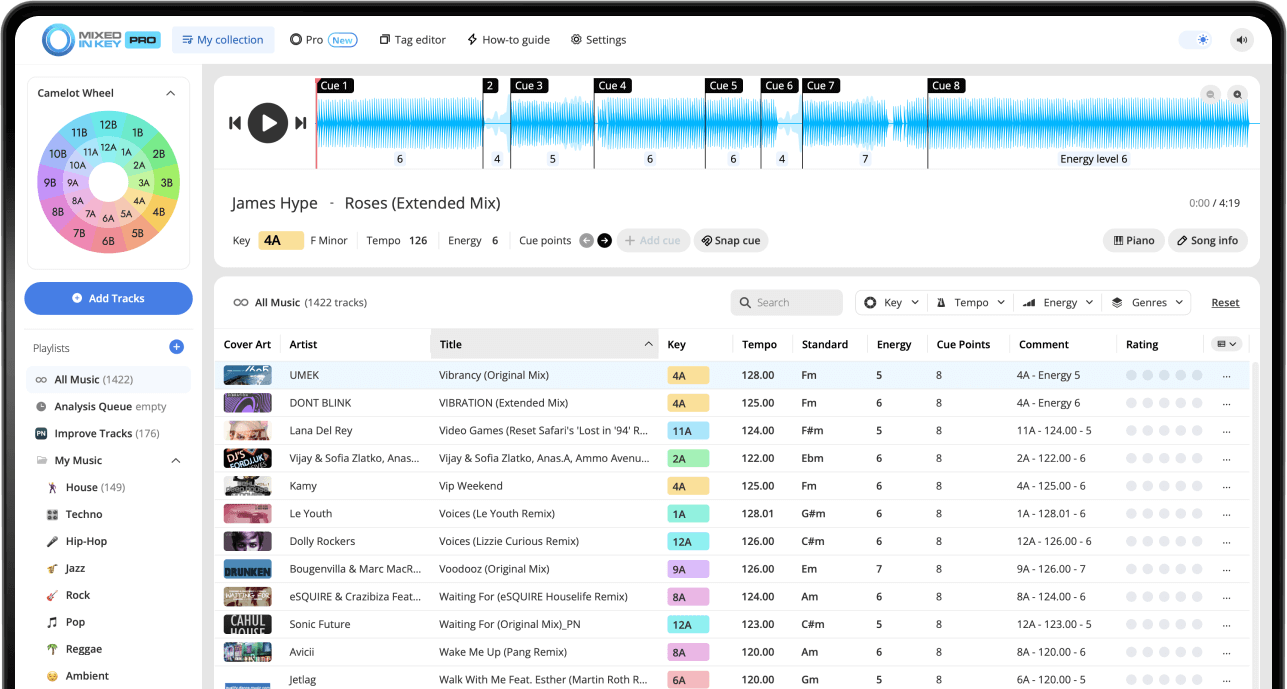
Set Up Mixed In Key With Your DJ Software
Choose your DJ software below and follow its specific integration route. Mixed In Key 11 Standard and Pro analyze key, BPM, energy and cues, but each DJ app reads tags and imports cues differently. Confirm one local file in your performance setup before applying the settings to a large collection.
Key, BPM, energy and automatic Cue Points are included in Standard and Pro. Mashup suggestions, deck players, stems and key changes require Pro. Compare Standard and Pro.
Which DJ platform do you use?
Start with the guide for your primary DJ software. Each platform handles tags, Cue Points, beatgrids, and library updates differently.
Use the Rekordbox XML workflow, reload tags, and import the MIK Cue Points playlist.
Analyze Beat Grid and BPM first, then rescan ID3 tags after Mixed In Key finishes.
Analyze BPM and Beat Grid, close Traktor, then run Check Consistency afterward.
Prepare BPM and Beat Grid in Engine DJ, then reimport the updated track information.
Analyze BPM first, use the Serato option in Mixed In Key, then reload tags.
A safer setup workflow for every DJ platform
The exact menus are different for each application, but this order helps prevent missing tags, old Key results, and incorrectly aligned Cue Points.
Open your software guide
Review the instructions for your DJ software before changing your Mixed In Key settings.
Prepare BPM and Beat Grid
Let your DJ software prepare its BPM and Beat Grid first when the guide requires it.
Configure Mixed In Key
Set your Tag Options and enable the correct DJ Software integration settings.
Test a small folder
Use a small folder of local, writable files and back up any cues you want to keep. Confirm file paths, tag fields and the app-specific export option before analyzing the rest of your library.
Refresh your DJ library
Reload, rescan, reimport, or run Check Consistency according to your software guide.
Check tags and Cue Points
Check the key and comments columns first, then load the same file and inspect its cue positions. Reloading metadata and transferring Cue Points are separate processes. Use the matching app guide when one works and the other does not.
Use Mixed In Key with Rekordbox
Rekordbox uses separate workflows for tag information and Cue Points. Reloading tags brings in metadata, while Cue Points are imported through the Rekordbox XML workflow.
Rekordbox setup overview
- Enable the Rekordbox XML workflow.
- Add your music to Rekordbox and analyze BPM and Grid.
- Export your Rekordbox collection as an XML file.
- Connect that XML file in Mixed In Key.
- Set your Mixed In Key Tag Options.
- Analyze the same tracks in Mixed In Key.
- Return to Rekordbox and reload the track tags.
- Reload the Rekordbox XML section.
- Import the MIK Cue Points playlist.
Use Mixed In Key with Serato DJ Pro
Let Serato analyze Beat Grid and BPM first. Mixed In Key can then prepare Key, Energy Level, tags, and Cue Points for the Serato library.
Serato setup overview
- Add your music to Serato.
- Analyze Beat Grid and BPM in Serato first.
- Keep Serato Key analysis off if you want to use the Mixed In Key result.
- Open Mixed In Key Settings → Tag Options.
- Turn on Update Common Tags.
- Enable Update Custom Initial Key.
- Turn on Serato Cue Point export.
- Analyze the same tracks in Mixed In Key.
- Return to Serato and choose Rescan ID3 Tags.
- Show the Key and Comments columns and check the Cue Points.
Use Mixed In Key with Traktor Pro
Traktor should prepare BPM and Beat Grid first. Close Traktor completely before opening Mixed In Key, then run Check Consistency after analysis.
Traktor setup overview
- Add your music to the Traktor collection.
- Select the tracks and open the Analyze options.
- Choose Special, BPM, and Set Beat Grid.
- Close Traktor completely.
- Open Mixed In Key and set your Tag Options.
- Enable Traktor in the DJ Software settings.
- Enable Cue Point export if you want Mixed In Key Cue Points.
- Analyze the same tracks in Mixed In Key.
- Reopen Traktor and run Check Consistency.
- Show the Key Text and Comments columns.
Use Mixed In Key with Engine DJ
Engine DJ prepares the tempo and Beat Grid. Mixed In Key then writes your selected Key and Energy Level information into the track tags for use with Engine DJ and Denon hardware.
Engine DJ setup overview
- Open the Engine DJ settings.
- Go to Library and make sure Auto Analysis is on.
- Set the Key notation to Camelot.
- Add your tracks to Engine DJ.
- Select the tracks, right-click, and choose Analyze Tracks.
- Let Engine DJ prepare the tempo and Beat Grid.
- Open Mixed In Key Settings → Tag Options.
- Turn on Update Common Tags.
- Choose where Key and Energy Level should be written.
- Turn on Update Custom Initial Key.
- Analyze the same tracks in Mixed In Key.
- Return to Engine DJ and choose Reimport Track Information.
Use Mixed In Key with VirtualDJ
VirtualDJ prepares BPM and Beat Grid information first. Mixed In Key then updates Key, Energy Level, tags, and Cue Points before VirtualDJ reloads the updated files.
VirtualDJ setup overview
- Find your music folder in the VirtualDJ browser.
- Select the tracks.
- Go to Batch → Analyze for BPM, etc.
- Let VirtualDJ prepare its BPM and Beat Grid information.
- Open Mixed In Key Settings → Tag Options.
- Turn on Update Common Tags.
- Choose where Key and Energy Level should be written.
- Turn on Update Custom Initial Key.
- Open Mixed In Key Settings → DJ Software.
- Turn on the Serato option for the VirtualDJ Cue Point workflow.
- Analyze the same tracks in Mixed In Key.
- Return to VirtualDJ and choose Batch → Reload Tags.
- Load a track and check the Mixed In Key Cue Points.
Results not appearing in your DJ software?
Most integration issues come from skipping the first analysis step, choosing the wrong tag field, or forgetting the final library-refresh action.
Tags are not showing
Check Mixed In Key Tag Options and confirm that the selected fields are visible in your DJ software.
Old Key results are showing
Disable the DJ software’s own Key analysis when the guide recommends it, then rewrite or reload the tags.
Cue Points are missing
Confirm that the correct DJ Software export option is enabled and complete the platform-specific refresh or import step.
Cue Points are not aligned
Make sure the DJ software analyzed BPM and Beat Grid before Mixed In Key prepared the Cue Points.
Settings changed after analysis
Retag or export the existing tracks again in Mixed In Key, then refresh them in your DJ software.
Not sure the setup worked
Test one track by loading it into a deck and checking the Key field, Comments, Beat Grid, and Cue Points.
Common questions about connecting Mixed In Key to DJ software
Find answers about analysis order, tag updates, Cue Points, library refreshes, and the differences between each DJ software workflow.
A small test confirms that Mixed In Key is writing information to the fields you expect and that your DJ software is reading those updates correctly. Analyze 5–10 tracks, complete the final refresh or import step for your software, and check the Key, Energy Level, Comments, and Cue Points before processing your full library.
In these workflows, your DJ software prepares its own tempo and Beat Grid information first. Mixed In Key can then add its Key, Energy Level, tags, and Cue Points without replacing the grid workflow you already use. Preparing the Beat Grid first is especially important when you want the exported Cue Points to line up correctly.
Your DJ software may still be displaying information cached in its library. Complete the correct final step for your platform:
- Rekordbox: Reload the tags, then import Cue Points through the Rekordbox XML workflow.
- Serato: Select the tracks and choose Rescan ID3 Tags.
- Traktor: Run Check Consistency and view the Key Text column.
- Engine DJ: Select the tracks and choose Reimport Track Information.
- VirtualDJ: Select the tracks and choose Batch → Reload Tags.
Tags and Cue Points do not always use the same import process. First, confirm that the correct Cue Point export option is enabled under Mixed In Key’s DJ Software settings.
Rekordbox requires an additional XML import for Cue Points. Serato, Traktor, and VirtualDJ require their platform-specific library refresh step after Mixed In Key finishes. Load one of the tested tracks into a deck afterward to confirm that the Cue Points appear.
The exact location depends on the Tag Options you selected in Mixed In Key. Key may appear in the software’s Key or Initial Key field, while Key and Energy Level can also be written into Comments.
In Traktor, look for the Mixed In Key result in the Key Text column rather than the regular Key column. For every platform, make sure the relevant library columns are visible before deciding that the information is missing.
Yes. Update the Tag Options in Mixed In Key, then write the updated information to the tracks again. Afterward, complete the appropriate reload, rescan, reimport, consistency check, or XML import inside your DJ software so its library reads the new values.
For the workflow shown in the VirtualDJ tutorial, enable the Serato option under Mixed In Key’s DJ Software settings. After Mixed In Key finishes analyzing the tracks, return to VirtualDJ and choose Batch → Reload Tags. Then load a track to confirm that the updated information and Cue Points appear.
Yes. Prepare the tracks in Engine DJ before using them with your Denon DJ hardware. Let Engine DJ analyze the tempo and Beat Grid first, then use Mixed In Key to write the selected Key and Energy Level information. Finally, choose Reimport Track Information in Engine DJ so the updated tags appear in the library used by your hardware.
Start with a few tracks and confirm your integration.
Choose your DJ software, follow the tutorial, and check that your tags and Cue Points appear correctly before processing your full collection.
Updated