


How to Fix Missing Key or BPM Tags
Check the analysis, the tag field and the file your DJ app is reading. Test one local track before changing your whole library.
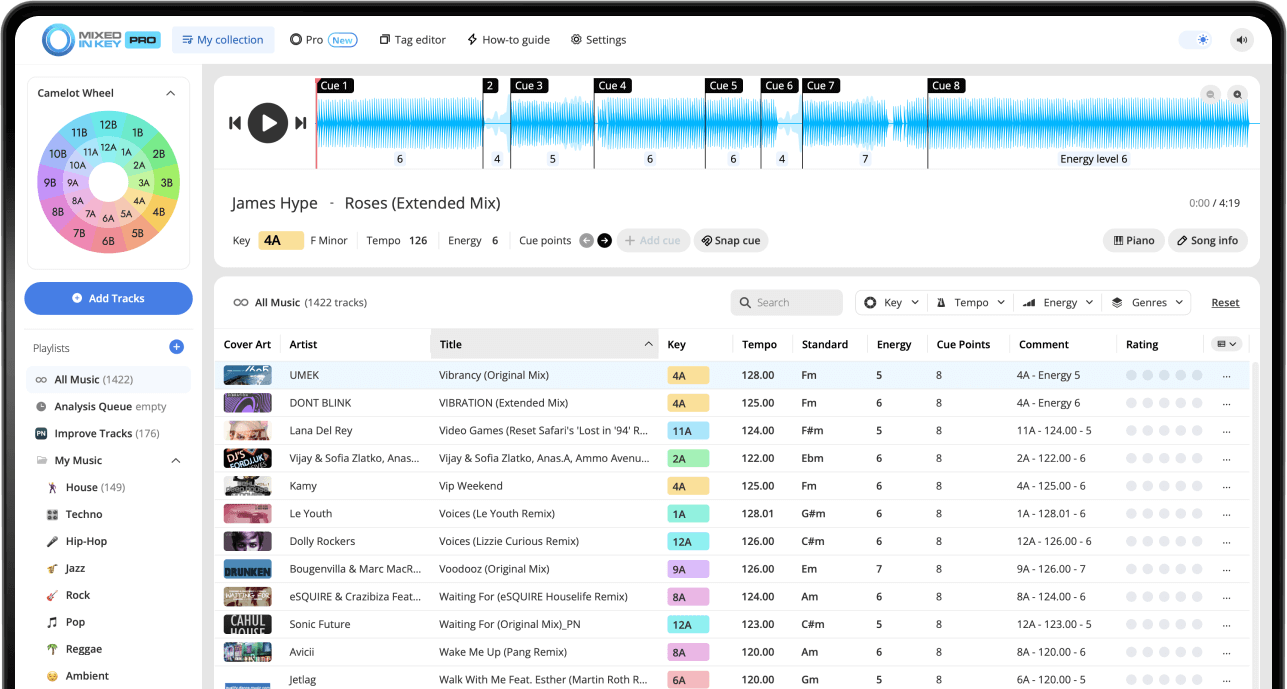
Key or BPM missing? Start with one track.
First check that the track has results in Mixed In Key. Then confirm your Tag Options, apply the tags to a writable local file, and refresh that same file in your DJ app. A result can be present in Mixed In Key while your DJ library still shows cached metadata.
Follow the troubleshooting checklist, or use the integration guide for your DJ app. Cue Point export is a separate setup.
Check your Mixed In Key Tag Options
In Mixed In Key, go to Settings → Tag Options. This is where you decide what information Mixed In Key writes to your files and where that information appears.
If your Key or BPM information is missing, the first thing to check is whether Mixed In Key is set to write the information into the field you are looking at in your DJ software.
For Key tags, check options like:
- Only write the Key
- Write Key and Energy Level
- Write Key and Tempo
- Write Key, Tempo, and Energy Level
- Update custom Initial Key
- Use Camelot Key notation in comment tags
For BPM tags, check options like:
- Update Tempo tags
- Write Key and Tempo
- Write Key, Tempo, and Energy Level
- Whether your DJ software is reading the Tempo field
- Whether the track already has an existing BPM value
Refresh or reload tags in your DJ software
After Mixed In Key writes tags, your DJ software may not show the new information immediately. Many DJ apps cache track metadata, which means you may need to refresh, reload, or re-import tag information.
The exact process can vary between Rekordbox, Serato, Traktor, and others, so follow the integration tutorial inside Mixed In Key for your specific DJ software.
If tags are missing, try this:
- Close and reopen your DJ software
- Refresh or reload track tags
- Check the correct library column
- Confirm the updated file is the same file your DJ software is using
Also check:
- Is the Key written to comments?
- Is it written to Initial Key?
- Is BPM written to Tempo?
- Is Energy Level written to comments, grouping, or another field?
Follow the integration tutorial for your DJ software
Rekordbox, Serato, Traktor, and others can each handle tags, Cue Points, and library updates differently. That is why Mixed In Key includes integration tutorials inside the software.
If Key or BPM tags are missing, open the tutorial for the DJ software you already use and confirm that the full workflow has been completed.
Why this matters
Some DJ software workflows require a specific refresh, reload, XML, playlist, or library update step before new information appears.
What to confirm
Confirm where your DJ software reads Key, BPM, comments, custom tags, and Cue Points, then make sure your Mixed In Key Tag Options match that workflow.
Check whether Mixed In Key can write to your files
If Mixed In Key can analyze a track but cannot write updated tags to the file, the problem may be file permissions or file location. This can happen if files are read-only, stored in a protected folder, or located on a drive that does not allow writing.
For the most reliable workflow, keep the tracks you want to tag in a local folder where your computer and Mixed In Key have permission to modify the files.
Check for:
- Read-only files
- Protected folders
- External drives with permission issues
- Cloud-synced folders that may delay file updates
- Duplicate files in different locations
Try this:
- Move a test file to a local folder
- Analyze it again in Mixed In Key
- Confirm the tag appears in the file
- Refresh tags in your DJ software
Check the file format you are tagging
Different audio file formats can handle metadata differently. If tags are not appearing, check whether the file format supports the tag workflow you are trying to use.
In many DJ workflows, formats like MP3 and AIFF are commonly used for metadata tagging. If you are using WAV files, be careful because metadata support can be more limited or less consistent across DJ software.
Re-analyze or rewrite tags after changing settings
If you changed your Tag Options after analyzing tracks, you may need to re-analyze the tracks or rewrite the tags so the new settings are applied to the files.
This is especially important if your old settings wrote Key to one field, but your new settings write Key, BPM, or Energy Level to a different field.
When to re-check tags
- After changing Tag Options
- After changing where Key is written
- After enabling Tempo tag updates
- After moving files to a new location
- After refreshing your DJ software library
Good test workflow
Test with one or two tracks first. Confirm that the tags appear correctly before applying the same settings to a large music library.
Tags and Cue Points use different workflows
Key and BPM are metadata fields. Cue Points mark positions in a track and use the supported DJ integration’s export/import process. If the tags appear but the cues do not, troubleshoot that integration rather than repeatedly retagging the files.
Six checks before you retag a library
Confirm analysis
Open the track in Mixed In Key and check its Key and BPM results.
Choose the intended tag fields
Open Settings → Tag Options. Check where Key is written and whether Tempo tag updates are enabled for your workflow. Use the field your DJ app actually reads.
Check the file
Use a copy of one locally stored track. Confirm that it is writable and that the file format supports the metadata workflow in your integration guide.
Apply the chosen settings
If you changed Tag Options after analysis, follow the current Mixed In Key instructions to apply the tags again. Confirm the result on your test file.
Refresh the DJ library
Follow your DJ app’s integration guide to reload or refresh metadata. Display the matching Key, BPM or Comments column and check the same file path.
Handle Cue Points separately
If Key and BPM appear but cues do not, use the supported Cue Point export/import workflow for your DJ app. Reloading tags alone is not a Cue Point export.
Common mistakes that make tags look missing
Looking in the wrong field
Mixed In Key may have written the Key to comments, Initial Key, song name, or another field. Check your Tag Options and the matching column in your DJ software.
Forgetting to refresh tags
DJ software may not show updated metadata until you refresh, reload, or re-import the tag information.
Changing settings after analysis
If you changed Tag Options after analyzing tracks, you may need to re-apply the tags or re-analyze the files.
Confusing Cue Points with tags
Key and BPM tags are metadata. Cue Points can require a different workflow depending on your DJ software.
Frequently asked questions
Check Settings → Tag Options in Mixed In Key and confirm where Key information is being written. Then refresh or reload tags inside your DJ software.
Check whether Tempo tag updates are enabled in Mixed In Key, then refresh or reload the track metadata in your DJ software.
The Key may be written to a field your DJ software is not currently displaying, or the DJ software may need to refresh its tags. Check the integration tutorial inside Mixed In Key for your setup.
Not always. Key and BPM are metadata tags, while Cue Points may require a separate export or import workflow depending on your DJ software.
Yes. If you are troubleshooting tags, test with one or two local files first. Confirm that the tags appear correctly before applying the workflow to a large library.
Use Mixed In Key to analyze and organize your DJ library.
Check your Tag Options, write Key, BPM, Energy Level, and Cue Point information, then refresh your DJ software so your library is ready to use.
Updated