


How to Use Mixed In Key
Analyze your tracks before the gig, confirm the tags and cues in your DJ app, and use the results to prepare playlists and transitions.
How to Use Mixed In Key
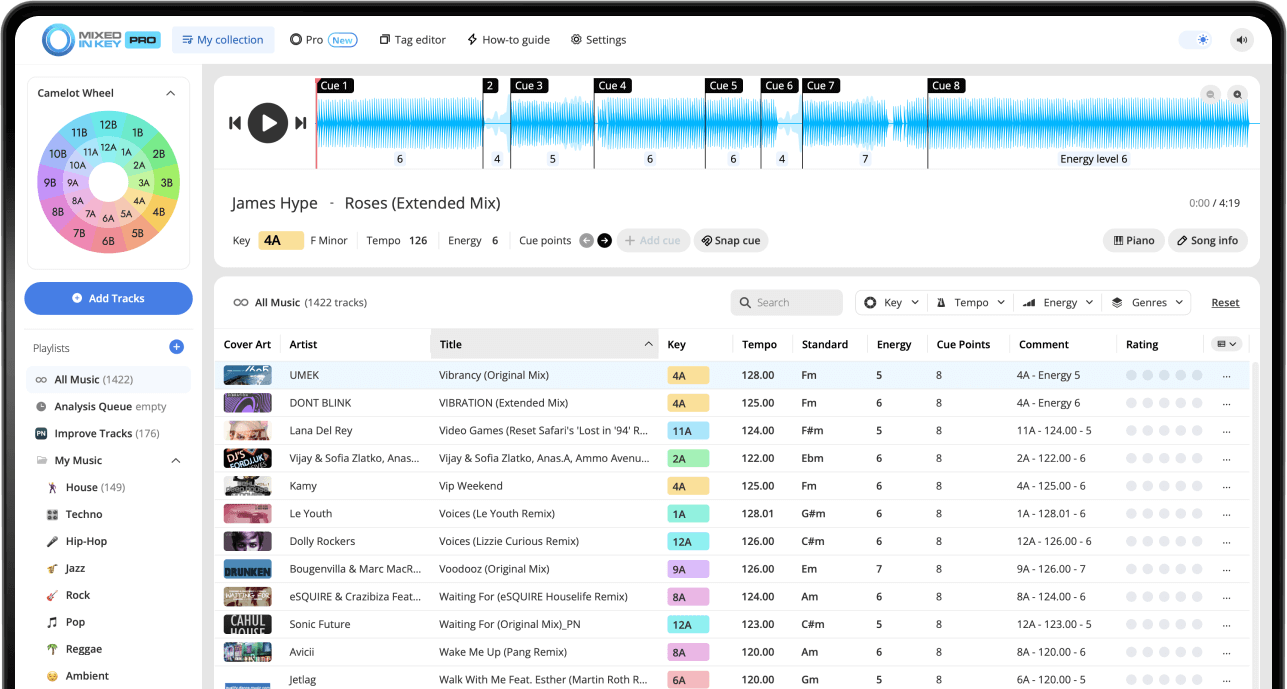
Start with the integration guide for your DJ software and choose your tag settings. Add local tracks to Mixed In Key 11, analyze them and review key, BPM, energy and cue positions. Refresh metadata and transfer cues using the appropriate integration. Standard provides the library analysis; Pro adds tools for auditioning combinations and mashup ideas.
Key, BPM, energy and automatic Cue Points are included in Standard and Pro. Mashup suggestions, deck players, stems and key changes require Pro. Compare Standard and Pro.
How to use Mixed In Key
Review the integration tutorial for your DJ software
Before analyzing a large batch of tracks, open the integration tutorial inside Mixed In Key for the DJ software you already use. Rekordbox, Serato, Traktor, and others can each have a different workflow for tags, Cue Points, and library updates.
Reviewing the tutorial first helps you understand the right settings before Mixed In Key writes analysis results to your files or prepares Cue Points for your DJ software.
Set your tag preferences
Open the settings in Mixed In Key and choose how you want your analysis results to appear. You can customize how Key, BPM, Energy Level, and other metadata are written to your files and shown in your DJ software.
Setting this up before analysis helps keep your library organized from the beginning, especially if you want a clean and consistent ID3 tagging scheme.
Add your tracks or folders to Mixed In Key
Add the tracks, folders, or playlists you want to prepare. You can analyze your full music library, a new batch of downloads, or a specific crate you are preparing for a set.
If you have a large library, you can start with your newest or most-used tracks first, then analyze the rest over time.
Analyze your music
Let Mixed In Key analyze your songs. After analysis, you can review useful DJ information such as Key, BPM, Energy Level, and Cue Points.
These results give you a better foundation for organizing your library, building playlists, finding compatible songs, and preparing DJ sets.
Review the analysis results
Look through your analyzed tracks and check the Key, BPM, Energy Level, and Cue Points. This helps you understand how each song can fit into your playlists and DJ sets.
Use Key for harmonic compatibility, BPM for tempo planning, Energy Level for set flow, and Cue Points for intros, breakdowns, drops, and mix-out sections.
See the results in your DJ software
Refresh metadata for the same files you analyzed and show the intended key or comments columns. Follow the separate cue-export route if you want Cue Points. Load a test track and confirm both the displayed values and the cue positions.
Use the results to prepare better playlists and sets
Use the analysis results to find songs that work well together in terms of Key, BPM, and Energy Level. This is useful when building playlists for your next gig, DJ set, livestream, radio show, or practice session.
Cue Points can help you jump to useful parts of each track, such as intros, breakdowns, drops, and mix-out sections, so you can test combinations faster and prepare stronger transitions.
How to use the Mixed In Key results
Mixed In Key gives you several types of information that work together. Each result helps with a different part of your DJ preparation workflow.
Use Key for harmonic compatibility
Key helps you find songs that are more likely to sound smooth together. Mixed In Key can show Key results in Camelot notation, such as 8A or 9B. A means minor, and B means major.
Use BPM for tempo planning
BPM helps you compare the tempo of different songs. This makes it easier to build playlists that move naturally instead of jumping too far in tempo too quickly.
Use Energy Level for set flow
Energy Level helps you decide whether the next song should lift the room, maintain the current feeling, or bring the set down into a smoother moment.
Use Cue Points for navigation
Cue Points help you prepare useful places inside each track, such as intros, breakdowns, drops, and mix-out sections.
See the results in your DJ software
Mixed In Key is most useful when the results are available where you actually prepare and perform. After setup and analysis, bring the results into your DJ software workflow.
Prepare in Mixed In Key, DJ in your software
Bring the Key, BPM, Energy Level, and Cue Point information into your DJ software workflow, such as Rekordbox, Serato, Traktor, and others.
Use the integration tutorials inside Mixed In Key to confirm the correct setup for tags, library updates, and Cue Points before you analyze or export a large batch of tracks.
What can you do after analysis?
Once your tracks are analyzed and your DJ software workflow is set up, Mixed In Key becomes part of your regular music preparation routine.
Prepare new music before a gig
Analyze new downloads, clean up tags, check Key and BPM, review Energy Level, and prepare Cue Points before adding tracks to your main playlists.
Build harmonic playlists
Use Camelot Key results to find songs that are more likely to sound smooth together, then compare BPM and Energy Level to choose the best options.
Clean up a messy library
Use tag settings to keep your metadata more consistent, so your music library is easier to browse in Rekordbox, Serato, Traktor, and others.
Prepare Cue Points for sets
Use Cue Points to prepare useful places inside your tracks, such as intros, breakdowns, drops, and mix-out sections.
Common Mixed In Key setup mistakes
Analyzing before checking the integration tutorial
Review the tutorial for your DJ software first. This helps you choose the right tag and Cue Point workflow before analyzing a large batch of tracks.
Not setting tag preferences first
If you want a clean library, decide how your tags should look before analyzing. This helps keep Key, BPM, Energy Level, and metadata consistent.
Expecting Cue Points to appear automatically everywhere
Writing key and energy tags does not automatically import cues into every DJ app. Use the specific integration tutorial, check the supported file format and export settings, and test one track before processing the whole library.
Only looking at Key
Key is important for harmonic mixing, but you should also check BPM, Energy Level, Cue Points, genre, arrangement, and how the tracks sound together.
Frequently asked questions
Start by reviewing the integration tutorial for your DJ software inside Mixed In Key. Then set your tag preferences, add your tracks, and analyze your music.
Yes. It is best to set your tag preferences before analyzing a large music library. This helps your Key, BPM, Energy Level, and metadata appear in a consistent format.
Yes. Bring the Key, BPM, Energy Level, and Cue Point information into your DJ software workflow, such as Rekordbox, Serato, Traktor, and others. Follow the integration tutorial inside Mixed In Key for your specific setup.
Mixed In Key can help you see useful DJ information such as Key, BPM, Energy Level, and Cue Points, depending on your settings and workflow.
No. Cue Point workflows can vary between DJ apps. Review the integration tutorial inside Mixed In Key for your DJ software before analyzing or exporting a large batch of tracks.
Prepare your music library with better information.
Analyze your tracks, clean up your tags, review Key, BPM, Energy Level, and Cue Points, and use the results in your DJ software workflow.
Updated