


How to Export Cue Points to rekordbox
Use rekordbox for the beat grid, Mixed In Key for analysis and the XML route for cue transfer. Verify a small batch before importing the full collection.
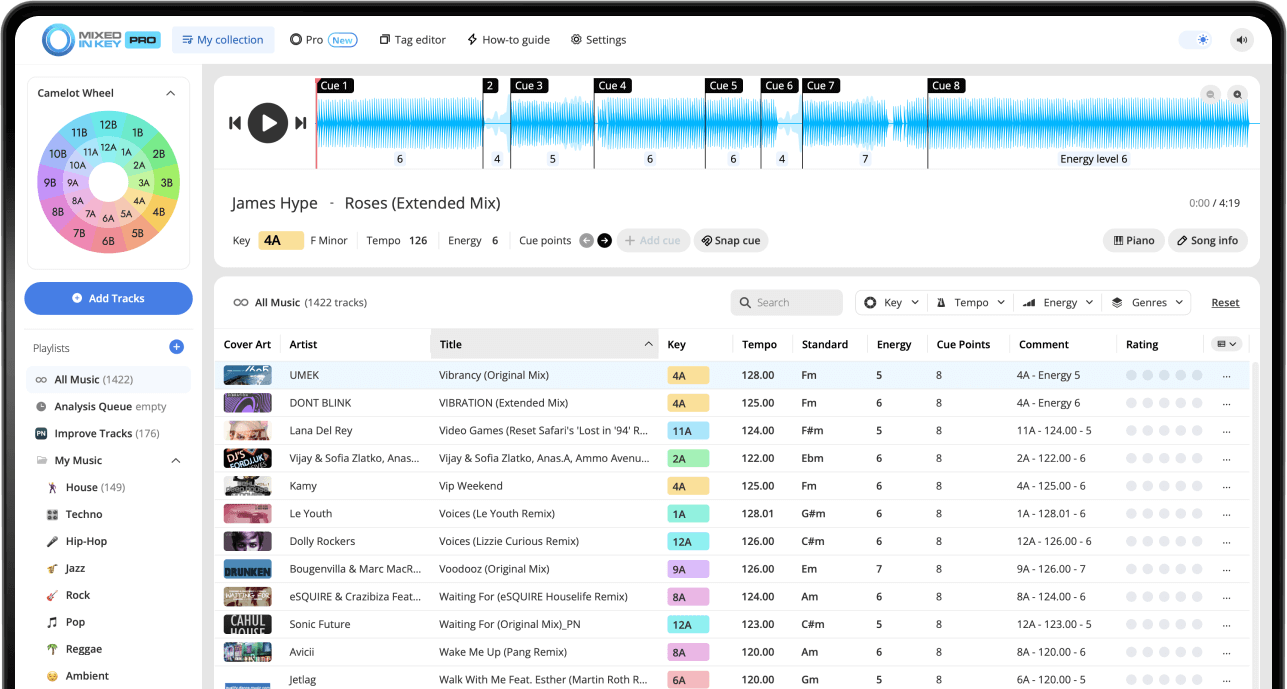
How to Export Cue Points to rekordbox
Prepare BPM and beat grids in rekordbox, export the collection XML and connect it in Mixed In Key’s DJ Software settings. Analyze the same local files, then refresh the XML section and import the MIK Cue Points playlist. Reload Tags updates metadata; it is a separate step from importing cues. Check the current integration tutorial for your installed versions.
Key, BPM, energy and automatic Cue Points are included in Standard and Pro. Mashup suggestions, deck players, stems and key changes require Pro. Compare Standard and Pro.
Watch the full Rekordbox Cue Points tutorial
This video walks through the complete Rekordbox XML setup, including how to connect Mixed In Key 11 with Rekordbox, export the XML file, analyze tracks, and import the MIK Cue Points playlist back into your Rekordbox collection.
Before you start
This workflow uses the Rekordbox XML file as the bridge between Rekordbox and Mixed In Key. Rekordbox exports your collection as an XML file, Mixed In Key reads and updates that file, and then Rekordbox imports the Cue Points from the XML section back into your collection.
The process has a few steps, but once it is set up correctly, you can use the same workflow whenever you add more tracks.
You will need:
- Mixed In Key 11
- Rekordbox
- Your music files added to Rekordbox
- A Rekordbox XML file saved on your computer
Best practices:
- Analyze BPM and grid in Rekordbox first
- Save the XML file in a local folder
- Avoid cloud-synced folders for the XML file
- Use AIFF or 320 kbps MP3 for best results
Set up Rekordbox XML
Start in Rekordbox. You need to make sure the Rekordbox XML section is visible and that Rekordbox knows where your XML file will be located.
Enable the Rekordbox XML view
In Rekordbox, open Preferences and go to the View tab. Enable the Rekordbox XML option so the XML section appears in the left-side browser tree.
Check the Advanced XML settings
Go to the Advanced tab in Rekordbox Preferences. Under the Rekordbox XML section, make sure BPM change points are selected.
The imported library location may be blank at first. After you export your XML file, come back here and select the XML file location.
Analyze your tracks for BPM and grid in Rekordbox
Add your music to Rekordbox and analyze the tracks for BPM and grid only. If your tracks are already in Rekordbox and already analyzed for BPM and grid, you can continue to the next step.
Export your Rekordbox collection as an XML file
After your tracks are in Rekordbox and analyzed for BPM and grid, export your Rekordbox collection as an XML file.
Export the XML file from Rekordbox
In Rekordbox, go to File and choose Export Collection in XML Format.
A good setup is to create a folder in your Documents folder called Rekordbox, then save the file as rekordbox.xml.
Point Rekordbox to the XML file
After exporting the XML file, go back to Rekordbox Preferences, open the Advanced tab, and set the imported library location to the XML file you just exported.
This connects the Rekordbox XML section in the browser to the file that Mixed In Key will use.
Set up Mixed In Key for Rekordbox
Once the Rekordbox XML file is exported, open Mixed In Key and connect it to that XML file.
Choose your tag settings
In Mixed In Key, open Settings and review your tag options. You can choose how you want Key, BPM, and other tag information to appear in Rekordbox.
If you use Pioneer hardware, enabling the option to add a zero to single-digit Camelot numbers can help keys sort more cleanly, such as 01A instead of 1A.
Enable the Rekordbox integration
In Mixed In Key Settings, go to the DJ Software tab. Locate the Rekordbox XML file you exported earlier and select it.
This links Mixed In Key to the same XML file used by Rekordbox. Now turn on the Rekordbox option to the left.
Analyze your tracks in Mixed In Key
Add your tracks to Mixed In Key and allow the analysis to complete. Mixed In Key will analyze your songs and export Cue Points while processing the tracks.
After analysis, you will be ready to reload the XML section in Rekordbox and import the MIK Cue Points playlist.
Import Mixed In Key Cue Points into Rekordbox
This is the step many users miss. Reloading tags brings tag information into Rekordbox, but it does not import the Cue Points. Cue Points need to be imported from the Rekordbox XML section.
Reload tags in Rekordbox
Reload tags for the same local files to refresh key and comment fields. This does not import the MIK Cue Points playlist. Check the XML section separately when tags appear but cues are missing.
Reload the Rekordbox XML section
In the left-side browser tree, locate the Rekordbox XML section. Click the reload button so Rekordbox refreshes the XML information.
Find the MIK Cue Points playlist
Under the Rekordbox XML section, look for the playlist called MIK Cue Points.
This playlist contains the Cue Point information created by Mixed In Key.
Import the playlist into your collection
Import a test track from the MIK Cue Points playlist and load it on a deck. Check the intro, drop and mix-out positions against the beat grid before importing a larger batch. Review overwrite behavior first if the track already has cues.
How to add new songs later
Once your first setup is working, you can use a shorter workflow when adding new songs to Rekordbox and Mixed In Key 11.
Add the new tracks to Rekordbox
Add your new tracks to Rekordbox and let Rekordbox analyze them for BPM and grid.
Export the Rekordbox XML file again
In Rekordbox, go to File and choose Export Collection in XML Format. Save it to the same XML file location and replace the existing file when asked.
Add the new tracks to Mixed In Key 11
Add the same new tracks to Mixed In Key 11 and allow analysis to complete. Mixed In Key will update the XML file with the new Cue Point information.
Refresh the XML section in Rekordbox
In Rekordbox, press the refresh or reload XML button in the left-side Rekordbox XML section.
Import only the newly added tracks
Choose MIK Cue Points from the Rekordbox XML drop-down menu, sort the playlist by date added, select the newly added tracks, right-click, and choose Import to Collection.
Sorting by date added helps you avoid importing the full XML playlist again when you only need the new tracks.
Common Rekordbox Cue Point export issues
My tags appear, but my Cue Points do not
Reloading tags does not import Cue Points. Go to the Rekordbox XML section, reload the XML file, find the MIK Cue Points playlist, and import it into your collection.
My Cue Points are not aligned correctly
Make sure you analyze the tracks for BPM and grid in Rekordbox before adding them to Mixed In Key. This helps the Cue Points line up correctly with the Rekordbox grid.
No Cue Points are exported
If Rekordbox automatically added memory cues, turn on the option in Mixed In Key to overwrite existing Cue Points. Otherwise, Mixed In Key may not export new Cue Points over existing ones.
The XML file is not updating correctly
Save the Rekordbox XML file in a local folder that is not synced to cloud storage and not stored on an external hard drive.
I am using WAV files
Cue Point export and tagging are not compatible with WAV files. For best results, use AIFF files for lossless quality or regular 320 kbps MP3 files.
I added more songs, but they are not showing
Export the Rekordbox XML file again, replace the previous XML file, analyze the new songs in Mixed In Key 11, reload the XML section in Rekordbox, then import the newly added tracks from the MIK Cue Points playlist.
Frequently asked questions
Tags and Cue Points are imported separately. Reloading tags brings tag information into Rekordbox, but Cue Points need to be imported from the MIK Cue Points playlist inside the Rekordbox XML section.
Yes. Rekordbox needs to export your collection as an XML file first. Mixed In Key uses that XML file to add Cue Point information, and Rekordbox imports the MIK Cue Points playlist from that XML section.
Yes. For Cue Point alignment, analyze your tracks for BPM and grid in Rekordbox before adding them to Mixed In Key.
Cue Point export and tagging are not compatible with WAV files. For best results, use AIFF files for lossless quality or regular 320 kbps MP3 files.
Add the new tracks to Rekordbox, analyze BPM and grid, export the XML file again, analyze the new tracks in Mixed In Key 11, reload the XML section in Rekordbox, then import only the new songs from the MIK Cue Points playlist.
Analyze your tracks with Mixed In Key 11.
Export Cue Points, Key, BPM, and Energy Level information into your DJ workflow so your Rekordbox library is easier to prepare and use.
Updated