


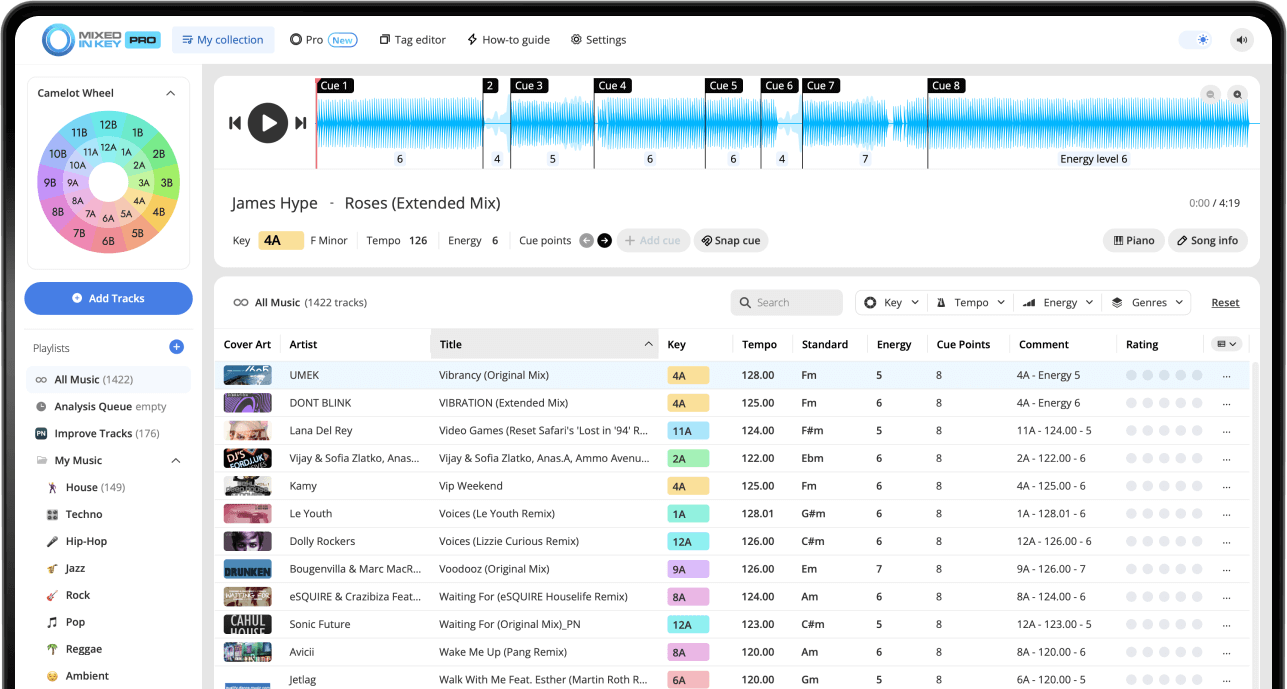
How do you add Key and BPM tags to songs?
In Mixed In Key, follow the integration tutorial for your DJ software, choose the fields and notation you want under Settings → Tag Options, then analyze your tracks. Refresh or reload the file tags in your DJ app to see the results.
Try a few tracks first and check how the tags appear in your DJ app before processing a large library. Keep a copy of any comments or other metadata you need before choosing options that overwrite those fields.
Review your DJ software integration first
Before analyzing a large batch of tracks, open the integration tutorial inside Mixed In Key for the DJ software you already use. Rekordbox, Serato, Traktor, and others can each handle tags, Cue Points, and library updates differently.
Reviewing the tutorial first helps you understand which tag settings make sense for your workflow before Mixed In Key writes information into your files.
Use Tag Options to control how results are written
In Mixed In Key, go to Settings → Tag Options to choose how analysis results should be written into your music files. This screen controls where Key, BPM, Energy Level, and related metadata appear after analysis.
The best option depends on how you like to browse your library. Some DJs prefer to see Camelot Key in the comments field. Others prefer Key and Energy Level together, or want BPM updated in the Tempo tag.
Common tag options include:
- Only write the Key
- Only write the Energy Level
- Write Key and Energy Level
- Write Key, Tempo, and Energy Level
- Update custom Initial Key
- Update Tempo tags
You can also choose where to write it:
- In front of the artist name
- In front of the song name
- At the end of the song name
- In front of the comment
- Overwrite the comment
Choose where Key information should appear
Mixed In Key gives you several choices for where Key information should be written. This lets you decide how visible the information should be when browsing your library.
For example, you may want the Camelot Key written in the comment field, or you may want it added to the song name so it is visible in a specific DJ software layout.
In front of the artist name
This makes the Key highly visible, but it changes how artist names appear in your library.
Example: 10A – Axwell
In front of the song name
This makes the Key visible while browsing track titles, but it changes the title display.
Example: 10A – Feel the Vibe
At the end of the song name
This keeps the original title first and adds the Key after the song name.
Example: Feel the Vibe – 10A
In front of the comment
This keeps artist and title cleaner while storing the Key inside the comment field.
Example: 10A – www.Beatport.com
Overwrite the comment
This replaces the existing comment with the Key value. Use this only if you do not need the current comment information.
Example: 10A
Use the Initial Key field
The custom Initial Key option stores the song’s Key in the dedicated Key field that can be viewed by DJ software such as Serato, Traktor, and others.
Useful Mixed In Key tag settings to understand
The Tag Options screen also includes additional settings that can help keep your library consistent. These options are useful when you want Key, BPM, and Energy Level to appear in a predictable way across your tracks.
Add a zero to single-digit Camelot numbers
This writes values like 05A instead of 5A. Some DJs prefer this because it can make Camelot values sort more neatly in certain library views.
Update custom Initial Key
This stores the song’s Key in a dedicated Key field, which is useful when your DJ software can read and display that field.
Update Tempo tags
This lets Mixed In Key update the song’s Tempo tag with the detected BPM, depending on your settings and file format.
Write Energy Level in front of grouping
This can make Energy Level visible in a grouping field, which is helpful if you use Energy Level while organizing playlists or crates.
Overwrite Label with Energy
This writes Energy Level into the Label field. Use this only if that field is not already important to your workflow.
Use Camelot Key notation in comment tags
This keeps your comment tags in Camelot notation, which is the easiest format for harmonic mixing with the Camelot Wheel.
How to add Key and BPM tags with Mixed In Key
Review the integration tutorial for your DJ software
Before analyzing a large batch of tracks, open the integration tutorial inside Mixed In Key for the DJ software you use. This helps you understand the correct workflow for tags, Cue Points, and library updates.
Open Settings and go to Tag Options
In Mixed In Key, open the Settings screen and select Tag Options. This is where you decide how Key, BPM, Energy Level, and related information should be written into your files.
Choose what Mixed In Key should write
Choose whether you want Mixed In Key to write only the Key, only the Energy Level, Key and Energy Level, Key and Tempo, or Key, Tempo, and Energy Level.
A common DJ-friendly setup is to write Key and Energy Level together so you can quickly compare harmonic compatibility and track intensity.
Choose where the information should appear
Decide whether the Key should appear in the artist name, song name, comment field, or another tag field. Choose the option that is easiest to read in your DJ software.
Enable custom Initial Key or Tempo tags if needed
If your DJ software reads the Initial Key field, enable the custom Initial Key option. If you want Mixed In Key to update BPM information, use the Tempo tag option.
Add your tracks and analyze them
Add your tracks, folders, or playlists to Mixed In Key. After analysis, Mixed In Key can write the selected Key, BPM, Energy Level, and tag information according to your settings.
Refresh or reload tags in your DJ software
After analysis, open your DJ software and refresh or reload the tags so the updated information appears in your library. The exact process can vary between Rekordbox, Serato, Traktor, and others.
Use the tags to build better playlists
Use Key to find harmonically compatible songs, BPM to compare tempo, Energy Level to shape the flow of the set, and Cue Points to test useful sections.
Use Key and BPM tags in your DJ software
Once tags are written and refreshed, your DJ software can show the updated information in your library. This makes it easier to sort songs, build playlists, and find tracks that work well together.
Bring the Key, BPM, Energy Level, and Cue Point information into your DJ software workflow, such as Rekordbox, Serato, Traktor, and others.
Sort by Key
Use Key or Camelot notation to find harmonically compatible songs and avoid clashing Keys.
Sort by BPM
Use BPM to group tracks by tempo range and build playlists that move naturally.
Use Energy Level
Use Energy Level to decide whether the next song should lift, hold, reset, or change the mood of the set.
Use Cue Points
Use Cue Points to jump to intros, breakdowns, drops, and mix-out sections while testing songs together.
Common mistakes when adding Key and BPM tags
Analyzing before checking Tag Options
Set your tag preferences first so Mixed In Key writes information in the format you actually want.
Overwriting fields you still need
Be careful with options that overwrite comments, labels, or other fields if those fields already contain information that matters to your workflow.
Forgetting to refresh tags
After Mixed In Key writes tags, your DJ software may need to refresh or reload the track information before the new tags appear.
Using inconsistent tag formats
Choose one tagging scheme and use it consistently. A consistent library is easier to search, sort, and prepare.
Frequently asked questions
Open Mixed In Key, go to Settings, then choose Tag Options. This is where you choose what information should be written and where it should appear in your tags.
Yes. Mixed In Key includes an option to update Tempo tags with detected BPM information, depending on your settings and workflow.
Yes. Mixed In Key can write Key information in Camelot notation, such as 8A or 9B, depending on your tag settings.
It depends on your workflow. Writing Key into the song name makes it very visible, while writing it into comments can keep artist and title fields cleaner. Choose the option that is easiest to browse in your DJ software.
Your DJ software may need to refresh or reload the tags after Mixed In Key writes them. The exact process can vary between Rekordbox, Serato, Traktor, and others.
Add Key, BPM, and Energy Level tags with Mixed In Key.
Set your Tag Options, analyze your tracks, write cleaner metadata, and use the results inside your DJ software workflow.