


How to Use Mixed In Key With Serato
Prepare the grid in Serato, analyze the same files in Mixed In Key and check both metadata and Cue Points before updating the full crate.
How to Use Mixed In Key With Serato
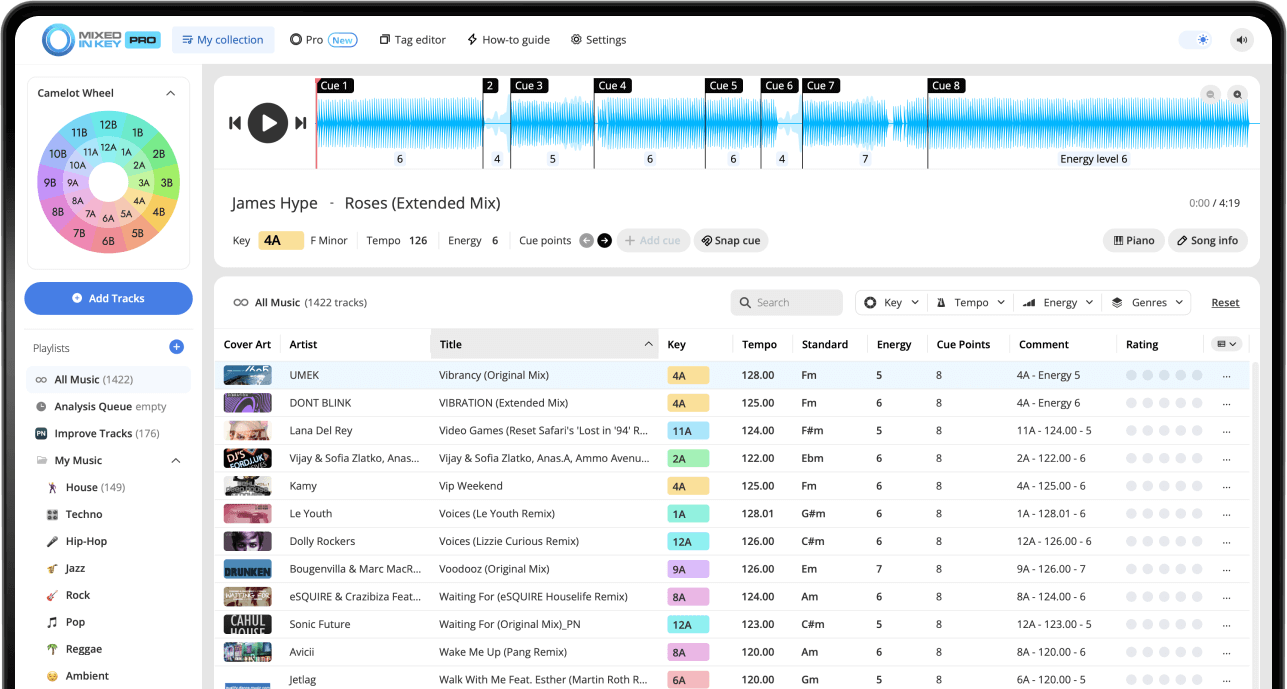
Analyze BPM and beat grids in Serato, configure Mixed In Key 11’s tags and Serato cue export, then analyze the same local files. Use Serato’s metadata refresh route to read the tags and load a test track to inspect the cues. Key, comments and cue transfer need separate checks; follow the current tutorial for your versions.
Key, BPM, energy and automatic Cue Points are included in Standard and Pro. Mashup suggestions, deck players, stems and key changes require Pro. Compare Standard and Pro.
Watch the Serato DJ Pro integration tutorial
This video shows the full Mixed In Key 11 and Serato DJ Pro workflow, including how to analyze Beat Grid and BPM in Serato, set up Mixed In Key Tag Options, enable Serato Cue Point export, rescan ID3 tags, and confirm Key results and Cue Points in Serato.
Why Serato should analyze Beat Grid and BPM first
The Serato workflow works best when Serato analyzes Beat Grid and BPM before the tracks are analyzed in Mixed In Key. This helps the Cue Points line up correctly with the Serato beatgrid.
After that, Mixed In Key can analyze the songs for Key, Energy Level, and Cue Points. Serato can then rescan the updated ID3 tags so the Mixed In Key information appears in your library.
Serato prepares:
- Beat Grid
- BPM
- Timing information for Cue Point alignment
Mixed In Key prepares:
- Key
- Energy Level
- Cue Points
- Camelot Key notation
- Tag information for Serato
Set Serato analysis to Beat Grid and BPM
Start in Serato DJ Pro. Open the settings cog and go to the analysis settings. Enable Set Beat Grid / BPM. If there is a separate Set Key option, leave Serato’s Key detection off so your Key results come from Mixed In Key.
The official Serato integration workflow recommends using Serato for Beat Grid and BPM analysis, while using Mixed In Key for Key, Energy Level, and Cue Points.
Turn on in Serato
- Set Beat Grid
- Set BPM
- Analyze the tracks before Mixed In Key
Avoid overwriting Mixed In Key results
If you want to keep Mixed In Key’s key result, check Serato’s analysis options before running another analysis pass. Prepare BPM and beat grids while preserving the key metadata you intend to use.
Add music to Serato and analyze the library
Add your songs to Serato DJ Pro first. Then use the Serato analysis tools to analyze the tracks for Beat Grid and BPM.
You can analyze the entire library or select the specific tracks you want to prepare. The important part is that Serato completes Beat Grid and BPM analysis before you add the same songs to Mixed In Key.
Drop your music into Serato
Add the songs, folders, crates, or playlist you want to prepare into Serato DJ Pro.
Analyze Beat Grid and BPM
In Serato, analyze the tracks with Beat Grid and BPM enabled. This helps Cue Points align correctly later.
Set up Mixed In Key for Serato
After Serato finishes Beat Grid and BPM analysis, open Mixed In Key 11 and set up your tag and DJ software options.
Turn on Update Common Tags
In Mixed In Key, go to Settings → Tag Options and enable Update Common Tags. This allows Mixed In Key to write information into common tag fields that Serato can read.
Choose your tag format
You can choose the tag format that fits your workflow. One useful setup is to write Key and Energy Level and place that information in the comments field.
Update custom Initial Key
Enable Update custom Initial Key so Mixed In Key can write the detected Key into the Key field that Serato can display.
Turn on Serato Cue Point export
In the DJ Software settings, turn on Cue Point export for Serato so Mixed In Key can prepare Cue Points for your Serato library.
Add the songs to Mixed In Key
Once the Mixed In Key settings are ready, add the same songs to Mixed In Key for analysis. Mixed In Key will analyze the tracks and prepare Key, Energy Level, and Cue Point information according to your settings.
Because Serato already analyzed Beat Grid and BPM first, the Cue Points should align correctly when you load the tracks in Serato.
Mixed In Key results include:
- Key
- Energy Level
- Cue Points
- Camelot notation
Use the results to:
- Find harmonically compatible songs
- Organize by intensity
- Prepare Cue Points for Serato
- Build stronger playlists and crates
Make sure the Key column is visible in Serato
After rescanning ID3 tags, make sure the Key column is visible in Serato so you can see the Key results while browsing your library.
If you also wrote Key and Energy Level into comments, you can use the Comments column to confirm that Serato is showing the Mixed In Key results.
Check the Comments column
A result such as 2A – Energy 7 in the Comments column means your Mixed In Key Key and Energy Level information is visible in Serato.
Check the Key column
Activate the Key column in Serato so you can see the detected Key directly while browsing tracks.
Check Mixed In Key Cue Points in Serato
After analysis and tag rescanning, load a track in Serato and check the Cue Points. Mixed In Key can automatically prepare up to 8 Cue Points for each track.
These Cue Points are designed to help you jump to useful parts of the song, such as intros, breakdowns, drops, and mix-out sections.
Why Beat Grid matters
The Cue Points line up correctly because Serato analyzed Beat Grid and BPM before the tracks were added to Mixed In Key.
If Cue Points do not show
Check Mixed In Key’s Cue Point export settings and make sure Serato export is enabled. You may also need to export Cue Points for existing files.
Complete Mixed In Key + Serato workflow
Add your music to Serato
Drop your tracks, folders, or crates into Serato DJ Pro.
Analyze Beat Grid and BPM in Serato
Open Serato analysis settings, enable Beat Grid and BPM analysis, and analyze the tracks. Keep Serato Key analysis off if you want to use Mixed In Key results.
Open Mixed In Key settings
Go to Settings → Tag Options and enable Update Common Tags.
Choose your tag format
Choose how Mixed In Key should write results. A useful Serato setup is to write Key and Energy Level to comments and update the custom Initial Key tag.
Enable Serato Cue Point export
In Mixed In Key’s DJ Software settings, turn on Cue Point export for Serato.
Add the songs to Mixed In Key
Add the same tracks to Mixed In Key and let the analysis complete.
Go back to Serato and rescan ID3 tags
In Serato, open the Files panel, select the tracks, and choose Rescan ID3 Tags.
Show the Key and Comments columns
Make sure the Key and Comments columns are visible so you can confirm the Mixed In Key results are showing in Serato.
Load a track and check Cue Points
Load the exact file you analyzed and inspect its cues against the beat grid and arrangement. Rescan ID3 Tags refreshes metadata, so troubleshoot the Serato cue-export setting separately if key tags appear but cues do not.
Common Serato integration issues
Key and Energy are not showing
Check Mixed In Key Tag Options. Make sure Key and Energy are enabled, the custom Initial Key tag is enabled, and the results are written to a field you can see in Serato, such as Comments.
Serato is showing old Key results
Serato may be showing previous results from another Key detection. Turn off Serato Key analysis, retag existing files in Mixed In Key if needed, then rescan ID3 tags in Serato.
Cue Points are not showing
Go to Mixed In Key’s Cue Point export settings, make sure Serato is enabled, and export Cue Points for existing files if the tracks were already analyzed.
Cue Points are not aligned
Make sure the tracks were analyzed for Beat Grid and BPM in Serato before they were analyzed or exported from Mixed In Key.
Tags still do not appear after analysis
Go back to Serato, select the files, and use Rescan ID3 Tags. Also confirm you are viewing the correct Serato columns.
You changed settings after analysis
If you changed Tag Options after analyzing your music, retag existing files in Mixed In Key, then rescan ID3 tags in Serato.
Frequently asked questions
Analyze Beat Grid and BPM in Serato first, analyze the same tracks in Mixed In Key, then go back to Serato and use Rescan ID3 Tags on the tracks.
If you want to use Mixed In Key results, use Serato for Beat Grid and BPM, and keep Serato Key analysis off so it does not replace or confuse the Key results you want from Mixed In Key.
Rescanning ID3 tags lets Serato read the updated tag information written by Mixed In Key, such as Key and Energy Level.
Yes. Enable Serato Cue Point export in Mixed In Key’s DJ Software settings. Mixed In Key can prepare up to 8 Cue Points for each track.
Cue Points align best when Serato analyzes Beat Grid and BPM before the tracks are analyzed or exported from Mixed In Key.
Analyze your tracks and bring better information into Serato.
Use Mixed In Key to prepare Key, Energy Level, and Cue Points, then rescan ID3 tags in Serato so your library is ready to mix.
Updated