


How to Use Wingman With Pro Tools
Start with a short phrase and confirm that Wingman receives it. Compare the exported part in your Pro Tools session before building the full arrangement.
Updated · Wingman 3.0
How to Use Wingman With Pro Tools
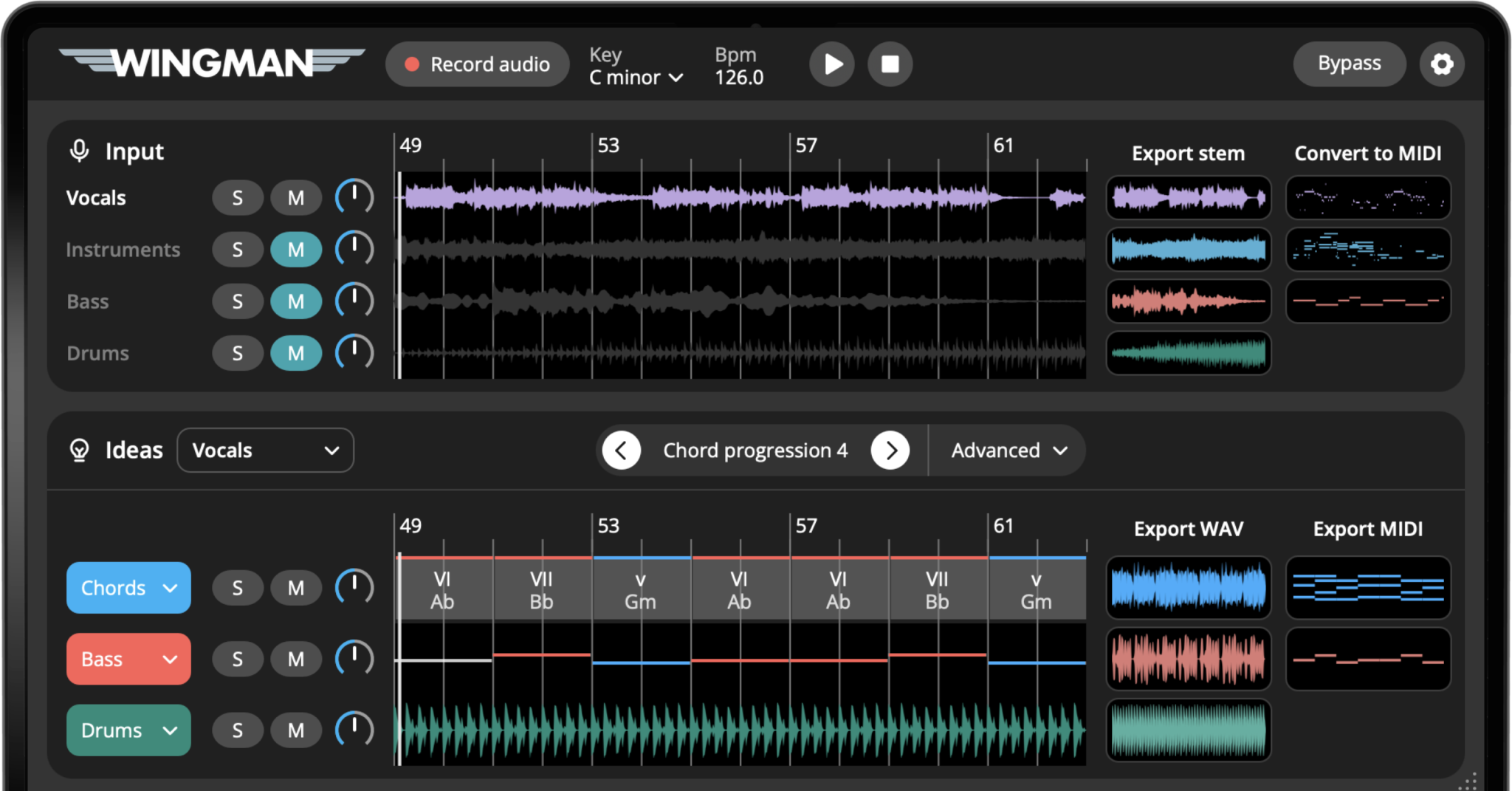
Wingman includes AAX support for Pro Tools. Install the current AAX component, open Wingman in your session and capture a short source phrase with Record Audio. Choose chords, bass, MIDI or stems, then export the available MIDI or audio result. Check timing and playback on the appropriate Pro Tools track. Follow the current installer and release notes if the plugin is missing.
See the workflow in Wingman 3
Follow the relevant part of the official walkthrough, then use the steps below with your own audio.
Watch this section in the official Wingman 3 walkthrough. The demonstration uses Logic; the musical controls are shown inside Wingman.
When to use Wingman in Pro Tools
Use this workflow when you are producing, remixing, writing, or editing inside Pro Tools and want a faster way to build chords, basslines, MIDI ideas, or stem-based arrangements from audio.
Good starting points
- A vocal track
- An acapella or vocal stem
- A melody or synth loop
- A full audio track for stem separation
- An unfinished Pro Tools session
What you can create
- Chord progressions from audio
- Basslines that fit your session
- Audio-to-MIDI ideas
- Separated stems for remixing
- MIDI or WAV exports for Pro Tools
What you need before you start
Current Wingman installer with its AAX component installed.
Pro Tools installed on your computer.
A Pro Tools session with audio you want to build around, convert, separate, or remix.
Keep setup checks specific to Pro Tools
The Wingman 3 walkthrough uses Logic to demonstrate capture, musical editing and export. Use the Pro Tools AAX setup for plugin placement; do not copy Logic’s Audio FX menu instructions literally.
Before recording, align the source with the session grid and match its tempo. Wingman 3 can warn of a mismatch between captured audio and DAW tempo. After capture, its drums, recorded guitars and expanded chord tools offer additional parts to develop before exporting back into the Pro Tools session.
How to use Wingman with Pro Tools
Open your Pro Tools session
Match the DAW tempo to the source and align the phrase with the grid before capturing it. If Wingman 3 reports a tempo mismatch, check the project tempo and source alignment, then record the phrase again.
Start by opening the Pro Tools session you want to work on. This can be a production, remix, vocal session, beat, or an arrangement that needs more musical ideas.
Choose the track or audio section that you want Wingman to listen to.
Add Wingman as an AAX plugin
Install the AAX component offered by the current Wingman installer and restart Pro Tools if needed. Open Wingman from the plugin insert menu for a suitable source track and confirm it receives the phrase you want. If it is missing, check the current installer and support guidance before changing the session routing.
Record audio into Wingman
Use Record Audio to capture the part of the Pro Tools session you want Wingman to hear. This could be a vocal phrase, melody, sample, loop, or full track section.
Wingman uses the recorded audio as the context for chord, bassline, stem, or MIDI workflows.
Choose the workflow you need
After recording audio, choose what you want to do next. You can generate chords, create a bassline, separate stems, convert audio to MIDI, or build a remix idea around a vocal.
Generate chords, basslines, MIDI, or stems
Use Wingman to create the musical or audio result you need. For example, you can generate chords from a vocal, create a bassline from the chords, separate a track into stems, or convert an audio phrase into MIDI.
This lets you use Wingman as a creative assistant inside the Pro Tools production workflow.
Edit the idea inside Wingman
Before exporting, refine the idea inside Wingman. You can try different chord options, adjust rhythms, choose sounds, use your own VST synths where supported, or add effects to shape the result.
The goal is to get the idea close enough that it becomes useful in your Pro Tools arrangement.
Export MIDI or WAV from Wingman
When the idea feels right, export it as MIDI or WAV. Use MIDI if you want to edit notes and instruments inside Pro Tools. Use WAV if you want to bring in the sound as audio.
You can use exported ideas as new tracks, supporting layers, remix parts, or arrangement starters.
Continue arranging in Pro Tools
Put rendered audio on an audio track and MIDI on a suitable instrument track with a sound assigned. Compare clip position, tempo, notes and effect tails with the Wingman preview. Save and reopen the session to check that the plugin state and exported parts are retained.
Ways to use Wingman in Pro Tools
Wingman can support several different Pro Tools workflows depending on what kind of session you are working on.
For vocal production
- Record a vocal phrase into Wingman
- Generate chords that support the vocal
- Add a bassline under the progression
- Export MIDI or WAV back into Pro Tools
For remixing
- Separate stems from a full track
- Use the vocal stem as the starting point
- Create new chords and basslines
- Arrange the remix inside Pro Tools
For audio-to-MIDI
- Capture a melody, loop, or sample
- Convert the audio into MIDI
- Drag the MIDI into Pro Tools
- Edit the notes in your session
For finishing ideas
- Start from an unfinished loop
- Find chords that match the audio
- Add rhythm, bounce, and effects
- Export the finished idea to Pro Tools
Tips for using Wingman in Pro Tools
Start with a clear audio source
Whether you are generating chords, separating stems, or converting audio to MIDI, clear source audio usually makes the workflow easier to judge and edit.
Use MIDI for flexibility
Export MIDI when you want to keep editing notes, timing, harmony, or instruments inside Pro Tools.
Use WAV when the sound is ready
Export WAV when you like the sound, effects, and rhythm inside Wingman and want to bring it into Pro Tools as audio.
Frequently asked questions
Yes. Wingman supports Pro Tools through AAX, so you can use it directly inside a Pro Tools session.
Pro Tools uses the AAX plugin format. Wingman includes AAX support; see the official release notes and use the current installer.
Yes. You can record audio from your Pro Tools session into Wingman, convert it to MIDI, and export the MIDI back into your DAW.
Yes. Wingman can separate stems such as vocals, bass, drums, and instruments, which you can then use in your Pro Tools session.
Yes. You can export MIDI or WAV from Wingman and continue editing, arranging, and mixing the idea inside Pro Tools.
Use Wingman directly inside Pro Tools.
Create chords, basslines, stems, MIDI, and audio ideas from inside your Pro Tools workflow.
Updated