


How to Build a Beat Around an Audio Loop in Wingman
Keep the strongest part of the loop. Add only the harmony and groove it needs, then take the useful parts into your arrangement.
Updated · Wingman 3.0
How to Build a Beat Around an Audio Loop in Wingman
Capture a clear phrase in Wingman 3.0 and choose a goal: add backing chords, create bass, extract editable notes or separate stems. Audition the new parts with the original loop, refine the chord timing and add drums where useful. Export the formats offered for each part and finish the beat in your DAW; generating parts does not create a finished arrangement.
See the workflow in Wingman 3
Follow the relevant part of the official walkthrough, then use the steps below with your own audio.
Watch this section in the official Wingman 3 walkthrough. The demonstration uses Logic; the musical controls are shown inside Wingman.
When to use this workflow
Use this workflow when you have an audio loop or sample that has a good vibe, but you need new musical material around it. This is useful for beatmaking, remixing, sampling, and turning unfinished ideas into fuller track sections.
Good starting points
- A melodic audio loop
- A vocal loop or acapella phrase
- A sample from a pack
- A full track section for stems
- An unfinished beat idea
What you can build
- New chords around the loop
- A bassline that supports the groove
- MIDI parts from the audio
- New sounds and instrument layers
- A beat idea you can finish in your DAW
What you need before you start
Wingman 3.0 installed as a plugin inside a supported DAW.
An audio loop, sample, vocal, acapella, or track section loaded in your DAW.
A goal for the new beat, such as creating chords, adding bass, converting the loop to MIDI, or building a remix-style idea.
Build the new groove in the Drums channel
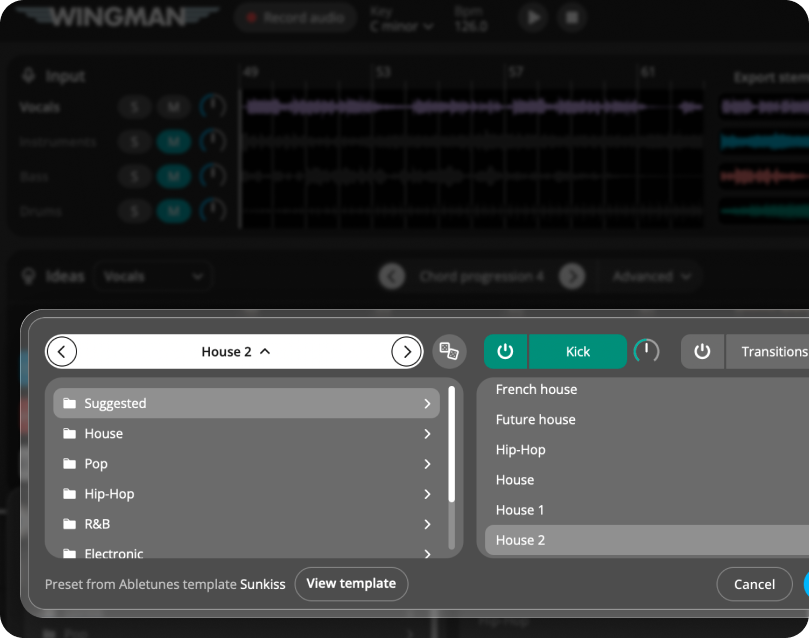
After the chords and bass support the loop, open Wingman 3’s Drums channel and compare a suitable kit with the source. Suggested options and genre browsing offer different starting points.
Mute the source drum stem if you want to replace its groove. Compare A, B and C variations for different sections and switch transitions on only where they help the arrangement. Export the full drum mix or individual kicks, tops and transitions so each element has a useful place in your DAW.
How to make a new beat around an existing audio loop
Choose the audio loop you want to build around
Match the DAW tempo to the source and align the phrase with the grid before capturing it. If Wingman 3 reports a tempo mismatch, check the project tempo and source alignment, then record the phrase again.
Start by choosing the loop, sample, vocal, acapella, or track section you want to use as the foundation. This could be a melodic loop, piano phrase, synth riff, vocal chop, drum-free sample, or full track section.
A 4-bar or 8-bar loop is a strong starting point because it is long enough to create movement but short enough to test ideas quickly.
Record the loop into Wingman
Add Wingman to the track and use Record Audio to capture the loop from your DAW. Wingman uses this audio as the context for creating new musical ideas.
Work from the captured phrase in Wingman 3
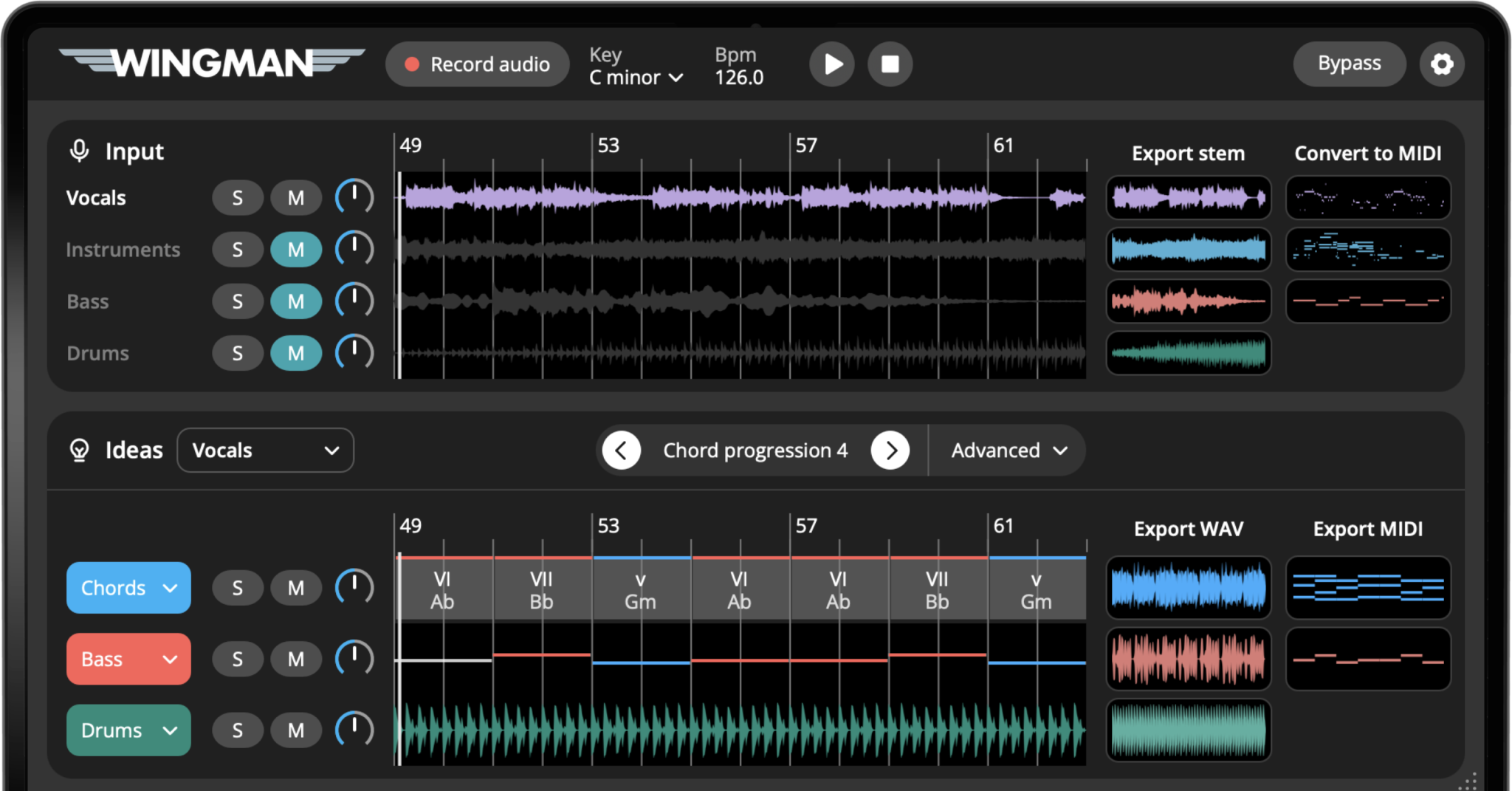
Check the source audio, then audition only the parts you need. Keep listening to the original phrase as you refine the result.
Create chords that fit the loop
Use Wingman to generate chord progressions that fit the audio loop. This helps you build harmonic support around the sample instead of guessing chords from scratch.
Choose a progression that supports the mood of the loop while giving the new beat its own direction.
Add a bassline under the chords
Audition the bass with the chord progression and kick. If the source loop already has bass, decide which low-end part to keep. Start simply and change notes or rhythm when the bass competes with the loop.
Convert the loop to MIDI if you want more control
If the loop contains a melody, synth, vocal, or instrument part you want to edit, use audio-to-MIDI to turn it into editable MIDI. This lets you change notes, sounds, rhythm, and arrangement.
MIDI is especially useful when you like the idea of the loop but want to make it feel more original.
Separate stems if the loop comes from a full track
If you are working from a full track section, use stem separation to isolate vocals, drums, bass, or instruments. This gives you more control over what you keep and what you replace.
For remix-style workflows, you can keep the vocal stem and build a new beat underneath it.
Shape the rhythm and sound
Use rhythm presets, accents, sounds, and effects to make the new parts feel like a beat. Try different chord rhythms, bass movement, instrument sounds, reverb, delay, filtering, or sidechain-style movement.
The goal is to make the new parts feel connected to the original loop while still giving the beat its own identity.
Export the new beat idea into your DAW
Choose MIDI for an editable-note part or WAV for rendered audio, where those options are offered. Put each file on the appropriate DAW track and compare timing and sound with the preview before extending the arrangement.
Different ways to build around an audio loop
The best approach depends on what kind of loop you start with and what kind of beat you want to make.
If the loop is melodic, try:
- Finding chords that match the melody
- Creating a bassline under the progression
- Changing the sound with new instruments
- Converting the melody to MIDI
- Adding new rhythm and bounce
If the loop has vocals, try:
- Building chords around the vocal
- Creating a new bassline underneath
- Leaving space for the main vocal phrase
- Using softer sounds under important lyrics
- Exporting MIDI for editing in your DAW
If the loop is from a full track, try:
- Separating vocals, drums, bass, and instruments
- Keeping one stem as the anchor
- Replacing the original harmony
- Creating a new bassline
- Building a remix-style beat around it
If the loop feels too simple, try:
- Adding chord rhythm
- Using a more active bassline
- Layering new sounds
- Adding effects for movement
- Exporting variations into your DAW
Tips for building better beats around loops
Do not cover the best part of the loop
If the loop has a strong vocal, hook, or melody, build around it. Avoid adding chords, basslines, or rhythms that compete with the main idea.
Use MIDI when you want originality
Converting audio to MIDI lets you change notes, sound, rhythm, and arrangement, which can help the new beat feel less like a simple loop edit.
Export early and arrange in your DAW
Once the loop, chords, and bassline feel good together, export the parts and start arranging. The full beat will usually come together faster inside your DAW.
Frequently asked questions
Yes. Wingman can listen to an audio loop and help you build new chords, basslines, MIDI parts, rhythms, sounds, and exportable ideas around it.
Yes. You can use a vocal loop or acapella as the starting point, then create new chords, basslines, sounds, and rhythm around it.
Yes. If the loop contains a melody, vocal, synth, or instrument part, you can convert it to MIDI and keep editing it in your DAW.
Yes. If you are starting from a full track, you can separate stems such as vocals, drums, bass, and instruments before building a new beat around one of the parts.
Yes. You can export Wingman ideas as MIDI or WAV and continue arranging, editing, and mixing them in your DAW.
Build a new beat around your next audio loop.
Use Wingman to create chords, basslines, MIDI, stems, rhythm, sounds, and exportable ideas from loops, samples, vocals, and full track sections.
Updated