


Build drum parts with Wingman 3
Choose a kit, shape the groove and export the parts you need for the arrangement.
Updated · Wingman 3.0
Build drum parts with Wingman 3
Wingman 3 has a dedicated Drums channel for adding a new drum part to your track. Browse by genre or start with Suggested options, compare arrangement variations and decide whether to include kicks and transitions. Export the full drum mix or separate elements to finish the arrangement in your DAW.
Watch the Wingman 3 walkthrough
Open the drums chapter on YouTube. The demonstration uses Logic; follow the DAW setup guide for capture and routing.
When to use this workflow
Use this workflow when an audio loop needs a backing, a remix needs a new groove, or you want different drum density between song sections. A separated drum stem is the original performance; the Drums channel gives you a new part to audition.
Build the part, step by step
Align and capture your source
Match the DAW tempo to the audio and line up the phrase with the grid before recording it into Wingman. Check the source alignment if Wingman reports a tempo mismatch. Start with a useful phrase that represents the section you are arranging.
Choose what to keep from the original
Play the source and decide whether you are adding to it or replacing its drums. If you want a new groove, mute the original drum stem while you audition the Drums channel. Otherwise, two kick and percussion patterns can make the result misleading.
Browse kits and compare the groove
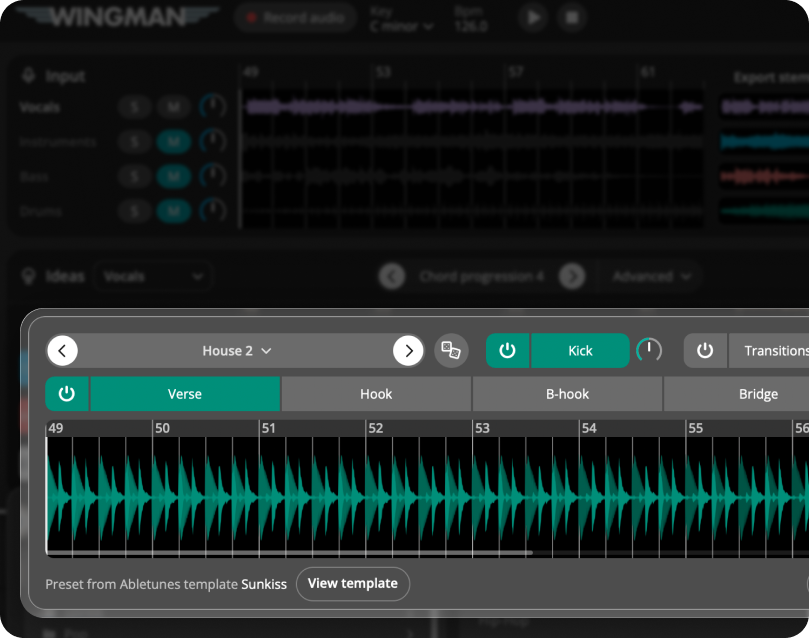
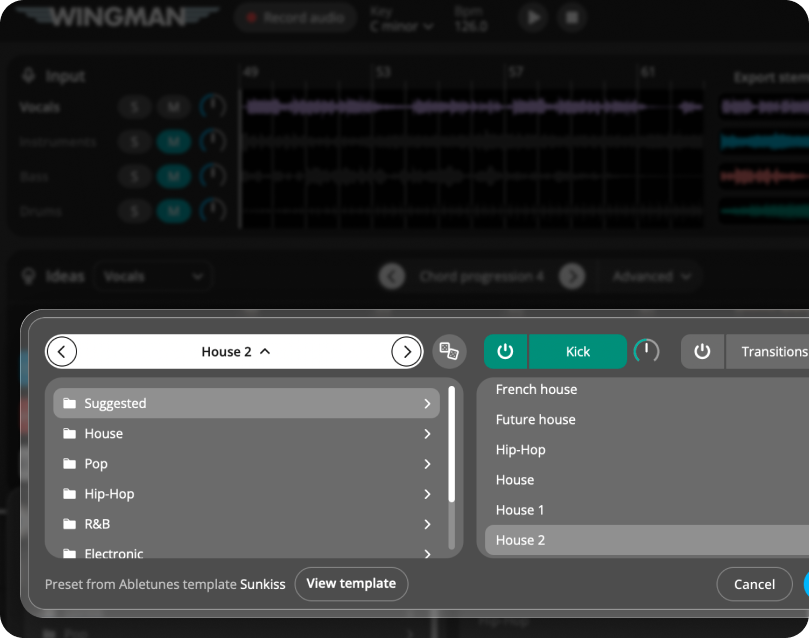
Open the Drums channel. Try the Suggested choices or browse a genre that suits the track. The official walkthrough includes electronic, hip-hop, R&B and pop options. Judge the rhythm with the vocal, chords and bass playing; the genre label alone does not decide whether it fits.
Choose variations for different sections
Compare the A, B, C1 and C2 variations shown in the walkthrough. Listen for changes in density and movement, then decide which version belongs in a verse, a build or a fuller section. You can arrange the exported versions on the DAW timeline.
Decide where kicks and transitions belong
Use the available kick and transition options to suit the section. A transition can help lead into a change, but does not need to play at every opportunity. Check the kick against your bassline and simplify one part if they compete.
Export and arrange in the DAW
Use the export choices for the full mix, kicks, tops and transitions. Put exported audio on audio tracks and confirm the start point against the original phrase. Separate exports let you process a transition without changing the kick, or leave space for another part.
Listen before adding more
Compare at a similar listening level, keep the source loop playing and check the bass with the kick. Judge transitions at section boundaries rather than only in a short repeated loop.
Common questions
Are these the drums separated from my source?
No. Source stems come from captured audio. The Drums channel is a new drum part with its own kit, arrangement and export controls.
Can I export separate drum elements?
Yes. The Wingman 3 walkthrough shows full-mix, kick, tops and transition export choices. Choose the elements you need and check their alignment in the DAW.
Do I need the same DAW as the walkthrough?
The walkthrough uses Logic. The musical controls are inside Wingman, but plugin placement and audio routing depend on your DAW. Follow the setup guide for your host.
Build the parts your track needs.
Work with chords, bass, drums and recorded guitars in Wingman 3.