


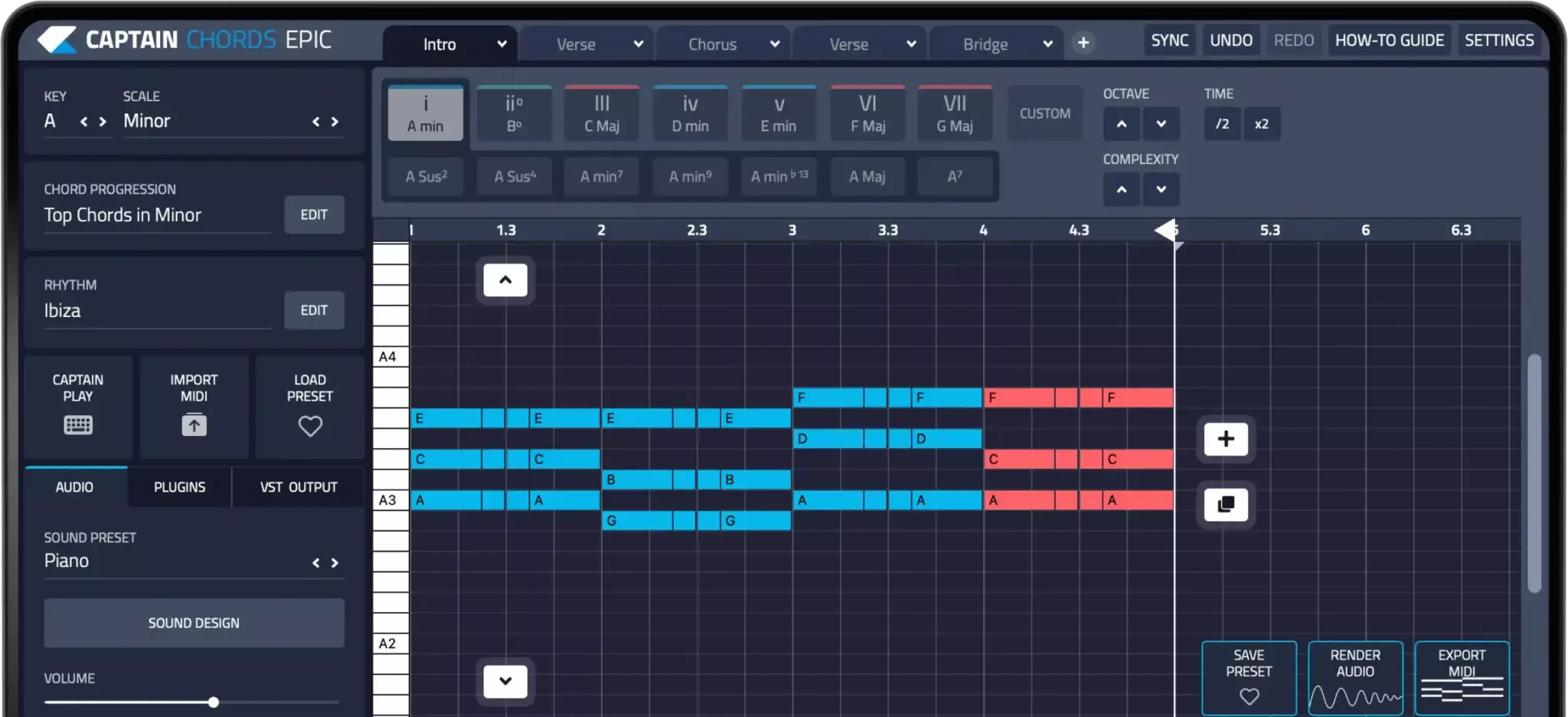
In this article
MIDI chords are groups of MIDI notes that tell an instrument what pitches to play and when. MIDI is performance data, not recorded sound. The same C–E–G notes can play a piano, pad or synth, depending on the instrument receiving them.
Hear the examples.
Choose an example, then press Play. Compare the notes as well as the sound.
C–Am–F–G
One chord per beat in this short demonstration. Use longer durations when writing your song.
These are not Captain Plugins audio.Ready to play
Understand what the MIDI clip contains
A MIDI note includes a pitch, a start and an end, plus information such as velocity. Several notes beginning together can form a block chord. Notes spread across time can outline the same harmony as an arpeggio. The clip itself does not contain the audio waveform you hear.
Changing an instrument can transform the result without changing the notes. A sustained pad follows note lengths differently from a short pluck. Sound-design choices can hide or exaggerate timing problems, so use a simple sound while you check the harmony.
Write a four-bar starting point
Make one bar each of C, Am, F and G. The triads are C–E–G, A–C–E, F–A–C and G–B–D. Keep the notes long and the velocities similar for the first pass. This lets you judge the sequence without rhythm or expression distracting you.
Then move selected notes by octaves to make the changes smoother. C–E–G followed by C–E–A keeps C and E in place. Check the register against the bass before adding thick low voicings; a wide-looking piano roll can still sound crowded.
Edit timing, lengths and velocity separately
Choose where the chords should hit relative to the drums. Shortening note ends creates space; moving note starts creates a different groove. Watch for notes that overlap the next chord unintentionally, especially with long-release sounds or sustain-pedal data.
Velocity may change volume, tone, sample layers or some combination, depending on the instrument. Use modest variation with a musical purpose, such as emphasizing the top note. Randomly moving every note is not the same as making the part feel played.
Move the part between instruments and sessions
Export MIDI when you want to keep editing the notes or choose another instrument. Render audio when you want to preserve the sound as heard. Keep both when handing a part to a collaborator: MIDI preserves flexibility, while an audio reference communicates your intention.
After importing MIDI into another session, check tempo, bar alignment, note lengths and octave register. A MIDI file does not guarantee the same plugin preset, effects chain or final sound. Listen through the full sequence after every handoff.
Keep the notes in view.
| Task | Edit in MIDI | What to listen for |
|---|---|---|
| Change the harmony | Pitch and chord tones | Fit with melody and bass |
| Smooth the transitions | Octaves and voicing | Large jumps between chords |
| Make room for drums | Starts, lengths and rests | Groove and overlap |
| Add expression | Velocity and timing | Instrument-specific response |
| Preserve the sound | Render audio too | Same tone and effects |
Try it in Captain Chords.
Build and refine the progression in Captain Chords, then use its MIDI export to continue with your chosen instrument in the DAW. Keep a rendered audio reference when the original sound matters.
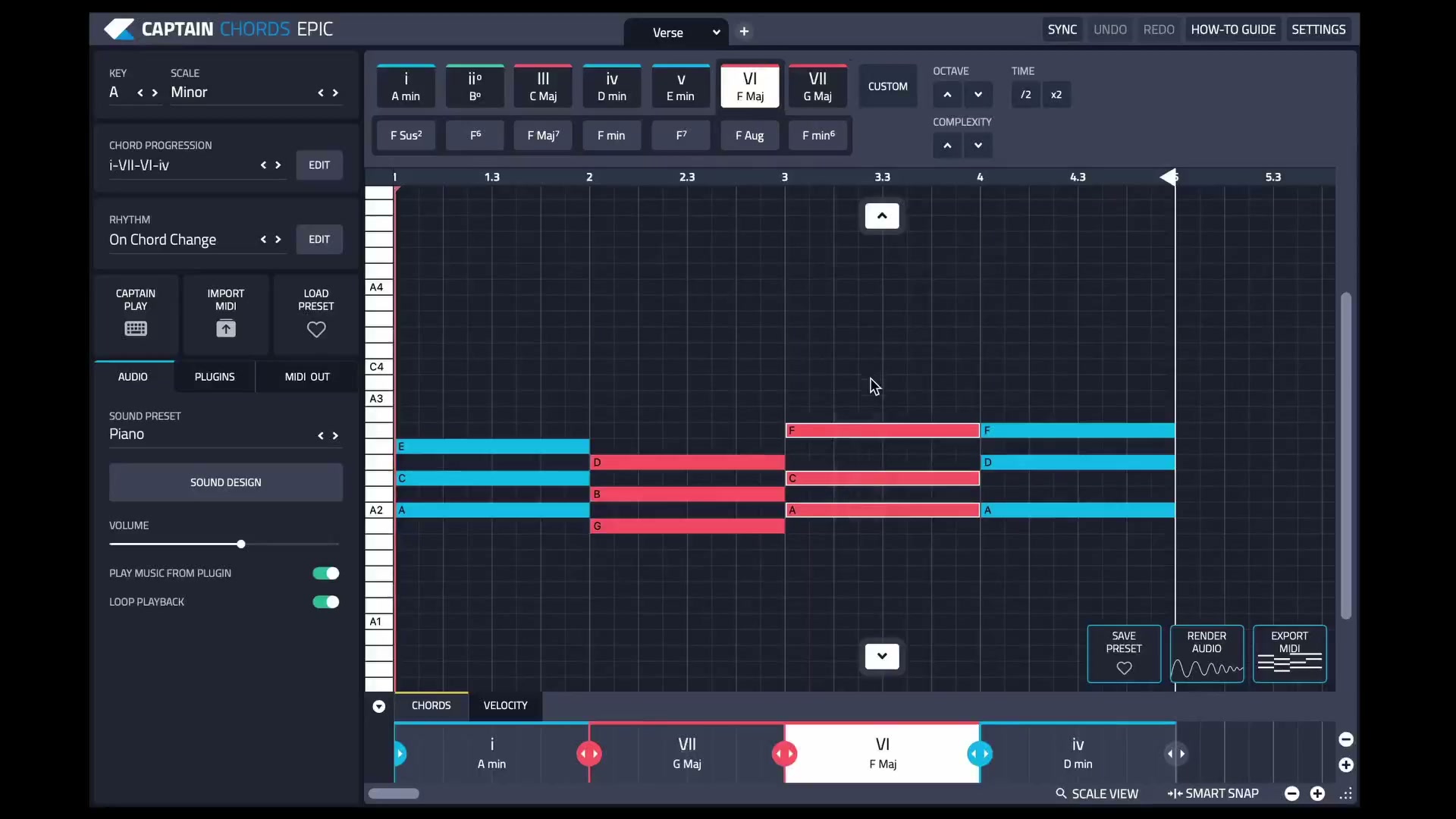
See the current editing workflow.
The Captain Plugins 8 update video shows the canvas and selection-based editing.
Common questions
Does a MIDI chord file include the instrument sound?
No. It carries note and performance information. You need an instrument to turn that information into audio.
Should all MIDI chord notes have the same velocity?
That is useful while checking harmony, but not a rule for the finished part. Adjust velocities according to the instrument and the musical emphasis you want.
Why does the same MIDI sound different after import?
The receiving instrument, preset, tempo, effects and MIDI interpretation may differ. Compare it with an audio reference and check the session settings.
Lesson and examples updated by Mixed In Key.