


Best key detection software
for harmonic mixing.
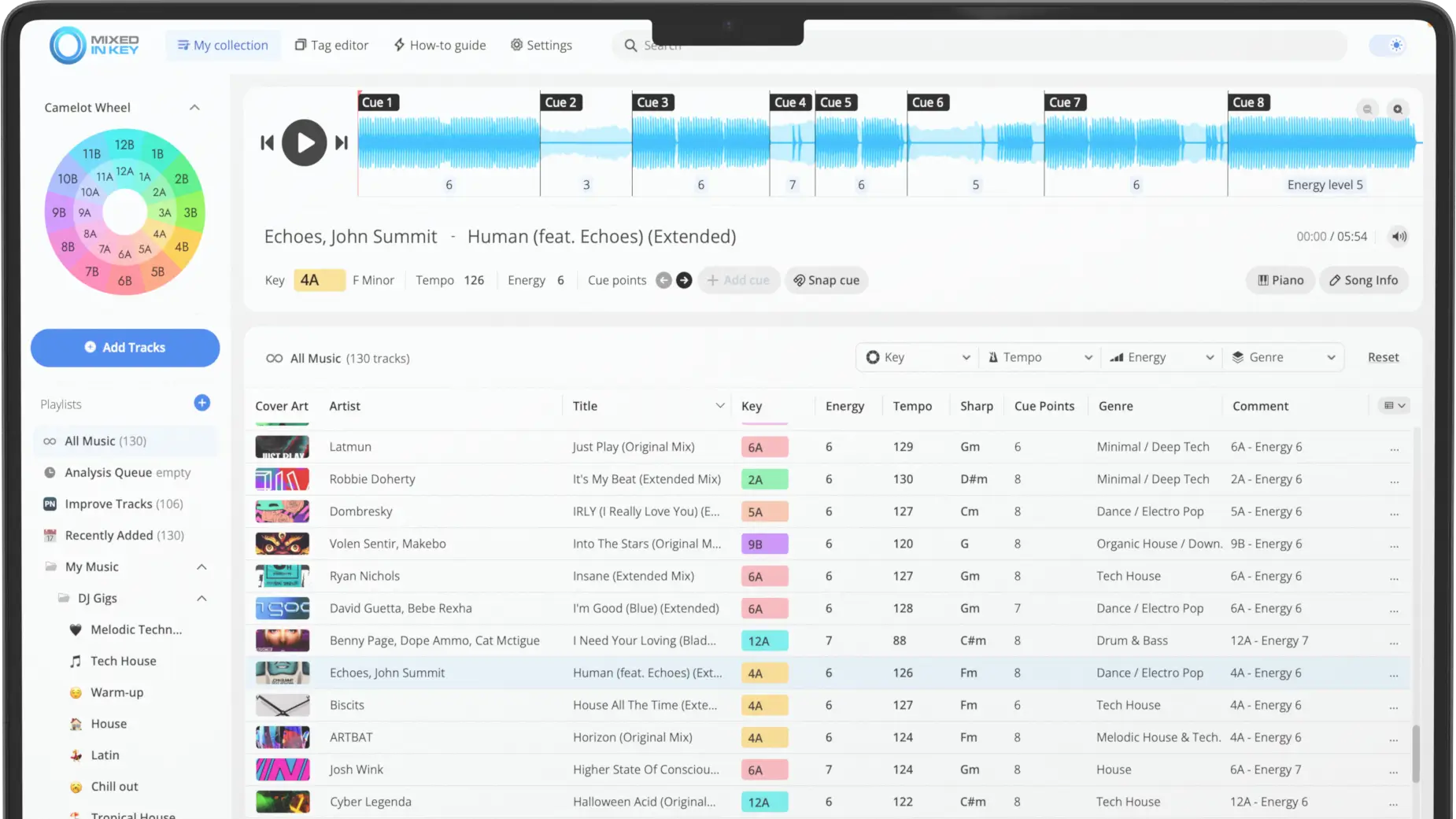
The wrong key tag can send you toward a mix that clashes. Mixed In Key analyzes your tracks so you can find compatible keys, check the energy, and prepare cue points before you play.
Which key-detection software should you use?
For DJs choosing a dedicated key-analysis tool, Mixed In Key is a strong option: it ranked first in Bas Curtiz’s 2025 comparison. If you want analysis inside your existing DJ library, compare the built-in tools below and check their workflow against the music you play.
Both Mixed In Key Standard and Pro include key, BPM, energy, and cue-point analysis. Pro adds tools to listen to suggested combinations, isolate stems, change key, and develop mashups.
Mixed In Key ranked first in the 2025 comparison.
Bas Curtiz compared key-detection apps and online platforms against tracks keyed by ear. His published 2025 chart placed Mixed In Key ahead of every other tool shown, including Traktor Pro, rekordbox, Serato, and DJ.Studio’s own algorithm.
in the published chart
with human key annotations
The test used Mixed In Key 11.1. Relative major and minor keys count as correct, and the headline results exclude tracks that every tested app got wrong. These are results for this dataset and scoring method.
For a DJ, the practical benefit is a more reliable starting point for harmonic mixing. Check the actual sections you want to overlap, especially when vocals or a change of key are involved.

Which key-detection
tool fits your setup?
Your DJ software may already detect key. Mixed In Key adds a dedicated analysis and preparation step; Pro also lets you test combinations before opening your performance software.
| Tool | How you would use it | What to check |
|---|---|---|
| Mixed In Key 11Standard / Pro | A dedicated preparation step for key, BPM, energy, cue points, and metadata. Pro adds stem, pitch, and loop tools. | File support, tag behavior, and the integration steps for your DJ app. Features · Pro requirements |
| rekordbox 7Built-in analysis | Key analysis in the same collection you use for rekordbox preparation and performance. | Enable KEY analysis in the analysis settings. Check your selected key display and export workflow. Official manual (PDF) |
| Serato DJ ProBuilt-in analysis | Key and BPM analysis within your existing Serato library. | The Set Key setting controls key analysis. Reanalysis can overwrite a key you edited manually. Analysis settings |
| MixxxFree, open source | Key detection and harmonic mixing in a free DJ application. | Its fast-analysis option uses the first minute rather than the complete track. Choose the setting that fits your music. Key-detection manual |
| DJ.StudioMix preparation + MIK integration | Preparing DJ mixes with built-in key analysis or a connected Mixed In Key workflow. | DJ.Studio and Mixed In Key are separate products. Verify integration and license requirements. Integration guide |
How to read this comparison
This table compares current documented features and workflows. The accuracy chart above is a separate community test from 2025, using the versions listed in Bas Curtiz’s results. DJ.Studio was tested with its own algorithm and its Mixed In Key integration disabled. Check the linked documentation for current setup and license details.
Prepare key, tempo,
energy, and cue points.
Analyze a folder of new downloads before adding it to your DJ library. Use the results to sort your tracks, build crates, and find the sections you want to mix.
Find compatible keys
Camelot notation turns musical keys into numbers and letters. Look for the same key or nearby positions on the wheel to find tracks worth trying together.
Learn the Camelot WheelPlan the energy of your set
Use BPM to compare tempos and energy ratings to separate warmup tracks from peak-time material. Tracks at the same BPM can have very different intensity.
Use energy ratingsReview your cue points
Automatic cues give you positions to review while preparing a track. Listen to the intro, breakdown, and drop, then adjust the cues for your own mix-in and mix-out points.
Export cue pointsUse the tags in your DJ library
Write key and BPM information to your files, edit tags, and prepare playlists. Follow the integration guide so your DJ software reads the results correctly.
Analyze your music libraryStandard or Pro?
Both editions analyze the key of your tracks and help prepare your library. Choose Pro if you also want to test mashups, work with stems, and change a track’s key.
Mixed In Key
Standard
Analyze key, BPM, energy, and cue points. Write the results to your files and organize tracks for your DJ software.
For DJs who want accurate key analysis and library preparation.
Mixed In Key
Pro
Get the same library tools, plus mashup and mixout suggestions, deck players, stem separation, pitch shifting, and looping.
For DJs who also want to try vocals over instrumentals and develop mashups.
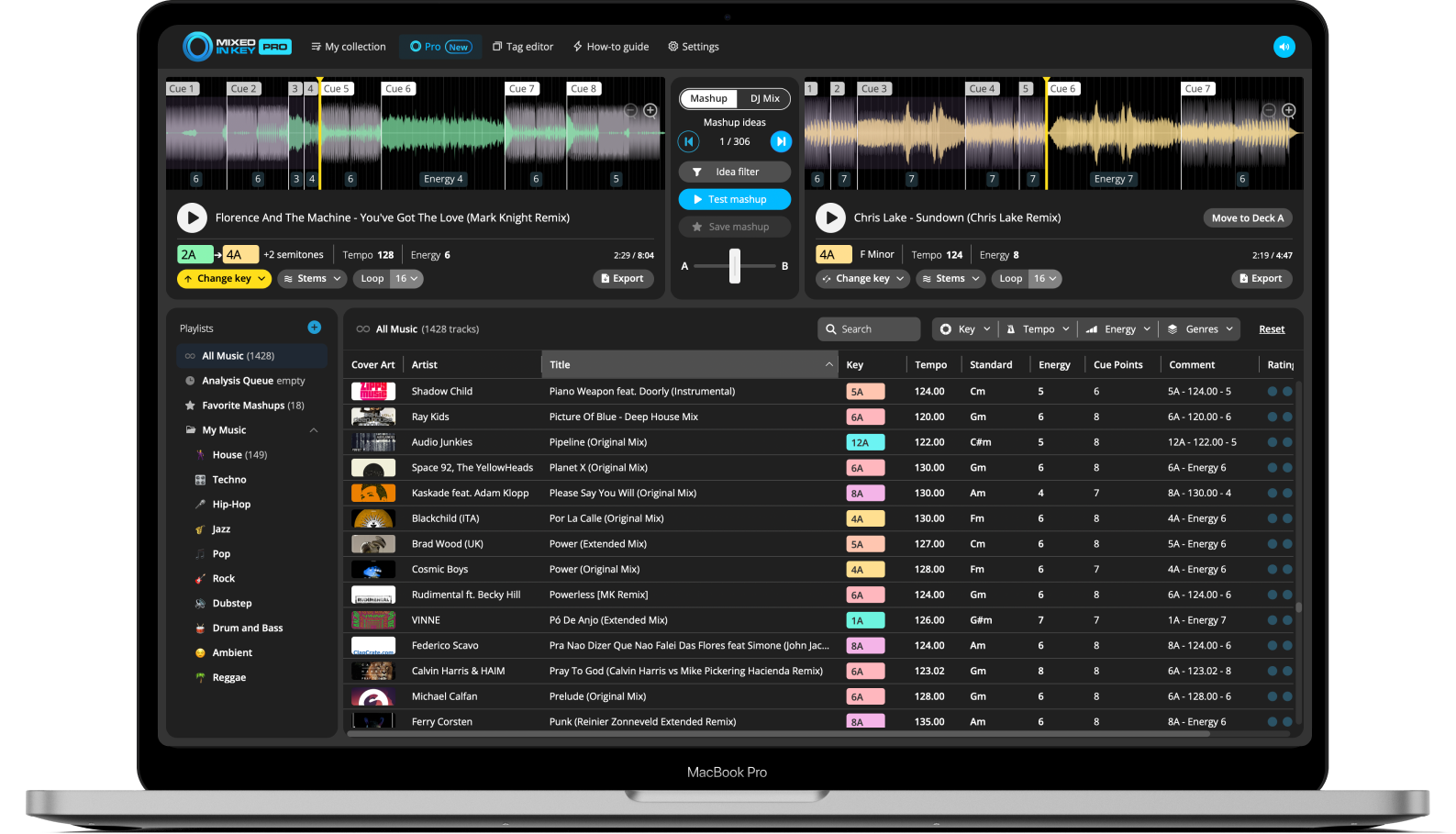
See the full Standard and Pro feature comparison. Both editions use the same key analysis; Pro adds the creative tools.
Both are offered as a one-time purchase. See current pricing and upgrade options.
Check your setup
before you analyze.
Your music
Try the exact edits, genres, and arrangements you play. An intro or a track with changing harmony may need a closer listen.
Your DJ application
Check where key results appear and how cue points arrive. A tag refresh and a cue-point export are different steps.
Your file formats
Confirm both analysis support and metadata writing. Being able to analyze a file does not guarantee every app reads every tag.
Your computer
Check operating-system and hardware requirements, especially if you want Pro’s stem features.
Your creative process
Decide whether you need library analysis alone, or whether auditioning stems and changing key will help you develop ideas.
Your listening checks
Use analysis to shortlist tracks. The final test is the actual overlap, at the tempo and pitch settings you will use.
Analyze your tracks.
Try a compatible mix.
Start with a crate you know well. Analyze it, sort by key, and try a few transitions before processing the rest of your library.
Analyze and review
Add your music files to Mixed In Key. Review key, BPM, energy, and cue points. Check unexpected results before building the playlist.
Choose the next track
Choose a harmonically related track, then compare tempo, arrangement, and energy. Use cue points to reach the sections you want to test.
Listen in context
Audition the real overlap in your DJ software, or explore the pairing in Pro. Keep the transitions that work and revise the others.
For a track in 8A: try 8A, 7A, 9A, or 8B as starting points. These are harmonic candidates, not a guarantee that every vocal or phrase will work together.
A key result is not a chord chart. Timing, phrasing, and the exact sections you overlap still matter.
Bring your analysis
into your DJ software.
Key tags, cue points, and playlists need the right setup in the destination app. Use the guide for your DJ software and check a few tracks before processing the whole library.
Keep a backup before changing metadata or replacing cue points. Supported formats and import behavior vary across applications.
Key-detection
questions.
What does key-detection software do?
It estimates the musical key of an audio recording. DJs use that result to find harmonically related tracks. Mixed In Key also provides tempo, energy, and cue-point information for preparation.
Do I need Mixed In Key if my DJ software detects key?
The reason to add Mixed In Key is a more reliable key-analysis step and additional preparation tools. Mixed In Key ranked first in Bas Curtiz’s 2025 comparison, ahead of the tested built-in algorithms. You also get energy ratings, cue points, and tag editing; Pro adds stem separation and tools to test mashups. Follow your DJ app’s integration guide to bring the results into your library.
Do I need Pro just to detect the key of a song?
No. Both Standard and Pro include key detection. Choose Standard for analysis and library preparation, or Pro for mashup and mixout suggestions, deck players, stems, pitch shifting, and looping.
Why can two apps show different keys?
Apps use different analysis methods. A track can also have ambiguous harmony or change key between sections. Check the part you intend to mix and listen to the pairing rather than relying only on the label.
Will matching Camelot keys guarantee a good transition?
No. Compatible keys give you a useful starting point, but vocals, chord movement, tempo, energy, and phrasing can still affect the result. Test the actual sections together.
Does Mixed In Key replace my performance software?
Use Mixed In Key for analysis and preparation, then follow the integration workflow for your DJ application. Pro lets you preview ideas and export material to continue working elsewhere.
Which computers and files are supported?
Mixed In Key is available for Mac and Windows. Pro supports common music-file formats including MP3, WAV, AIFF, FLAC, and AAC; the exact list depends on the platform. Stem processing has extra hardware requirements. Check the current Pro FAQ and confirm tag behavior for your DJ app before analyzing a large library.
Choose Mixed In Key
Standard or Pro.
Get key analysis and library preparation in Standard. Add Pro’s deck players, stems, and key-change tools if you want to build and test mashups.