


How to Use Mixed In Key With Platinum Notes
Process and listen to a test copy first. Analyze the file you will actually play, then confirm the result in your DJ software.
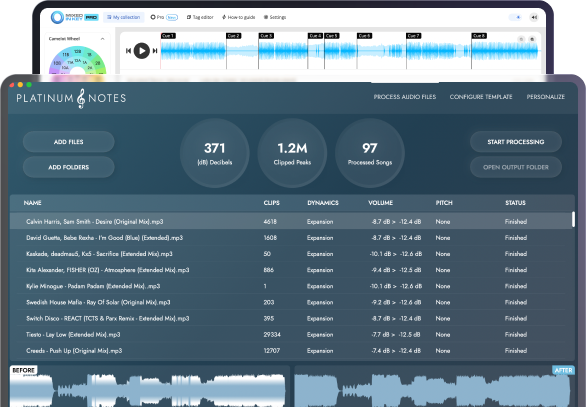
How to Use Mixed In Key With Platinum Notes
Platinum Notes processes audio; Mixed In Key analyzes and tags the file you will use. Keep the original, process a small test batch, compare the sound, then analyze the finished files in Mixed In Key 11. Follow your DJ app’s refresh and cue-transfer guide. If you replace an existing file, check its path, beat grid and cues before changing more tracks.
Key, BPM, energy and automatic Cue Points are included in Standard and Pro. Mashup suggestions, deck players, stems and key changes require Pro. Compare Standard and Pro.
Learn how Platinum Notes 10 works
This walkthrough covers the Platinum Notes 10 interface, output locations, file formats, processor load, processing templates, backups, and workflows for both new and existing DJ libraries.
Platinum Notes and Mixed In Key solve different parts of DJ preparation
A prepared DJ library needs more than accurate metadata. Your tracks also need to sound consistent when they are played next to music from different labels, eras, stores, and mastering engineers.
Platinum Notes prepares the audio itself. Mixed In Key analyzes the finished music and gives you information that can help with harmonic mixing, playlist preparation, and performance.
Improve how your tracks sound together
- Balance volume differences between tracks
- Repair clipped peaks
- Improve consistency across a music collection
- Process single tracks or complete folders
- Create prepared files for your DJ library
Understand and organize the finished tracks
- Detect musical Key
- Analyze BPM
- Assign an Energy Level
- Create automatic Cue Points
- Write useful information into track tags
Use this order when preparing new music
Running the applications in the right order helps ensure that Mixed In Key analyzes the same finished audio files you will use during your DJ sets.
Platinum Notes
Improve consistency, repair audio issues, and create the finished files.
Mixed In Key
Add Key, BPM, Energy Level, Cue Points, and track information.
Your DJ software
Refresh or import the prepared tracks and confirm that everything appears correctly.
Process the audio files in Platinum Notes
Start with the files you intend to add to your DJ collection. Platinum Notes can process an individual song or a complete folder of new music.
Add the new tracks
Use the Add Files or Add Folder buttons to load your music. Before pressing Process, review the output location, output format, processing template, and processor load.
- Add one track when testing your settings
- Add a folder when preparing a new batch of downloads
- Check the destination before beginning processing
- Keep your first test small and easy to verify
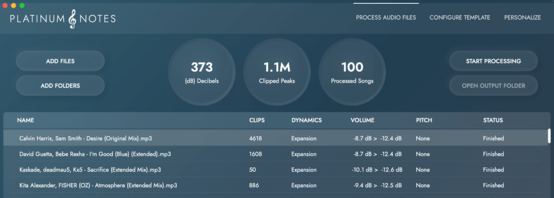
For new tracks
You have more flexibility because the files are not yet connected to playlists, crates, Cue Points, or paths inside your DJ software.
For tracks already in your library
Choose the output workflow carefully so you do not accidentally create duplicate files or break links inside your DJ software.
Analyze the finished files in Mixed In Key
After Platinum Notes finishes, add the processed versions to Mixed In Key. These should be the files you intend to keep and use inside your DJ library.
Add your analysis and preparation data
Mixed In Key analyzes the finished music and gives you Key, BPM, Energy Level, and Cue Points. You can also configure where that information is written in the track tags.
- Review your Tag Options before analyzing
- Choose the correct DJ Software integration
- Analyze a few processed tracks first
- Check the Key, BPM, Energy Level, and Cue Points
- Continue with the full batch after verifying the results
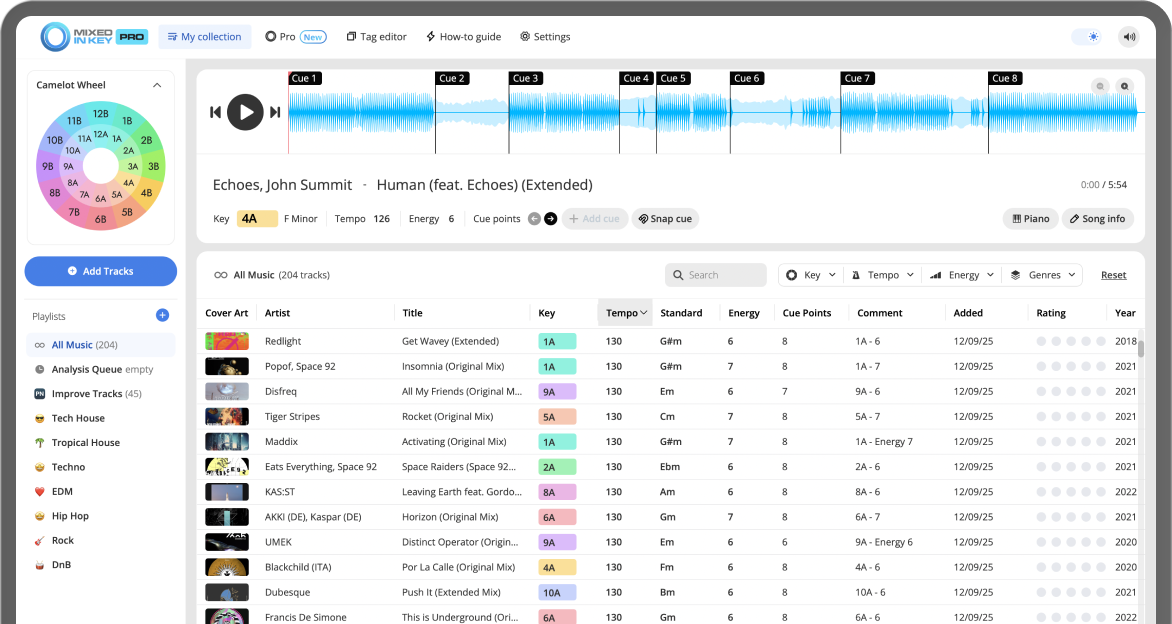
See the results in your DJ software
Complete the workflow by adding or refreshing the prepared files in Rekordbox, Serato, Traktor, and others.
Complete the software-specific refresh
Each DJ platform reads updated files differently. You may need to reload tags, rescan ID3 information, reimport track information, run a consistency check, or import Cue Points through a dedicated workflow.
- Confirm that the processed file is the one inside the library
- Refresh the tags using the correct platform workflow
- Show the Key, BPM, and Comments columns
- Load a track and inspect the Cue Points
- Listen to the processed version before continuing
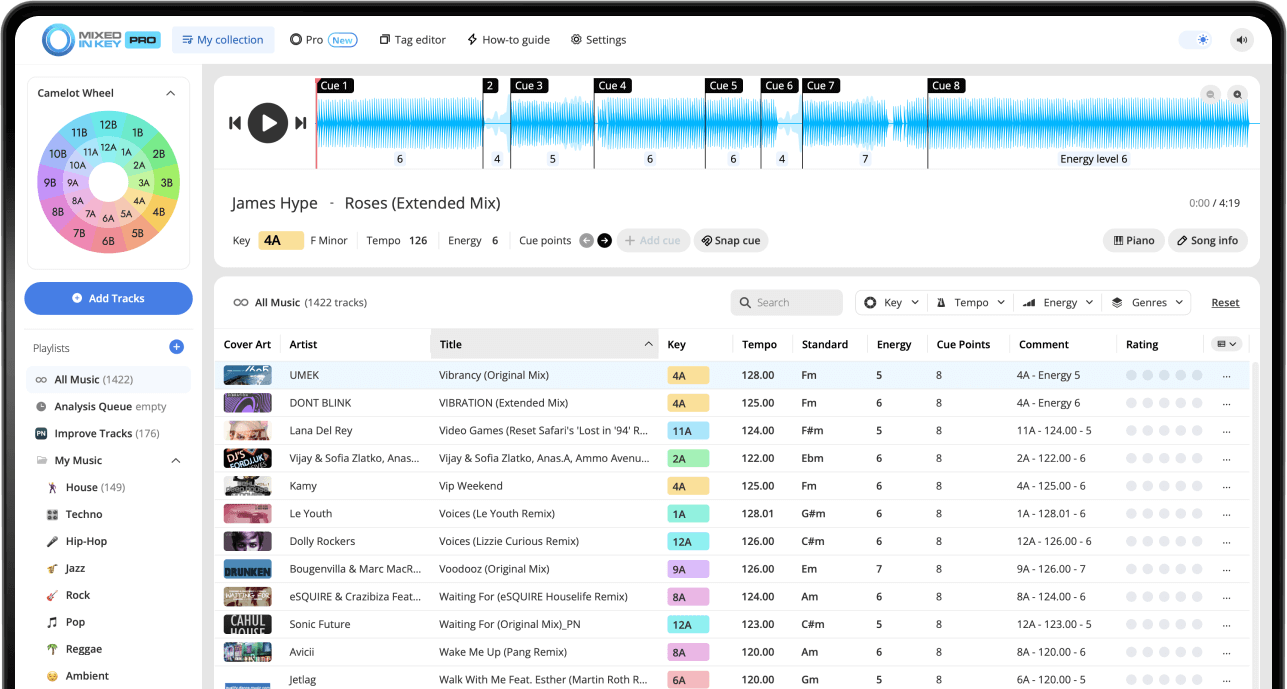
The best workflow depends on where your tracks are now
A folder of new downloads gives you more flexibility than a collection that already contains playlists, ratings, tags, Cue Points, and file links.
The tracks are not in my DJ software yet
This is the cleanest workflow because you can prepare everything before the files become part of your permanent library.
- Download or collect the new tracks.
- Process them in Platinum Notes.
- Review the processed versions.
- Analyze the finished files in Mixed In Key.
- Follow the integration guide for your DJ software.
- Add the prepared files to your permanent library.
The tracks are already in my DJ software
Protect the links and information your DJ software has already stored before changing the underlying audio files.
- Back up the music files and DJ software database.
- Test the workflow with a small folder or playlist.
- Consider Replace Original Files in Platinum Notes.
- Use Match Input Format to keep file types consistent.
- Analyze or retag the updated tracks in Mixed In Key.
- Refresh the files inside your DJ software.
- Check playlists, tags, Cue Points, and Beat Grids.
Configure Platinum Notes before pressing Process
The processing itself is simple. Most workflow problems happen because the output destination or file format was not chosen carefully.
Output location
Decide where the processed files should be saved before starting. The best location depends on whether the tracks are already connected to your DJ software.
- Use a dedicated processed folder for a new collection
- Use Same Folder as Original when you want the files stored together
- Avoid moving the files again after adding them to DJ software
Replace Original Files
Keep a recoverable copy of the original before using Replace Original Files. Test one track, compare the output and verify the existing DJ-library entry, beat grid and cues. Replacement is a library-management decision, not a step every user needs.
- Platinum Notes backs up the original files
- Test the process before using it on a full collection
- Keep Platinum Notes open while checking the results
Output file format
Choose Match Input Format when you want each processed file to retain the same general format as its source.
- Useful when working with several file types
- Helps keep an existing library consistent
- Recommended when metadata transfer is important
Processor load
Processor Load controls how many songs can be processed at the same time.
- Increase it when leaving Platinum Notes to process unattended
- Reduce it if other applications become slow
- Use a conservative setting for the first test
Processing template
Platinum Notes 10 includes the Official Platinum Notes 10 Template, Festival, and The Big Boost.
- Start with the Official template for balanced dynamics
- Compare templates with a few familiar tracks
- Choose one that suits your music and performance context
Custom processing
Custom templates include advanced controls such as multiband dynamics.
- Use custom processing only when you understand the controls
- Extreme settings can reduce audio quality
- Save and test custom templates on copies first
Send selected tracks from Mixed In Key to Platinum Notes
Mixed In Key can identify tracks that may benefit from Platinum Notes processing. This gives you another way to use the two applications together when reviewing an existing music collection.
Process only the tracks Mixed In Key flags for improvement
When Mixed In Key shows that an audio file may benefit from enhancement, choose Fix with Platinum Notes. The selected tracks are added to Platinum Notes for processing.
- Analyze or review the music in Mixed In Key.
- Open the list of tracks that may benefit from improvement.
- Select Fix with Platinum Notes.
- Review the Platinum Notes output settings.
- Process the selected tracks.
- Return to Mixed In Key and confirm you are using the finished files.
Best for library maintenance
This route is useful when you already have a large collection and want to focus processing on tracks Mixed In Key has identified.
Check level consistency and sound quality separately
A processed file can sound more impressive simply because it plays louder. Use two listening passes so you can decide whether the level change helps your library and whether you like the processing itself.
Pass one: compare tracks at their delivered levels
Choose a few familiar tracks with different production styles. Play the same representative sections from the original files, then the Platinum Notes outputs, with the playback chain and its gain settings held constant. Listen for abrupt changes in drum level when you move between tracks. Record whether player normalization or DJ Auto Gain is enabled; those features can change what you hear.
Pass two: compare each original and processed pair at similar loudness
Use playback gain to bring the louder version down for this comparison, while preserving the untouched exports. Switch between the same section of each file. Listen to kick attack, bass definition, vocal edges, cymbal texture and quieter passages. Keep the version you prefer in context. A different waveform or a higher level is not, by itself, evidence of better sound.
Verify the file that will reach the decks
- Open the processed file from its actual output location and check its format, duration and playback.
- Analyze that final file in Mixed In Key, especially if processing changed pitch or the audio used for analysis.
- Load it into your DJ application and check the waveform, beat grid, cue positions and level-analysis behavior.
- Keep the original available until the new file has passed the listening and library checks.
Platinum Notes processes the audio file. A DJ application’s Auto Gain or a player’s ReplayGain support acts at playback. Choose the approach that solves your problem, then verify the combined chain. You do not need additional processing when the original already sounds and behaves as you want.
Verify the results and keep the restore option available
Platinum Notes backs up original files when using the replacement workflow, but you should verify the processed tracks before closing the application.
Check familiar tracks
Compare a few songs you know well. Listen for consistent level, clear transients, and natural dynamics.
Open your DJ software
Confirm that the processed files still appear in the expected playlists and that tags, Cue Points, and Beat Grids remain available.
Revert before closing
If you are unhappy with the processing settings, right-click the affected tracks in Platinum Notes and choose Restore Original Files.
Use local files instead of active cloud-sync folders
Files stored in iCloud, Dropbox, Google Drive, or another synchronized folder can be locked, temporarily unavailable, or changed while Platinum Notes is processing them.
Before processing
- Move the tracks to an unsynced local folder
- Confirm that the files can be edited
- Relink the local files inside your DJ software if necessary
- Back up the original collection
After processing
- Verify the processed files locally
- Complete the Mixed In Key analysis
- Check the files inside your DJ software
- Move or sync them only after the workflow is complete
Avoid these Platinum Notes and Mixed In Key workflow problems
Analyzing the original instead of the processed file
Analyze the file you intend to play. If processing creates a separate output, confirm the correct path before importing or refreshing it in your DJ app. Listen to the processed result and check its key, tempo and cue positions again.
Processing the entire library immediately
Start with a few tracks. Confirm the output location, format, sound, tags, and software integration before processing a large collection.
Moving files after adding them to DJ software
Changing the location later can break file paths and cause tracks to appear missing inside playlists or crates.
Using cloud-synced files directly
Move the files to a local unsynced folder before processing, then verify and relink them before returning them to cloud storage.
Closing Platinum Notes too early
Keep the application open until you have listened to the files and confirmed that your DJ software still recognizes them correctly.
Using advanced templates without testing
Custom multiband settings can produce unwanted results. Start with the Official Platinum Notes 10 Template and compare a small batch first.
Use this checklist for every new batch of music
A consistent process makes it easier to avoid duplicate files, missing tags, broken paths, and analyzing the wrong versions.
Mixed In Key and Platinum Notes workflow questions
These answers cover processing order, existing DJ libraries, file replacement, backups, formats, templates, and software integration.
For new tracks, use Platinum Notes first. Mixed In Key should analyze the processed versions you intend to use in your DJ software so its Key, BPM, Energy Level, Cue Points, and tags are attached to the finished files.
Yes. Mixed In Key can identify tracks that may benefit from enhancement. Selecting Fix with Platinum Notes sends those tracks to Platinum Notes for processing. This is especially useful when reviewing an existing collection.
Platinum Notes processes the audio files rather than rebuilding your DJ software database. When you use the correct output location, format, and replacement workflow, the existing library information can remain connected to the files.
Always test a small group first and verify your playlists, tags, Cue Points, and Beat Grids before processing the full collection.
Replace Original Files can be useful when the tracks are already linked to your DJ software and you want the existing paths to continue pointing to the same files. Platinum Notes backs up the originals, but you should still create your own backup and test the workflow first.
Match Input Format is a practical choice when you already have several file types in your library and want the processed versions to stay consistent with their sources. It is also recommended when preserving metadata transfer is important.
Start with the Official Platinum Notes 10 Template. It is designed to provide balanced dynamics and is the recommended option when you are unsure which template to choose.
Test Festival or The Big Boost with a few familiar tracks before applying either template to a larger collection.
Move the files to an unsynced local folder before processing. Cloud services can lock, move, or update files while Platinum Notes is working. Relink the local files in your DJ software when necessary, then return them to cloud storage after verifying the complete workflow.
Keep Platinum Notes open after processing. Select the affected track or tracks, right-click, and choose Restore Original Files. Complete this check before closing Platinum Notes because the current processed-file list is cleared when the application closes.
Yes. Rekordbox, Serato, Traktor, Engine DJ, VirtualDJ, and other platforms use different processes for reading updated tags and Cue Points. Follow the specific integration guide after Platinum Notes and Mixed In Key have prepared the files.
Some Cue Point workflows also ask the DJ software to establish BPM and the Beat Grid before the final Mixed In Key analysis.
Improve the audio first. Analyze the finished tracks second.
Use Platinum Notes to prepare the files, then use Mixed In Key to add Key, BPM, Energy Level, and Cue Points before completing your DJ software workflow.
Updated