


DJ Loudness: Auto Gain, ReplayGain and Platinum Notes
A quieter song does not always need remastering. Decide whether you need a playback-level adjustment or a new processed audio file, then test the result in the DJ setup you will use.
Updated
How do you make a DJ library sound more consistent?
For level differences during playback, start with your DJ application’s gain controls and analysis. ReplayGain can provide loudness adjustment in players that support it. File processing, including Platinum Notes, creates audio that you can assess before importing it into the library. These approaches act at different points in the signal chain, and none removes the need to monitor levels while mixing.
Choose the job before choosing a tool
| Approach | What it changes | Useful when | What to verify |
|---|---|---|---|
| Manual track gain or Auto Gain | The level used by the DJ application | You want more consistent deck levels while keeping the source audio | Analysis, gain settings and headroom in the actual performance setup |
| ReplayGain in a supported player | Playback level using a loudness-analysis value | You use a player or DJ application that applies ReplayGain | Support and behavior in each destination application |
| Peak normalization | The file’s peak amplitude when rendered or exported | You need a defined peak ceiling | Equal peaks do not mean equal perceived loudness |
| Offline audio processing | The rendered audio file, according to the selected processing | You want to prepare and review processed copies before a set | Sound, output format and the behavior of the new files in your library |
When DJ Auto Gain is enough
If the music sounds good but tracks arrive at noticeably different levels, playback gain is a useful first step. Serato documents an analysis value used to set track gain relative to a selected reference. Its track-gain control also lets you refine the level and recall that adjustment. Check your application’s instructions because control names and behavior differ.
Load a quiet track and a louder track, play representative sections, and compare the meters and perceived level. Check the loudest part of each song as well as the intro. Leave room for the combined mix: two individually acceptable deck levels can still produce an overloaded master when they overlap. Automatic analysis gives you a starting setting; it cannot anticipate every EQ move, effect or transition.
Where ReplayGain fits
ReplayGain is useful when the playback software understands and applies its loudness information. For example, Mixxx documents automatic ReplayGain adjustment for analyzed tracks. This helps tracks play at approximately similar loudness without asking you to render a new version for that purpose.
Do not assume the same result follows the file everywhere. A player that does not apply the value, a different playback setting, or a different library entry can produce a different level. Test the actual export, player or hardware path you use for gigs. If album dynamics matter, inspect the application’s track-versus-album behavior rather than assuming all normalization modes are interchangeable.
Why equal peaks can still sound uneven
A peak meter reports the largest amplitude, not the overall impression of loudness. A sparse older recording can have occasional high drum peaks while sounding quieter than a dense modern master. Setting both files to the same peak does not erase that difference.
Audacity distinguishes its Normalize effect, which can set peak amplitude, from loudness-oriented processing. That distinction matters when evaluating any “normalize my library” workflow. Define the problem first: inconsistent maximum peaks, perceived level jumps, or an audible issue in the recording itself. Each calls for a different check.
When to consider Platinum Notes
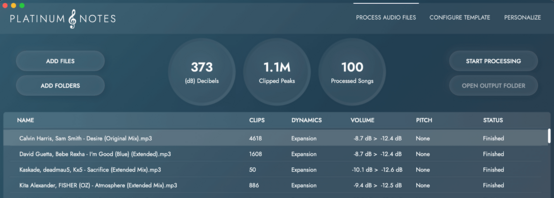
Platinum Notes 10 is an offline audio-processing option from Mixed In Key. Its documented processing includes volume analysis, clipped-peak processing and selectable warmth, followed by output-level processing. It creates a processed version of the music rather than acting as the gain control in your DJ application.
Use a small group of tracks you know well to decide whether you prefer the result. Keep the originals and compare settings before committing to a larger batch. The goal is music that works well in your collection; it is not necessary to process every already-satisfactory master. Processing cannot guarantee recovery of information missing from the source.
Follow the Platinum Notes and Mixed In Key workflow for output-file, analysis and library checks.
See the Platinum Notes workflow
This official walkthrough covers processing settings, file output and the preparation workflow. Use it to configure a test batch before deciding how to process the rest of your library.
Use two comparisons
- Check consistency at the delivered levels. Play representative sections of several original tracks, then their outputs, through the same unchanged playback chain. Note any active Auto Gain or normalization.
- Check processing at similar loudness. For each original/output pair, reduce the louder playback level until the comparison is fair. Listen to transients, bass, vocals and cymbals. Preserve the original exports; these gain changes are only for evaluation.
- Check a real transition. Mix the chosen files in the intended DJ software. Listen for the result of overlap, bass swaps and effects rather than judging only the solo tracks.
Write down the settings and the reason you chose an output. “The drum levels are easier to manage” is a more useful note than “the waveform is bigger.” If you cannot identify a benefit at a fair listening level, keep the original or try a different approach.
Check the library after changing audio
Import the file you actually intend to play. Confirm its location, format, duration, waveform, beat grid and cues. Refresh or repeat the destination application’s analysis where required; an earlier gain or key result may describe the old file. Keep a backup and test a few tracks before changing a large collection.
If you use Mixed In Key as part of preparation, analyze the final chosen audio. Audio processing and musical analysis are separate tasks: Platinum Notes changes audio, while Mixed In Key provides information used to organize and prepare tracks.
Common questions
Do I need Platinum Notes if Auto Gain already works for me?
Not necessarily. Auto Gain may solve a playback-level problem. Consider file processing when you have a specific reason to evaluate a processed copy, and keep the version that sounds better to you.
Will normalizing make every song equally loud throughout?
No. Songs contain quieter and louder sections, and different arrangements can feel different at similar measured levels. Continue to listen and manage gain during a set.
Can I use processed files with Auto Gain?
Assess the complete playback chain. Have the DJ application analyze the actual processed files and verify the resulting levels rather than assuming the earlier analysis remains appropriate.
Documentation
This comparison is published by Mixed In Key, the maker of Platinum Notes. It describes different workflows and does not claim a comparative listening benchmark.
Check your library before processing a batch
Review the Platinum Notes features and start with a copy of a few familiar tracks.