


How do you make a mashup with Mixed In Key Pro?
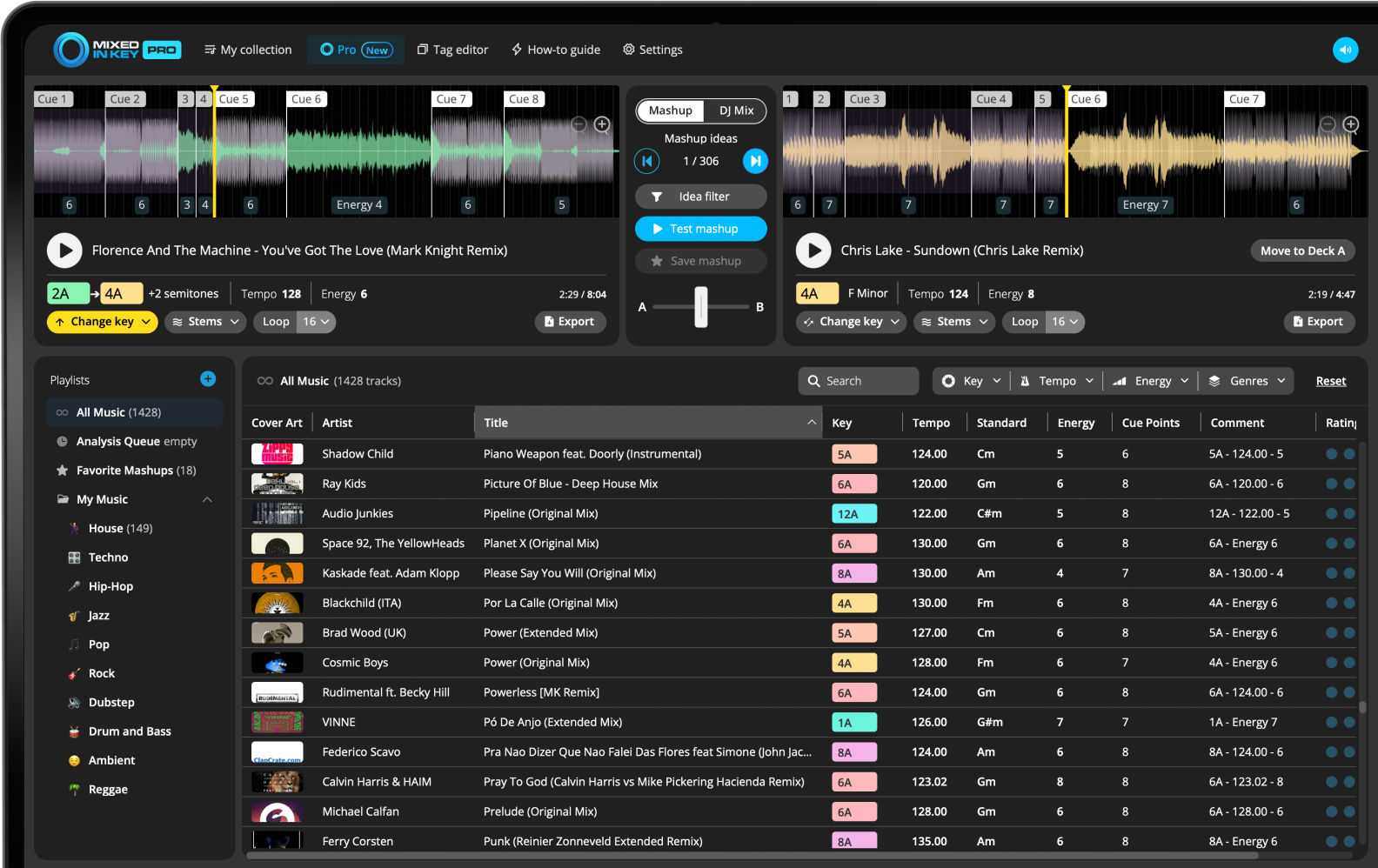
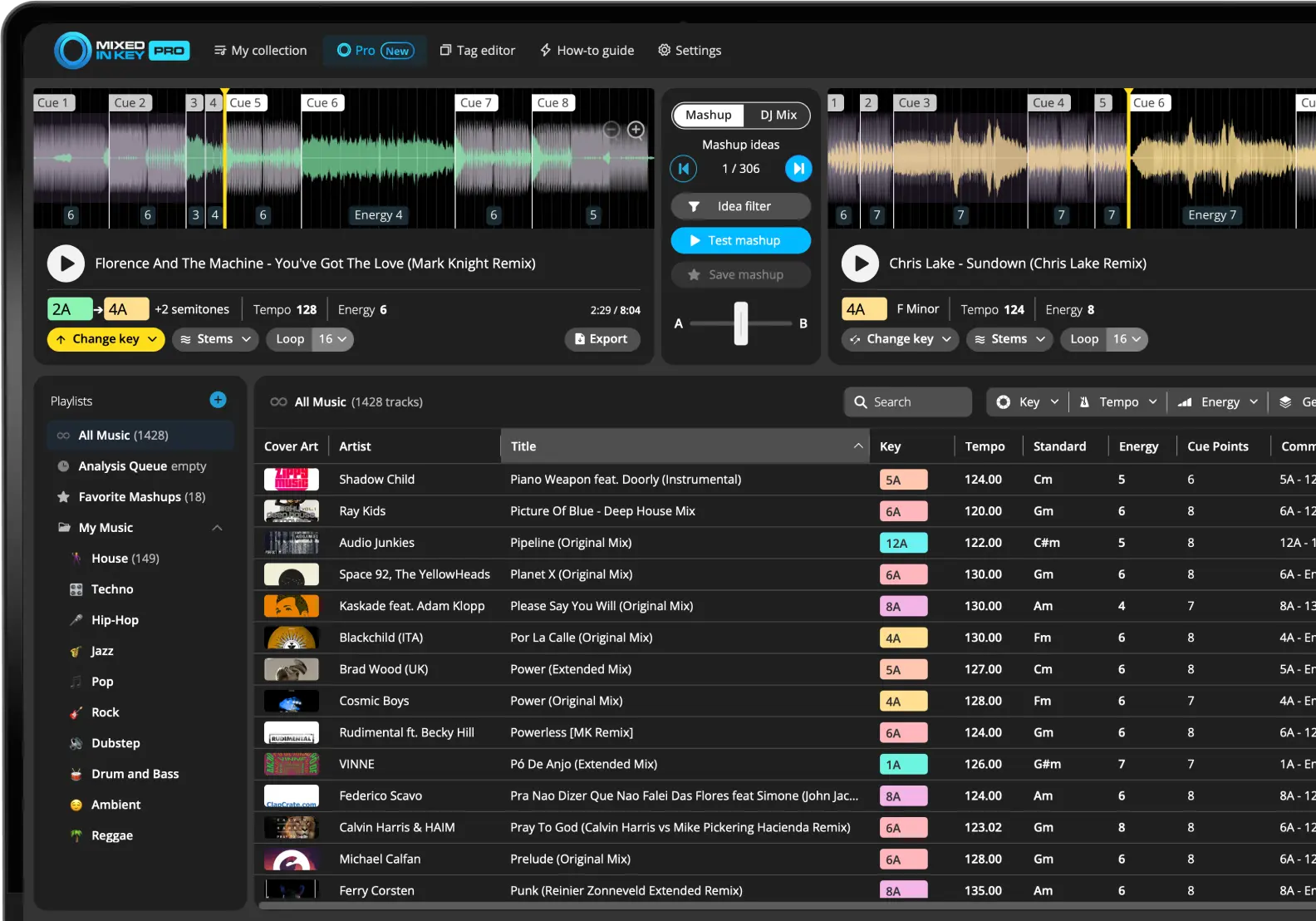
Analyze your tracks, open the Pro tab and choose Mashup Mode. Load your starting track into Deck A, then try suggested tracks from your library in Deck B. Listen to their timing, phrasing and harmony together; a key match is a starting point, not a guarantee that the mashup works.
You can preview the two songs together, switch between full track, acapella, and instrumental playback, change Key to find new matches, jump between Cue Points, save your favorite ideas, and export stems for your DAW.
Watch how to make mashups with Mixed In Key Pro
This video shows how Mixed In Key Pro helps you discover mashup ideas, test two tracks together, use stems, and find combinations from your own music library.
What makes a good mashup?
A good mashup usually combines parts of two songs in a way that feels musical, intentional, and exciting. The most common approach is to combine a vocal from one song with an instrumental from another.
The best mashup ideas usually share a few qualities: compatible Key, workable BPM, matching Energy Level, and sections that do not fight each other.
Strong mashup ingredients:
- Compatible Key
- Similar or workable BPM
- Energy Level that fits
- Vocal and instrumental space
- Sections that work together
Mixed In Key Pro helps you:
- Find mashup suggestions
- Preview two decks together
- Use acapella and instrumental stems
- Change Key for new matches
- Export stems for your DAW
Analyze your music library first
Before using Mashup Mode, analyze your music in Mixed In Key. This gives the software the Key, BPM, Energy Level, and Cue Point information it needs to find better ideas.
The more organized and analyzed your library is, the easier it becomes to discover useful mashup combinations.
Use Mashup Mode to find song combinations
In Mashup Mode, you load one song into Deck A and Mixed In Key Pro suggests possible matches from your music library for Deck B.
You can instantly preview the two songs playing together and decide whether the idea is worth saving.
Preview before opening your DAW
Mashup Mode gives you a fast way to test whether two tracks might work together before spending time arranging the idea in Ableton, Logic, or another DAW.
Use acapella and instrumental playback
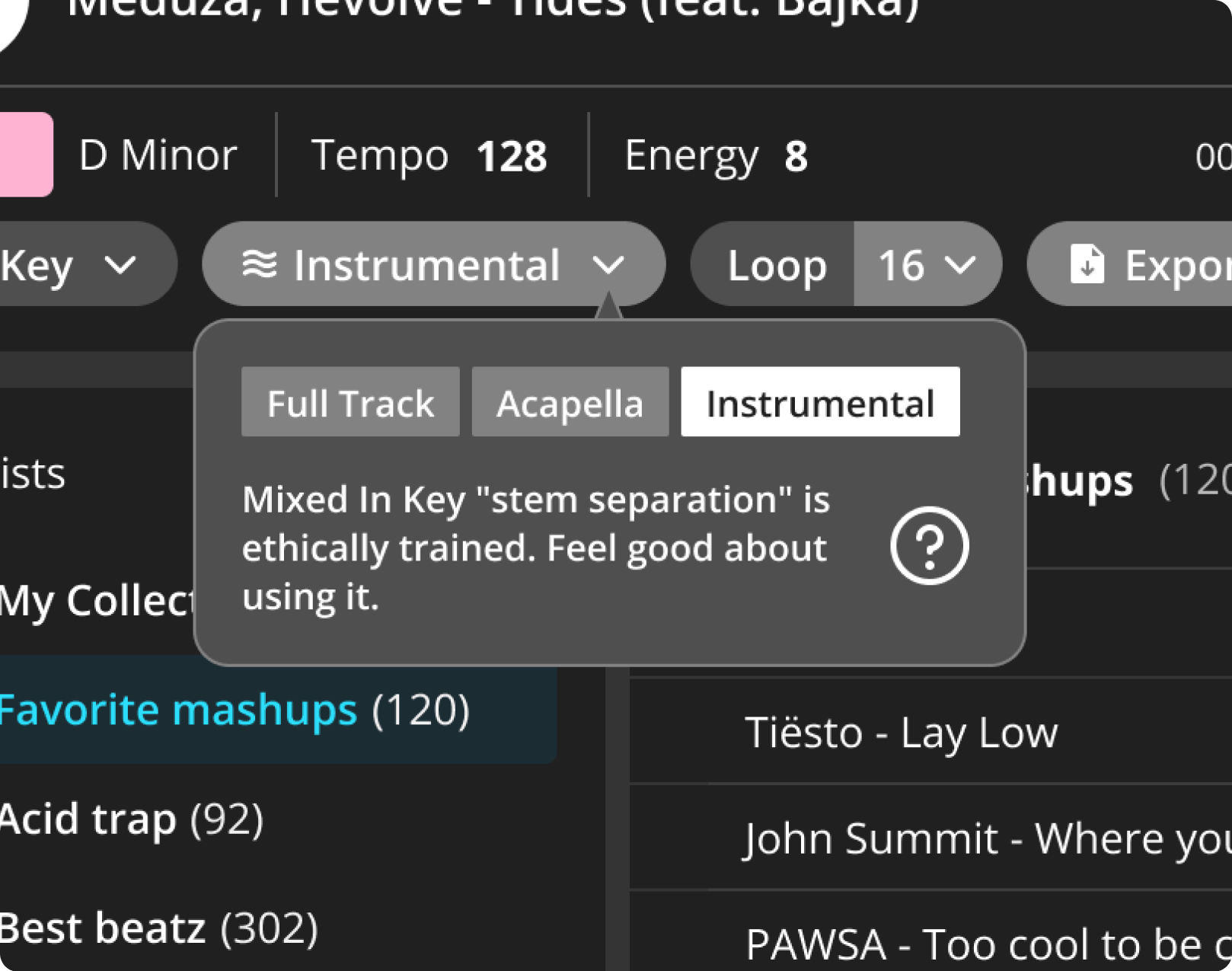
Stem separation helps you hear the mashup idea more clearly. You can switch one deck to acapella and the other deck to instrumental, which is one of the fastest ways to test a vocal over a new backing track.
Remove clashing vocals
If two full songs have vocals at the same time, the mashup may sound crowded. Switch one deck to instrumental or one deck to acapella to hear the idea clearly.
Change Key to find new mashup ideas
If a track is close to working but not quite right, change its Key inside Mixed In Key Pro. The software can then recalculate mashup suggestions based on the new Key.
This can reveal rare combinations that would not appear if you only searched using the original Key.
Use Cue Points to test the right sections
Cue Points help you jump to useful parts of each song, such as intros, breakdowns, drops, and mix-out sections.
This helps you test whether the vocal phrase, instrumental groove, or drop section works with the other track.
Export stems for your DAW
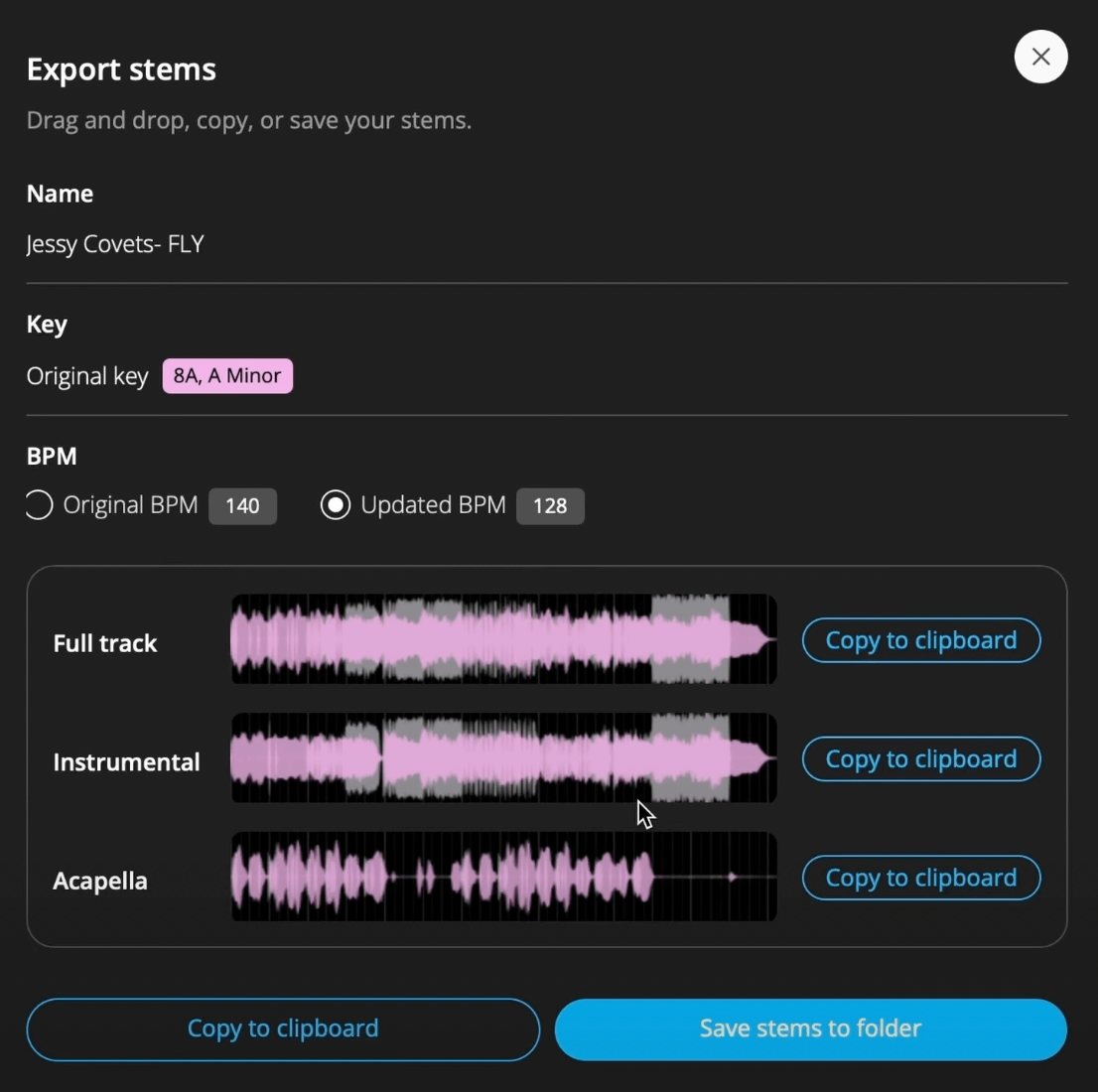
Once you find an idea you like, export the full track, instrumental, or acapella so you can finish the mashup in your DAW.
Finish the idea in your production workflow
Use Pro to audition the pairing, then follow Export stems for a mashup to take the parts into your DAW. Finish the arrangement, transitions and mix there.
How to make a mashup with Mixed In Key Pro
Analyze your music library
Analyze your tracks so Mixed In Key Pro can use Key, BPM, Energy Level, and Cue Points.
Open the Pro tab and choose Mashup Mode
Use Mashup Mode when you want to find creative song pairings from your own library.
Load a track into Deck A
Start with a vocal, instrumental, or full track you want to build around.
Test suggestions in Deck B
Preview the suggested songs and listen to how they work with your starting track.
Use stems and Key changes
Switch between acapella and instrumental playback, and change Key if you want to discover new matches.
Save and export the best idea
Save your favorite combinations, then export the stems you need for your DAW or DJ workflow.
Common mashup mistakes
Ignoring Key
Even with stems, Key compatibility matters. Use Camelot notation as a starting point.
Using two busy vocals
If both songs have vocals, switch one deck to instrumental or use the acapella from only one track.
Skipping Cue Points
Use Cue Points to test the sections that actually matter for the mashup.
Not finishing the edit
Mixed In Key Pro helps you find the idea. Use your DAW to polish the final arrangement.
Frequently asked questions
Yes. Mashup Mode helps you find and preview possible mashup combinations from your own music library.
Yes. Mixed In Key Pro includes stem separation, so you can switch between full track, acapella, and instrumental playback.
Yes. You can export full tracks, instrumentals, and acapellas for your DAW or DJ workflow.
Use Mixed In Key Pro to discover, test, and export mashup ideas.
Find combinations from your own library, use stems, change Key, and export the parts you need.