


How to Export Stems for a Mashup
Test the combination first. Export the vocal or instrumental you need, then finish the timing, arrangement and mix in your DAW.
How to Export Stems for a Mashup
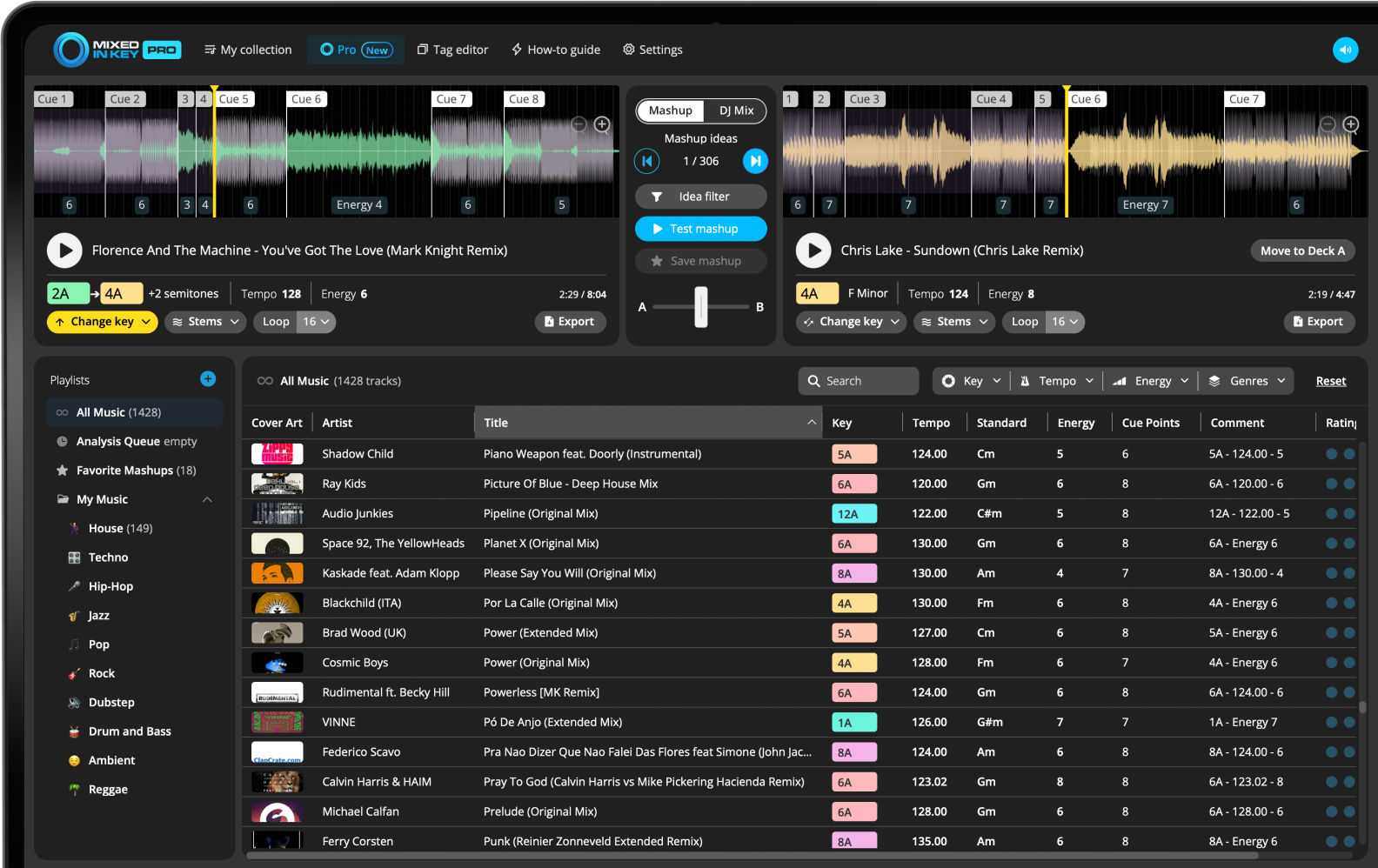
In Mixed In Key 11 Pro, audition the mashup with the full track, vocal or instrumental playback. Export the useful stem, import it into your DAW and align it with the other track. Stem export gives you audio to work with; it does not replace arranging and mixing the finished mashup.
Key, BPM, energy and automatic Cue Points are included in Standard and Pro. Mashup suggestions, deck players, stems and key changes require Pro. Compare Standard and Pro.
Export after you find an idea that works
It is usually better to test the idea before exporting. Mixed In Key Pro helps you audition different combinations quickly, so you do not waste time exporting every possible match.
Once the vocal, instrumental, Key, BPM, and Energy Level feel right, export the stems you need for the next stage.
Choose the right stem export
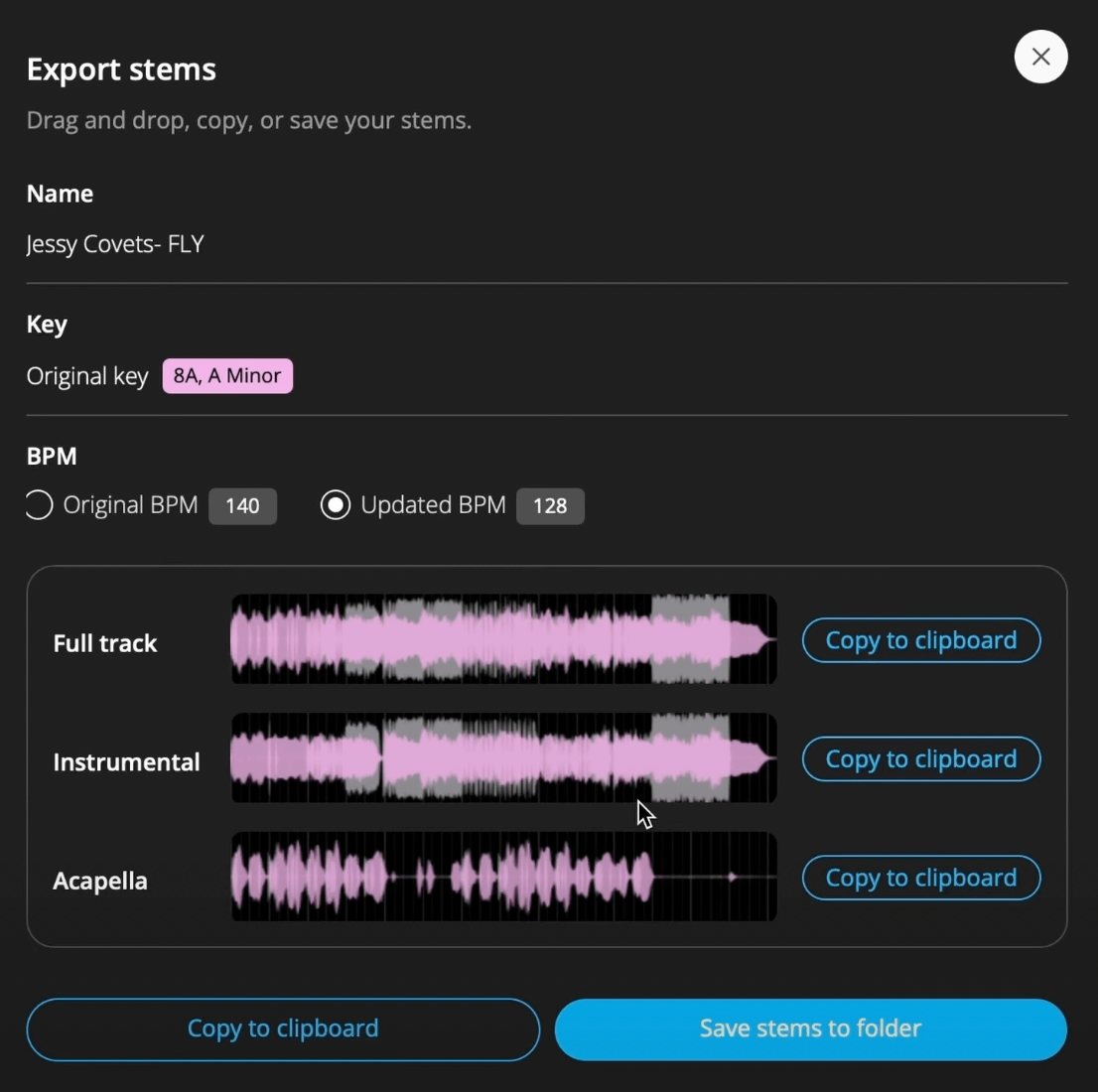
Full track
Use this when you want the complete original track as a reference or main audio layer.
Instrumental
Use this when you want the music without the vocal, especially for acapella mashups.
Acapella
Use this when you want to place a vocal over a different instrumental.
Changed-Key export
Use this when you changed the Key in Mixed In Key Pro and want to continue working with that version.
Use the export stems dialog
The export dialog lets you choose which version of the audio you want to save. You can export the full track, instrumental, or acapella depending on what your mashup needs.
Export only what you need
For a vocal-over-instrumental mashup, you may only need the acapella from one song and the instrumental from another.
Exporting only the useful parts keeps your DAW session cleaner.
Finish the mashup in your DAW
Mixed In Key Pro helps you discover and export the idea. Your DAW is where you can finish the arrangement, adjust timing, edit sections, add transitions, balance levels, and polish the final mashup.
This keeps the workflow fast: discover in Mixed In Key Pro, finish in your production software.
How to export stems for a mashup
Find a mashup idea
Use Mashup Mode to test combinations from your own library.
Choose the stem playback
Switch between full track, acapella, and instrumental while testing the idea.
Save the idea
Save your favorite combination before exporting.
Open export
Choose the audio version you need: full track, instrumental or acapella. Name the file so you can identify the source and any key change. If you changed key in the preview, check the exported audio against that preview rather than assuming it is identical.
Move the stems into your DAW
Import the audio onto separate tracks, line up the intended phrase and confirm tempo and pitch. Listen for separation artifacts, competing vocals and crowded drops. Edit the arrangement and levels before rendering the finished mashup.
Common export mistakes
Exporting too early
Test the idea before exporting so you only save combinations that work.
Exporting every stem
Export only the full track, instrumental, or acapella you actually need.
Forgetting Key changes
If you changed the Key, make sure you export the version that matches your idea.
Skipping the DAW polish
Use your DAW to finish the arrangement and make the mashup sound professional.
Frequently asked questions
You can export full tracks, instrumentals, and acapellas.
Yes. Exported stems can be used in a DAW for arranging, editing, and finishing your mashup.
It is better to test the idea first in Mixed In Key Pro, then export only the stems you need.
Use Mixed In Key Pro to test ideas and export the parts you need.
Export full tracks, instrumentals, or acapellas, then finish your mashup in your DAW.
Updated