


How to Use Mixed In Key With rekordbox
Check tags and Cue Points separately. Start with a small batch and keep a backup of the cues already in your collection.
How to Use Mixed In Key With rekordbox
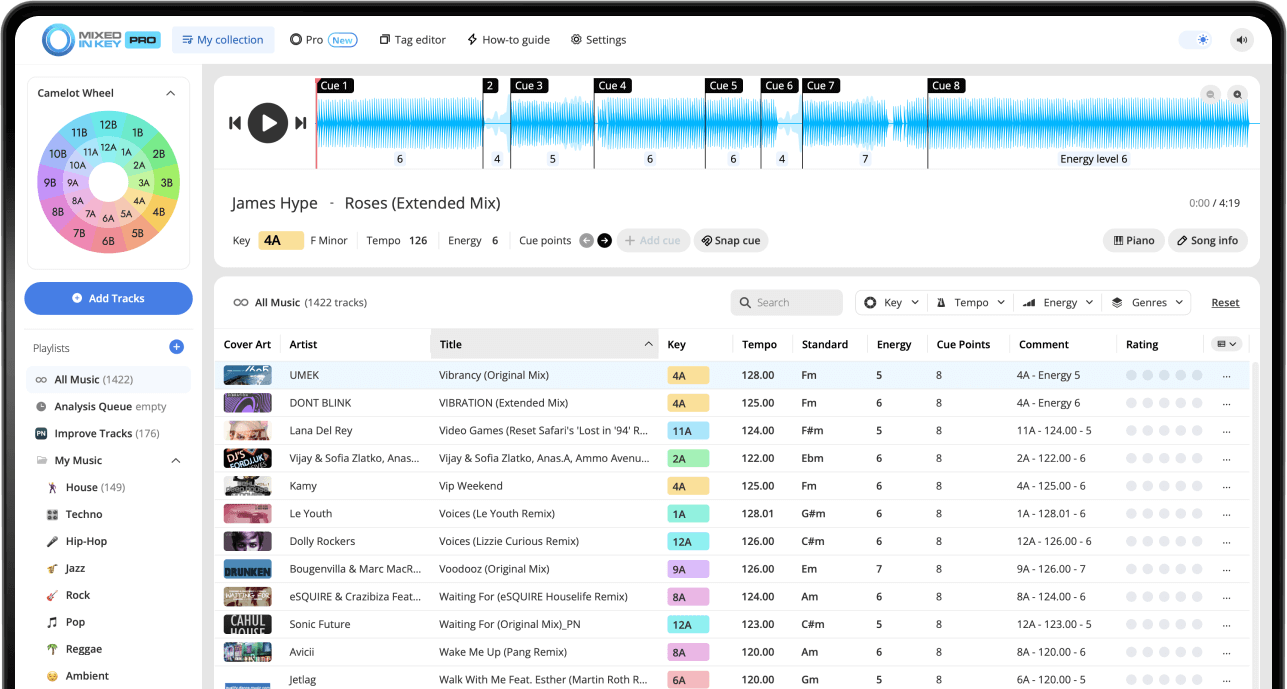
Prepare BPM and beat grids in rekordbox, then configure Mixed In Key 11’s tag and rekordbox integration settings for the same local files. Reload Tags refreshes key and comments. The XML workflow transfers the MIK Cue Points playlist. Verify both on a test track and consult the current tutorial for your installed versions.
Key, BPM, energy and automatic Cue Points are included in Standard and Pro. Mashup suggestions, deck players, stems and key changes require Pro. Compare Standard and Pro.
Watch the Rekordbox Cue Points tutorial
This video shows the full Rekordbox 7 workflow for Mixed In Key 11, including the Rekordbox XML setup, tag reload process, and MIK Cue Points playlist import.
Rekordbox tags and Cue Points use different steps
When using Mixed In Key with Rekordbox, it helps to think about the workflow in two parts. Tag information and Cue Points are not imported the same way.
Reloading tags in Rekordbox brings in Mixed In Key tag information, such as Key, BPM, Energy Level, comments, or Initial Key values depending on your Tag Options. Cue Points require the Rekordbox XML import workflow.
Reload Tags brings in:
- Key
- BPM or Tempo tag information
- Energy Level
- Comment tag information
- Initial Key tag information
MIK Cue Points playlist brings in:
- Cue Points for intros
- Cue Points for breakdowns
- Cue Points for drops
- Cue Points for mix-out sections
- Rekordbox-ready Cue Point data from the XML workflow
Set up Rekordbox before using Mixed In Key
Start in Rekordbox preferences. The goal is to make sure Rekordbox XML is visible, the correct XML settings are enabled, and Rekordbox analyzes your songs for BPM and grid before Mixed In Key creates Cue Points.
Activate Rekordbox XML
Open Rekordbox Preferences, go to the View tab, and activate Rekordbox XML. This makes the Rekordbox XML section available in the left browser area.
Select BPM change points
Go to the Advanced tab, then find the Rekordbox XML settings. Make sure BPM change points is selected.
Below that, you will see the imported library path. It may be blank at first because you have not exported your XML file yet. After exporting the XML file, you can set this path to the location of that file.
Set Rekordbox analysis to BPM and Grid only
Go to the Analysis settings in Rekordbox and select only BPM and Grid. This helps Rekordbox prepare the timing information that Mixed In Key needs for properly aligned Cue Points.
Add music to Rekordbox and analyze BPM/Grid
After the Rekordbox settings are ready, add your music to Rekordbox. If your songs are already in Rekordbox, you can skip the import step and continue with the XML export workflow.
Make sure Rekordbox analyzes the tracks for BPM and grid before you add the same songs to Mixed In Key. This helps Cue Points line up correctly later.
Export your Rekordbox collection as an XML file
Once Rekordbox analysis is complete, export your collection as an XML file. This XML file connects Rekordbox and Mixed In Key.
Export the collection
In Rekordbox, go to File → Export Collection in XML Format.
Save the XML file locally
Save the XML file in your Documents folder. A clean setup is to create a folder named Rekordbox and name the file rekordbox.xml.
If a previous XML file already exists, replace it so Mixed In Key and Rekordbox keep using the same XML location.
Set up Mixed In Key for Rekordbox
After exporting the XML file from Rekordbox, open Mixed In Key and configure your settings before analyzing your songs.
Open Tag Options
In Mixed In Key, go to Settings → Tag Options. Choose how you want Key, BPM, Energy Level, and other information to appear in Rekordbox.
Add a zero to single-digit Camelot numbers
This writes values like 01A, 02A, and 05A instead of 1A, 2A, and 5A. This is useful if you use Pioneer hardware and want Camelot Keys to sort in a cleaner order.
Update custom Initial Key tag
Enable Update custom Initial Key tag so Mixed In Key can write the detected Key into the Initial Key field used by DJ software.
Enable Rekordbox in DJ Software settings
Go to the DJ Software tab in Mixed In Key settings, switch on the Rekordbox option, and locate the Rekordbox XML file you exported.
Add your music to Mixed In Key
After the Rekordbox XML file is connected in Mixed In Key, add your music to Mixed In Key. The analysis will run automatically.
Mixed In Key analyzes your tracks and prepares Key, BPM, Energy Level, and Cue Points based on your settings. The Cue Points are exported through the Rekordbox XML workflow.
Mixed In Key can help with:
- Key detection
- BPM information
- Energy Level
- Cue Points
- Camelot Key notation
Use results in Rekordbox to:
- Sort your library by Key
- Prepare harmonic playlists
- Find tracks by BPM range
- Plan energy flow
- Jump to prepared Cue Points
Important Rekordbox tips before importing results
These details can prevent the most common Rekordbox integration problems.
Overwrite existing Cue Points if needed
Back up the collection and review existing cues before enabling any overwrite option. Test one track first. Do not overwrite performance cues you want to keep just to confirm that an export works.
Keep the XML file local
Save the Rekordbox XML file in a local folder that is not synced to cloud storage and not saved on an external hard drive. Cloud and external paths can cause issues.
Use AIFF or MP3 files
For the smoothest Rekordbox workflow, we recommend using AIFF files for lossless quality or regular MP3 files when preparing tracks with Mixed In Key.
Analyze BPM/Grid in Rekordbox first
Rekordbox should analyze BPM and Grid before you add the songs to Mixed In Key. This helps ensure the grid aligns with the Cue Points.
Import Mixed In Key Cue Points into Rekordbox
After reloading tags, import the Cue Points from the Rekordbox XML section.
Locate the Rekordbox XML section
In Rekordbox, look on the left side of the browser and find the Rekordbox XML section.
Reload the XML file
Click the reload button in the Rekordbox XML section. This loads the updated XML information prepared by Mixed In Key.
Find the MIK Cue Points playlist
After reloading the XML section, find the playlist named MIK Cue Points.
Import the playlist
Right-click the MIK Cue Points playlist and choose Import Playlist.
Import the songs into your collection
Import the MIK Cue Points playlist for a small batch, load a track and inspect the cue positions against the beat grid. Refresh metadata separately, then expand the batch only after both checks pass.
How to add more songs later
After your first setup, you can repeat a shorter version of the workflow whenever you add new music to Rekordbox.
Add new songs to Rekordbox
Drop the new songs into Rekordbox and analyze them for BPM and Grid.
Export the XML file again
Go to File → Export Collection in XML Format, choose the same XML file, and replace it.
Add the new songs to Mixed In Key
Since your settings are already saved, you can add the new songs to Mixed In Key and let the analysis complete.
Reload the Rekordbox XML section
Go back to Rekordbox, open the Rekordbox XML section, and reload it to bring in the new information.
Sort by Date Added
In the MIK Cue Points playlist, sort by Date Added so you can quickly find only the new songs instead of importing the full playlist again.
Import only the new songs
Select the new songs and choose Import to Collection. This is faster than importing the entire playlist again if you have a large library.
Complete Mixed In Key + Rekordbox workflow
Enable Rekordbox XML
In Rekordbox Preferences, go to View and activate Rekordbox XML.
Select BPM change points
In Advanced → Rekordbox XML, make sure BPM change points is selected.
Analyze BPM and Grid in Rekordbox
In Rekordbox analysis settings, select only BPM and Grid, then analyze your songs.
Export your Rekordbox collection as XML
Use File → Export Collection in XML Format. Save the XML locally, ideally as Documents → Rekordbox → rekordbox.xml.
Set Mixed In Key Tag Options
In Mixed In Key, choose how you want Key, BPM, Energy Level, and other tag information to be written.
Turn on the Rekordbox option in Mixed In Key
In Mixed In Key Settings → DJ Software, turn on Rekordbox and locate the XML file you exported.
Analyze the songs in Mixed In Key
Add the songs to Mixed In Key and let the analysis finish.
Reload tags in Rekordbox
Go back to Rekordbox and reload tags to bring in the Mixed In Key tag information.
Reload Rekordbox XML
In the Rekordbox XML section, click reload so Rekordbox reads the updated XML file.
Import the MIK Cue Points playlist
Right-click the MIK Cue Points playlist, import it, then import the songs into your Rekordbox collection.
Common Rekordbox integration issues
Tags are missing
Reload tags in Rekordbox. Then check your Mixed In Key Tag Options and make sure the Rekordbox column you are viewing matches the field where Mixed In Key wrote the information.
Cue Points are missing
Reloading tags does not import Cue Points. Reload the Rekordbox XML section and import the MIK Cue Points playlist.
The Cue Points are not aligned
Make sure Rekordbox analyzed the tracks for BPM and Grid before the songs were added to Mixed In Key.
The XML file is not linked
After exporting the XML file, set the imported library path in Rekordbox Advanced → Rekordbox XML, and locate the same XML file in Mixed In Key Settings → DJ Software.
Existing Cue Points are blocking export
If Rekordbox automatically added memory cues, enable the option to overwrite existing Cue Points in Mixed In Key.
File format issues
For the best results with tagging and Cue Point workflows, use AIFF files for lossless quality or regular MP3 files.
Frequently asked questions
Enable Rekordbox XML, export your Rekordbox collection as an XML file, then open Mixed In Key Settings → DJ Software, turn on Rekordbox, and select that XML file.
Rekordbox needs BPM and Grid information so Cue Points can align correctly when Mixed In Key prepares them for the XML workflow.
Tags and Cue Points use different workflows. Reloading tags brings in tag information, but Cue Points require you to reload Rekordbox XML and import the MIK Cue Points playlist.
Yes. Add the new songs to Rekordbox, analyze BPM and Grid, export the XML file again, replace the old XML file, then analyze the new songs in Mixed In Key.
For the best results, we recommend using AIFF files for lossless quality or regular 320 MP3 files when preparing tracks with Mixed In Key and Rekordbox.
Analyze your tracks and bring better information into Rekordbox.
Use Mixed In Key to prepare Key, BPM, Energy Level, and Cue Points, then bring the results into your Rekordbox workflow.
Updated