


How to Export Stems From Wingman
Export the stems you need, keep them at a common start point and check the separation before arranging the remix.
Updated · Wingman 3.0
How to Export Stems From Wingman
Capture the source audio in Wingman 3.0, review the separated parts and export the stems you need. Import them onto separate audio tracks in your DAW and keep their start positions aligned. Stems are separated audio, not editable MIDI notes; audio-to-MIDI conversion is a different step.
See the workflow in Wingman 3
Follow the relevant part of the official walkthrough, then use the steps below with your own audio.
Watch this section in the official Wingman 3 walkthrough. The demonstration uses Logic; the musical controls are shown inside Wingman.
When to export stems from Wingman
Export stems when you want to work with individual parts of a track instead of the full mixed audio. This is especially useful for remixing, sampling, vocal workflows, mashup preparation, and creating new ideas from existing audio.
Good starting points
- A full song
- A remix reference track
- A vocal-heavy section
- A sample or audio loop
- A track section you want to rearrange
What you can export
- Vocal stems
- Drum stems
- Bass stems
- Instrument stems
- Audio parts for remixing and editing
What you need before you start
Wingman 3.0 installed as a plugin inside a supported DAW.
A full track, loop, sample, or audio section you want to separate into stems.
A plan for how you want to use the exported stems, such as remixing, vocal editing, sampling, or building a new beat.
Source stems and new drum exports are different
Separated vocals, bass, drums and instruments come from the captured source. Wingman 3’s new Drums channel has its own exports: a full mix, kicks, tops and transitions.
Name the tracks so you can distinguish source drums from your replacement drum arrangement. Keep the exports aligned, then process or rearrange them individually. For example, you can add delay to a transition without putting that delay on the kick.
How to export stems from Wingman
Choose the audio you want to separate
Start with the audio file or track section you want to split into stems. This could be a full song, remix source, sample, loop, or a section of an arrangement.
If you only need a specific part, trim the audio to the section you want before recording it into Wingman.
Record the audio into Wingman
Add Wingman to the track and use Record Audio to capture the audio you want to separate. Wingman uses this recording as the source for stem separation.
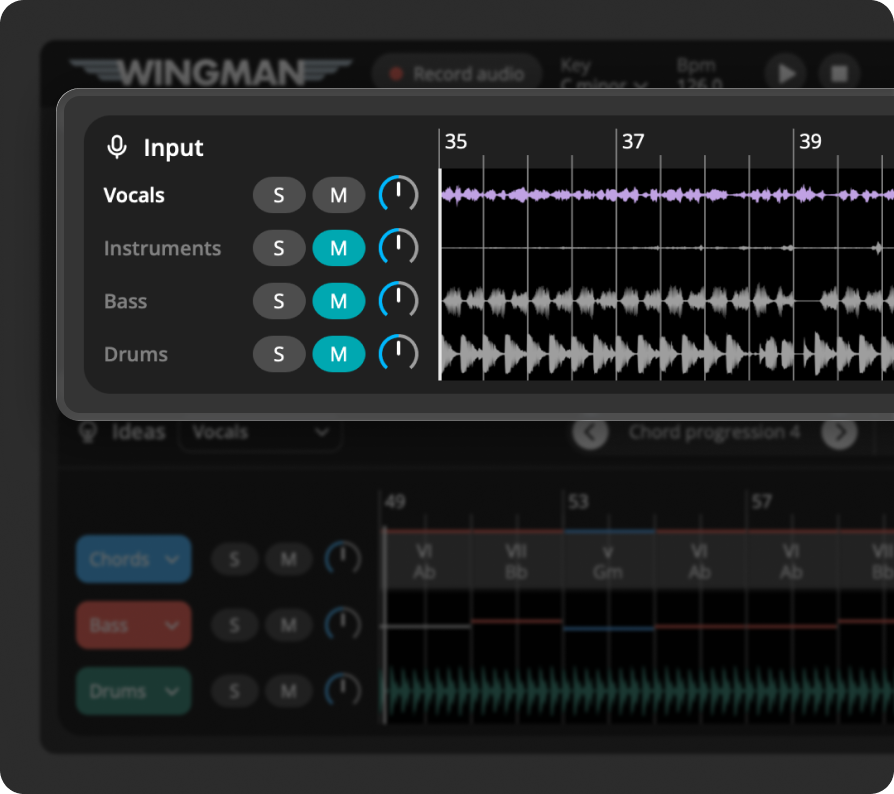
Work from the captured phrase in Wingman 3
Check the source audio, then audition only the parts you need. Keep listening to the original phrase as you refine the result.
Separate the audio into stems
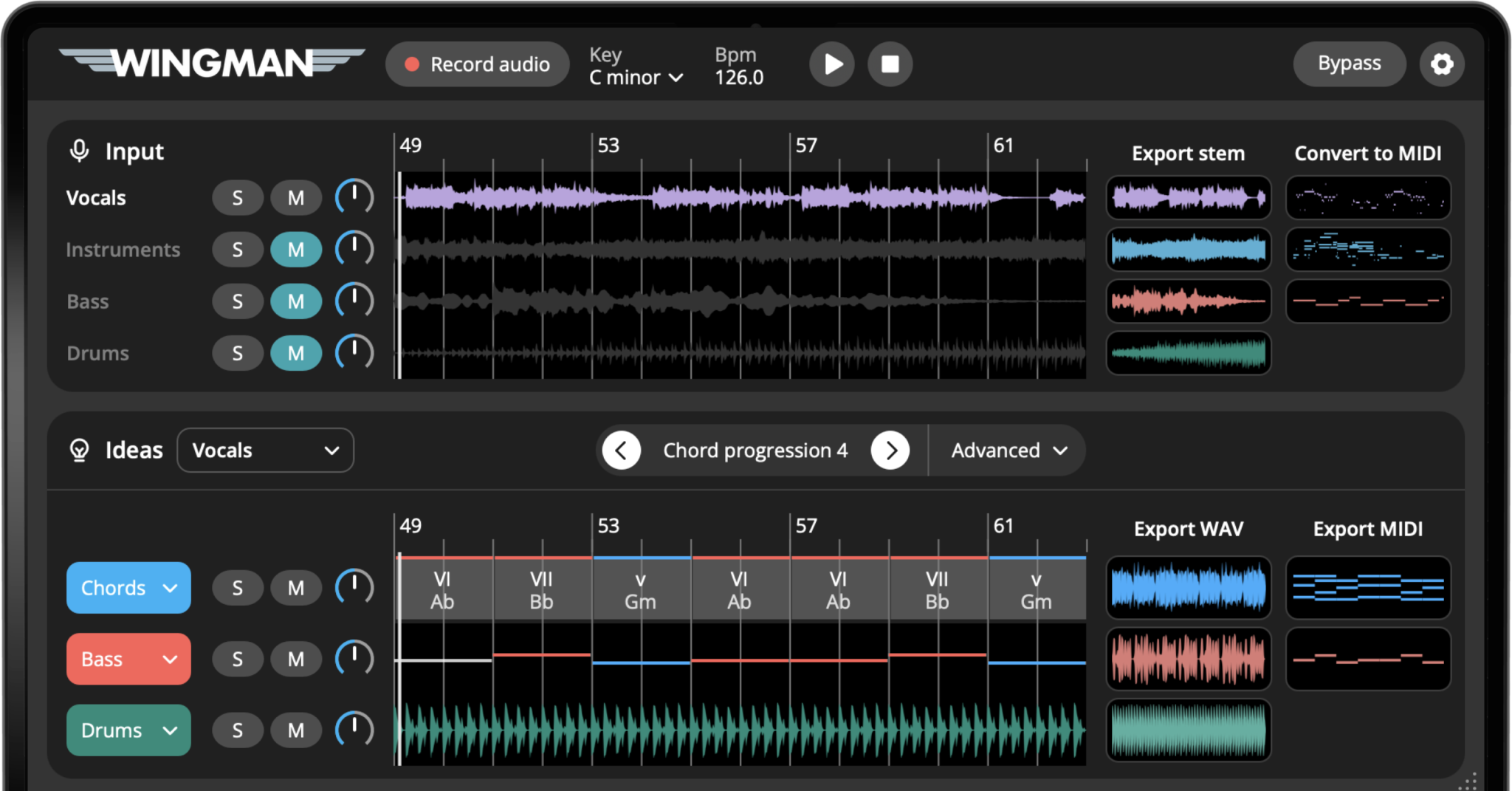
Use Wingman’s stem separation workflow to split the audio into individual parts. Depending on the source, you can work with stems such as vocals, drums, bass, and instruments.
After separation, listen to each stem so you understand what parts are useful for your production.
Choose which stems you want to export
Solo the available stems and choose only the parts you need. Check the full phrase for bleed, missing transients or separation artifacts before committing to a vocal or instrumental. A separated stem is not necessarily as clean as the original multitrack recording.
Export the stems from Wingman
Export the separated stems from Wingman so they can be used in your DAW. Keep the files organized by stem type, such as vocal, drums, bass, and instruments.
This makes it easier to arrange and process the parts after export.
Import the stems into your DAW
Place the exported files on separate audio tracks at the same starting position. Confirm they stay aligned at your project tempo before trimming or stretching them independently. Name the tracks by source and stem type so you can find the original later.
Use the stems creatively
After importing the stems, decide how they fit into your production. You can build a remix around the vocal, remove the drums, replace the bassline, sample the instrumental, or use one stem as the foundation for a new beat.
Build new parts around the exported stems
Use the exported stems as the starting point for new chords, basslines, MIDI parts, sounds, and effects. For example, you can take a vocal stem and create an entirely new progression underneath it.
This turns stem export into a creative workflow, not just a file preparation step.
Ways to use exported stems
Exported stems give you more control over audio. Here are some useful ways to work with them after export.
Use vocal stems to:
- Create a remix from an acapella
- Build new chords around the vocal
- Write a new bassline underneath
- Change the song’s mood
- Create vocal-focused arrangements
Use drum stems to:
- Analyze the original groove
- Replace or layer drums
- Create breaks and transitions
- Remove drums from a sample
- Build a new beat around the other stems
Use bass stems to:
- Understand the original low-end movement
- Replace the bassline with a new one
- Check how the harmony is grounded
- Create a cleaner remix low end
- Build new chord and bass relationships
Use instrument stems to:
- Sample melodic material
- Create new chord ideas
- Convert parts to MIDI
- Remove vocals or drums from a section
- Build new production layers
Tips for exporting better stems
Use the best source audio you have
Higher-quality source audio usually creates stems that are easier to edit, mix, and use creatively.
Keep stems organized
Name and place each exported stem clearly in your DAW. Separate tracks for vocals, drums, bass, and instruments make the session easier to manage.
Use stems as creative material
Do not stop at separation. Use the stems to build new chords, basslines, MIDI parts, remix sections, or full beat ideas.
Frequently asked questions
Yes. Wingman can separate audio into stems and export them for use in your DAW.
You can work with stems such as vocals, drums, bass, and instruments, depending on the source audio and workflow.
Yes. Exported stems are useful for remixing because you can isolate vocals, drums, bass, or instruments and build new parts around them.
Yes. If your workflow only needs the vocal, you can use the vocal stem as the foundation for a remix, acapella workflow, or new chord progression.
Yes. You can use exported stems as the starting point for new chords, basslines, MIDI parts, arrangements, and remix ideas.
Export stems and build something new.
Use Wingman to separate vocals, drums, bass, and instruments, then bring the stems into your DAW for remixing, editing, sampling, and production.
Updated