


How to change chord and bass sounds in Wingman
Change one part at a time and listen with the track playing. Keep the notes and rhythm fixed while you compare sounds, then choose how to export the result.
Updated · Wingman 3.0
How do you change chord and bass sounds?
Select the chord or bass part in Wingman, open its sound controls and audition another sound with your track playing. Change the parts separately so you can hear what each choice does to the mix.
Use built-in sounds for a quick comparison, or follow the VST synth guide for your own instruments. Export MIDI to keep changing instruments in your DAW; use WAV to keep the rendered sound.
See the workflow in Wingman 3
Follow the relevant part of the official walkthrough, then use the steps below with your own audio.
Watch this section in the official Wingman 3 walkthrough. The demonstration uses Logic; the musical controls are shown inside Wingman.
When to use this workflow
Use this workflow when the notes are working, but the sound does not fit the track yet. Changing the sound can make the same idea feel darker, brighter, wider, tighter, softer, heavier, or more polished.
Good starting points
- A chord progression that feels too plain
- A bassline that needs a stronger sound
- A melody that needs a new instrument
- A remix idea that needs a different style
- A loop you want to make sound more finished
What you can change
- Chord sounds
- Bass sounds
- Instrument sounds
- Synth presets
- The overall feel of the idea
What you need before you start
Wingman 3.0 installed as a plugin inside a supported DAW.
A chord progression, bassline, melody, or instrument idea inside Wingman.
A general sound direction, such as warm chords, deep bass, bright plucks, pads, keys, or synth leads.
Try a recorded guitar part as an alternative texture
Wingman 3 adds guitar performances recorded with real musicians. Open the sound choices, browse Real Guitars and compare an appropriate performance with your progression.
Then try the available rhythms and listen with the original vocal or melody. In the walkthrough, an electric guitar part replaces the previous chord sound; it is not simply layered on top of every existing part. Keep the bass in a useful register and choose the sound that leaves enough room for the rest of the track.
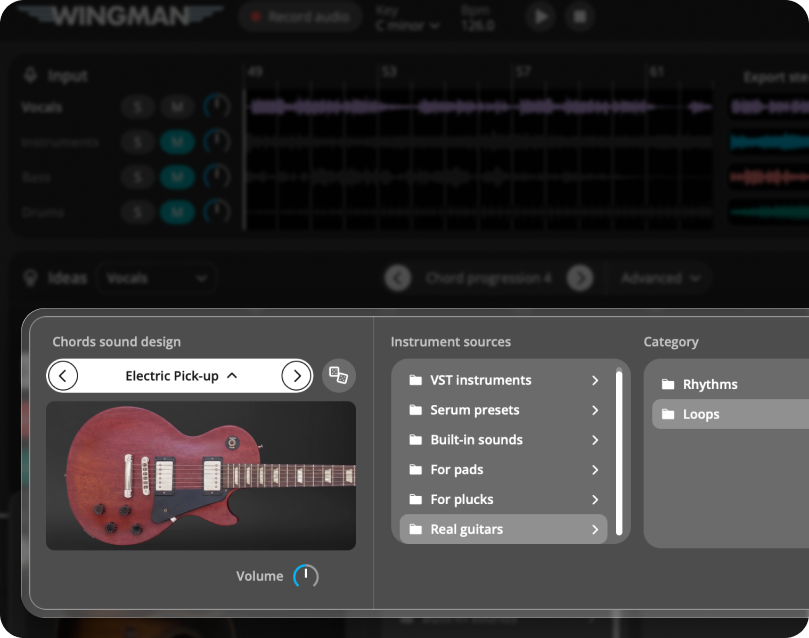
How to change sounds in Wingman
Choose a chord or bassline idea
Start with a chord progression or bassline idea generated by Wingman. These are the musical parts you can preview with different sounds inside the plugin.
Before changing sounds, make sure the basic notes and rhythm feel useful. Sound selection works best when the chord or bassline idea already has potential.
Choose which part you want to change
Select chords or bass first. Keep the progression and rhythm fixed while comparing sounds so you can hear the effect of the instrument itself.
Work from the captured phrase in Wingman 3
Check the source audio, then audition only the parts you need. Keep listening to the original phrase as you refine the result.
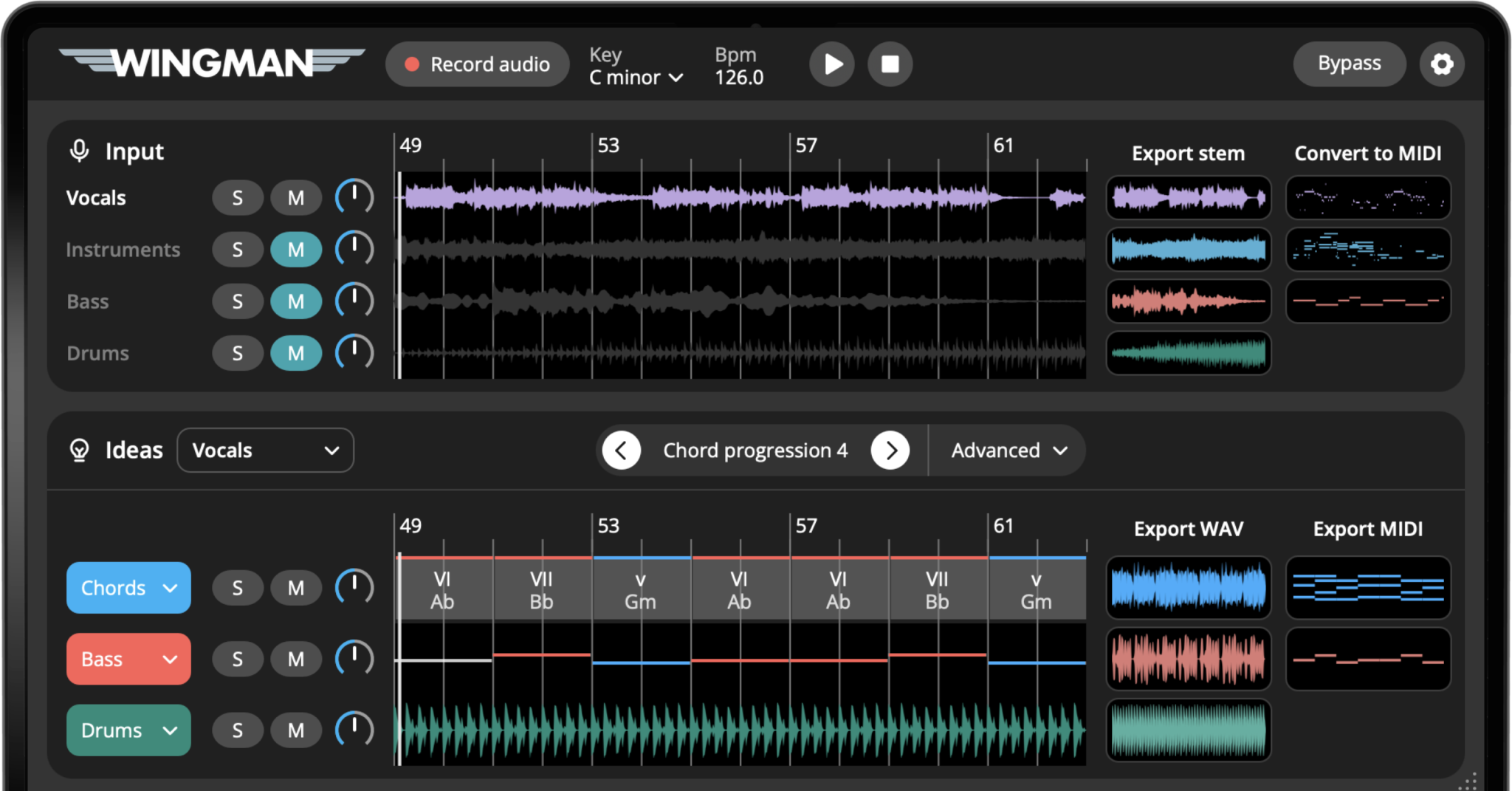
Open the sound design panel
Open Wingman’s sound design panel for the selected part. From there, you can browse sounds and audition different options without rebuilding the musical idea.
This makes it easy to hear how the same chord progression or bassline feels with different instruments.
Try different sound categories
Browse different sound types based on the role of the part. For chords, try pads, keys, plucks, pianos, or synth layers. For basslines, try sub bass, analog bass, reese bass, plucky bass, or shorter low-end sounds.
The right category can make the idea fit the track much faster than random preset browsing.
Audition sounds in context
Play the idea with your drums, vocal, loop, or other track elements. A sound that works alone may not work in the full production, so always check it in context.
Use Serum presets if you own Serum
If you already own Serum, you can explore the Serum preset workflow described in the VST guide. Your synth license and installation are separate from Wingman. Check the current supported plugin setup before loading it.
Use your own VST synths if needed
If you want to hear the idea through your own sound palette, use your own compatible VST synths inside Wingman. This lets you audition generated ideas with the synths and presets you already use in your productions.
This can make Wingman ideas feel closer to your finished track earlier in the workflow.
Add effects or export the final sound
Adjust effects after you have chosen the instrument, and compare at a similar level. Export MIDI to keep the notes editable with a DAW instrument, or WAV to use the selected sound as audio. Follow the export guide for the current steps.
How to choose sounds for different parts
The best sound depends on what role the part plays in the track. Use these ideas as starting points.
For chords, try:
- Pads for atmosphere
- Plucks for rhythmic movement
- Keys or pianos for emotional clarity
- Synth stacks for wider sections
- Softer sounds under vocals
For basslines, try:
- Sub bass for clean low end
- Reese bass for movement
- Analog bass for warmth
- Short plucky bass for groove
- Simpler sounds under busy vocals
For melodies, try:
- Leads for focus
- Plucks for bounce
- Keys for a softer feel
- Pads for background layers
- Bright synths for hooks
For remix ideas, try:
- Contrasting sounds from the original
- Softer chords under vocals
- Stronger bass for new energy
- Filtered sounds for breakdowns
- Layered instruments for bigger sections
Tips for choosing better sounds
Judge sounds in the full track
A preset can sound impressive alone but take up too much space in the mix. Always listen with the vocal, drums, bass, and other key parts.
Use simpler sounds when the part is busy
If the MIDI is rhythmically active, a simpler sound may work better. If the part is sparse, a wider or more textured sound can add interest.
Export MIDI if you are still deciding
If you are not fully committed to the sound, export MIDI. That gives you the freedom to keep changing instruments and presets in your DAW.
Frequently asked questions
Yes. You can change the sounds used for chord progressions and audition different instruments or presets.
Yes. You can choose different bass sounds so the bassline fits the style and energy of your track.
If you own Xfer Serum, Wingman includes hundreds of Serum presets from Abletunes that you can use in the sound design workflow.
Yes. Wingman can work with your own compatible VST synths so you can hear ideas with the sounds and presets you already use.
Export MIDI if you want to keep changing the sound later. Export WAV if you want to capture the selected sound as audio.
Find the right sound for your next Wingman idea.
Change chord, bass, and instrument sounds, use Serum presets, add effects, and export the final idea into your DAW.
Updated