


How to Turn Audio Into Musical Ideas With Wingman
Decide what you need from the audio first: a new backing, editable notes or separated parts. Each route has a different result.
Updated · Wingman 3.0
How to Turn Audio Into Musical Ideas With Wingman
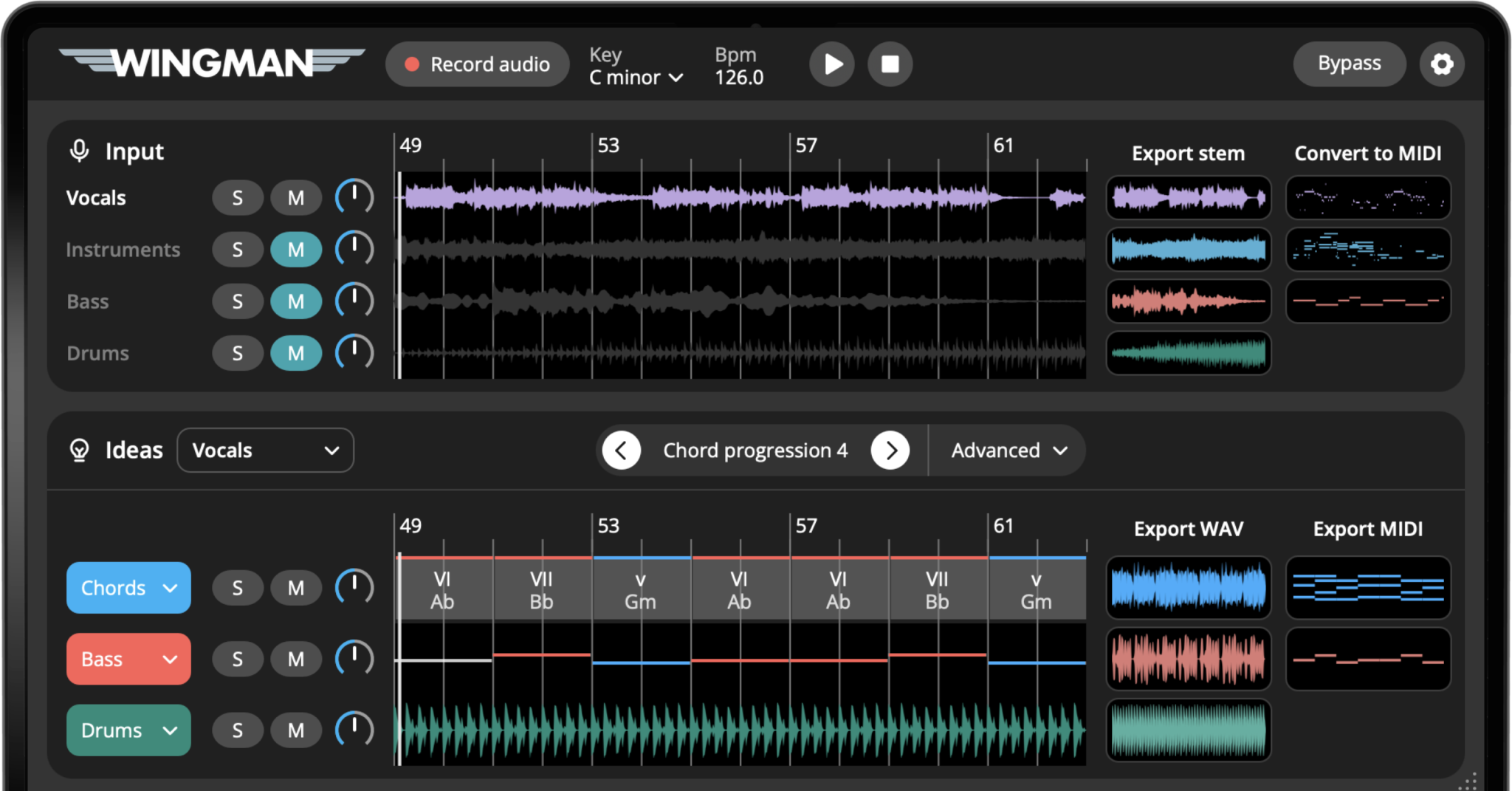
Capture a clear vocal, melody or loop in Wingman 3.0 and choose one starting task. Generate chords and bass for new backing, use audio-to-MIDI for editable note material, or separate stems to work with individual audio parts. Audition and refine the result, then export the formats available for that part into your DAW.
See the workflow in Wingman 3
Follow the relevant part of the official walkthrough, then use the steps below with your own audio.
Watch this section in the official Wingman 3 walkthrough. The demonstration uses Logic; the musical controls are shown inside Wingman.
When to use this workflow
Use this workflow when you have audio that feels useful, but you are not sure what to build around it yet. Wingman helps you turn that audio into musical parts you can edit, arrange, and finish in your DAW.
Good starting points
- A vocal phrase
- An acapella
- A melody or synth loop
- A sample or audio loop
- A full track section for stems
What you can create
- Chord progressions that fit the audio
- Basslines that support the chords
- Editable MIDI from audio
- Separated stems for remixing
- Exported MIDI or WAV parts for your DAW
What you need before you start
Wingman 3.0 installed as a plugin inside a supported DAW.
An audio idea in your session, such as a vocal, melody, loop, sample, acapella, or full track section.
A goal for the audio, such as creating chords, making MIDI, separating stems, building a bassline, or starting a remix.
Choose the next musical part, not every available part
Wingman 3 adds drums and recorded guitar performances to the audio-based workflow. Start by deciding what is missing: harmony, low end, a new groove or an instrumental texture.
Choose a chord progression before auditioning a guitar part that follows it. If you are replacing the drums, mute the original drum stem while comparing the new Drums channel. Add only the parts that help the phrase, then export them separately so you can arrange and mix them in your DAW.
How to turn audio into musical ideas
Choose the audio you want to build from
Start with an audio clip or track section in your DAW. This can be a vocal, acapella, melody, synth loop, sample, piano phrase, beat, or full track section.
Choose a section that has a clear musical idea. A focused 4-bar or 8-bar section is often easier to work with than a long recording.
Open Wingman on the audio track
Add Wingman as a plugin on the track that contains the audio. This lets Wingman listen directly to the sound you want to use as the starting point.
Record the audio into Wingman
Play the section in your DAW and record it into Wingman. This recorded audio becomes the context for creating chords, basslines, stems, MIDI, or other production ideas.
After recording, listen back and make sure Wingman captured the section you intended to use.
Choose the kind of idea you want to create
Choose one goal before adding more parts. Supporting chords are a new backing; a MIDI transcription represents detected notes; separated stems are audio. Those are different outputs, so pick the route that helps your arrangement.
Create chords that fit the audio
If your goal is harmony, use Wingman to generate chord progressions that fit the recorded audio. This is useful for melodies, vocals, loops, samples, and unfinished song ideas.
Listen for chords that support the original idea emotionally, not just chords that sound correct.
Add a bassline, rhythm, or sound
Once the chords feel right, you can add a bassline, shape the rhythm, change sounds, or add effects. This helps turn the audio-based idea into something that feels more like a production part.
Convert audio to MIDI or separate stems if needed
Use audio-to-MIDI when you want editable notes, then compare pitch and timing with the source. Use stem separation when you need individual audio parts and audition artifacts. Neither route guarantees an exact recreation of the original recording.
Export the result into your DAW
When the idea feels useful, export it as MIDI or WAV and continue working in your DAW. You can edit notes, arrange parts, change sounds, layer instruments, add drums, or build a full track section around it.
Export MIDI if you want to keep editing the musical notes. Export WAV if you want to capture the sound as audio.
Different ways to start from audio
The best Wingman workflow depends on what kind of audio you start with and what you want to create next.
If you start with a vocal, try:
- Building chords around the vocal
- Creating a bassline under the progression
- Turning the vocal melody into MIDI
- Making a remix from an acapella
- Exporting MIDI or WAV into your DAW
If you start with a melody, try:
- Finding chords that match the melody
- Adding a bassline
- Changing sounds for the chord and bass parts
- Adding rhythm and bounce
- Exporting the parts as MIDI
If you start with a loop, try:
- Converting the loop to MIDI
- Creating new layers from the same idea
- Changing the sound or instrument
- Building chords and bass around it
- Exporting a new production part
If you start with a full track, try:
- Separating stems
- Using the vocal stem as a remix starting point
- Creating new chords and basslines
- Building a new beat around the loop
- Exporting stems or new musical parts
Tips for turning audio into better ideas
Start with the clearest audio section
Choose a section where the main musical idea is easy to hear. This makes it easier to create chords, MIDI, stems, or basslines that feel useful.
Pick one goal first
Do not try every workflow at once. Decide whether you want chords, MIDI, stems, bass, or a remix starting point, then build from there.
Use the result as a starting point
Wingman helps you move faster from audio to musical material. After export, keep editing, arranging, and shaping the idea in your DAW.
Frequently asked questions
Yes. Wingman can listen to audio from your DAW and help create chord progressions that fit the musical idea.
Yes. Wingman can convert vocals, melodies, synth loops, and other audio ideas into editable MIDI.
Yes. Wingman can separate audio into stems such as vocals, drums, bass, and instruments for remixing and production workflows.
You can start with vocals, acapellas, melodies, synth loops, samples, audio loops, full track sections, or unfinished song ideas.
Yes. You can export Wingman ideas as MIDI or WAV and continue editing, arranging, and mixing them in your DAW.
Turn audio from your DAW into new musical material.
Use Wingman to create chords, basslines, MIDI, stems, rhythms, sounds, and production ideas from vocals, melodies, loops, samples, and full tracks.
Updated