


The Camelot Wheel
for harmonic mixing.
Know the key of the track playing. Find a compatible next track. The Camelot Wheel gives you a quick way to compare musical keys while you prepare a set or browse your library.
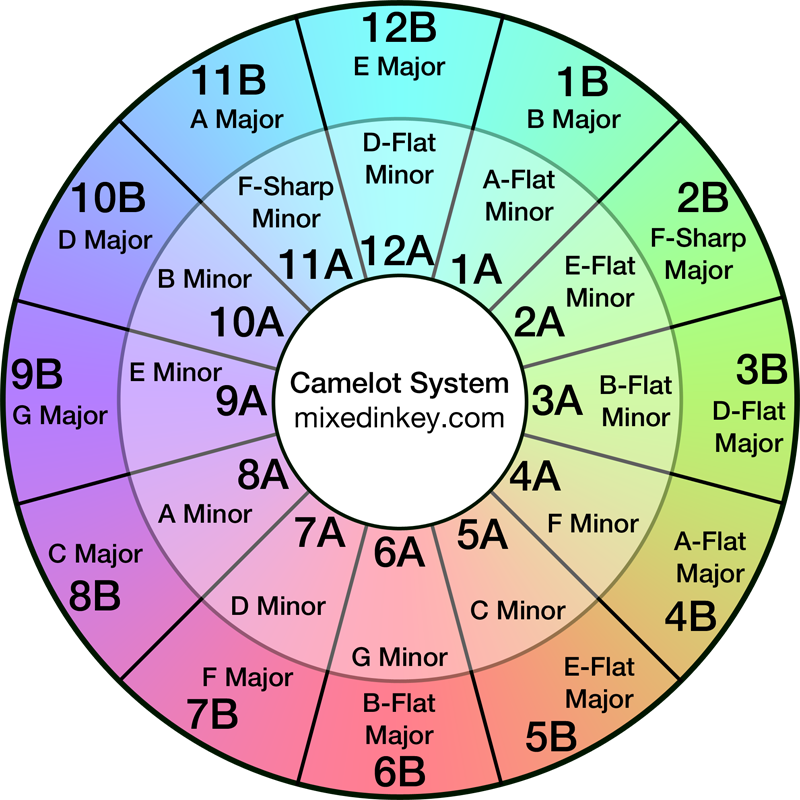
Find compatible keys.
Tap a key on the wheel to see compatible keys and mixing moves. Tap the selected key again to clear it.
Selected keyInner ring: A = minorOuter ring: B = major
Keyboard: Tab to a key, then Enter or Space to select. Arrow keys move around the wheel.
A minor
Basic mixing options
Start with these relationships, then listen to the overlap.
Explore advanced moves
These create a more deliberate change. Check the transition point and avoid assuming a long melodic overlap will work.
Numbers wrap between 12 and 1. They represent positions on the wheel, not semitones or energy ratings.
Choose a starting key
Tap any colored segment on the wheel. You’ll see its musical key, the basic compatible keys, and advanced moves here.
From 8A, try 8A, 7A, 9A or 8B.
Use the wheel to shortlist tracks. Phrasing, tempo, vocals and basslines still decide whether the blend works. Learn the basic moves.
How to read the Camelot Wheel
If the current track is 8A, start with 8A, 7A, 9A or 8B. The same pattern works around the wheel. These are useful starting points for a blend, especially when melodies, vocals or basslines overlap.
Stay in the same key
Keep the number and letter the same. Two tracks in 8A share the same key, which gives you a straightforward harmonic starting point.
Move one number
Go up or down one position and keep the letter. From 8A, try 7A or 9A. At the edge of the wheel, 12 connects back to 1.
Switch the letter
Keep the number and change A to B, or B to A. This moves between relative minor and major keys: 8A is A minor, and 8B is C major.
Starting from a major key? Use the same rules. From 8B, try 8B, 7B, 9B or 8A.
Plan and check the transition
The wheel helps with track selection. Your transition still depends on phrasing, groove and what is playing during the overlap.
Analyze and prepare
Analyze your tracks in Mixed In Key and review the Camelot keys, BPM, energy ratings and cue points. Follow the integration guide for your DJ software so the results appear in your library.
Choose a candidate
Find a track in the same key, one number away, or with the same number and the opposite letter. Compare tempo and energy, then pick mix-in and mix-out points that suit the arrangement.
Test the real overlap
Beatmatch and listen at the tempo you will actually play. Check whether the vocals, bass and chords work together. Try a different section or another track if the blend feels crowded.
Changing playback speed can change pitch when key lock is off. Key lock preserves the original key as tempo changes; a deliberate key shift changes the key you need to compare. Listen after making either adjustment.
Hear harmonic mixing in action.
Shane 54’s “32 songs in 5 minutes” demo for Mixed In Key puts a lot of recognizable ideas into a short mix. It is an example of creative harmonic mixing, rather than a key-detection accuracy test.
Demo by Shane 54, posted by Mixed In Key. Listen on SoundCloud.
- Listen to the handovers between melodic parts and vocals. Notice where one part makes room for another.
- Listen for short edits and changes in density. Key relationships are one part of the mix; phrasing and arrangement also shape each transition.
- Try a two-track version with a crate you know. Start with the basic Camelot options, choose the overlap and listen before adding more layers.
Advanced Camelot moves
Once you know the basic relationships, try more deliberate key changes or faster same-key blocks. Pick the transition point carefully and audition the result before using it in a set.
Energy Boost mixing
Try 8A into 10AAdd two to the Camelot number and keep the letter. This changes the key more noticeably than an adjacent move. Use it when you want a lift, and choose tracks whose arrangement and energy support that change.
Read the Energy Boost tutorialJaws Mix
Try 8A into 3ASubtract five from the Camelot number and keep the letter. This is a deliberate contrast rather than a basic compatible-key blend. Try it at a clear phrase change, breakdown or drop, and check how the handover sounds.
Read the Jaws Mix guidePay Attention Mix
Try 8A into 5ASubtract three from the Camelot number, or add nine and wrap around the wheel. Keep the letter for this example. The change can stand out, so test a shorter overlap if the two melodic parts clash.
Read the Pay Attention Mix guidePower Block mixing
Build a block of 8A tracksGroup tracks in the same key and move quickly between recognizable sections. Prepare cue points and listen to each handover. This is a way to organize and perform a set, rather than a new key relationship.
Read the Power Block tutorialCamelot numbers wrap from 12 back to 1. A key change alone does not guarantee a rise in energy: track selection, timing and the length of the overlap shape the effect.
Camelot key chart
Use the wheel to see the relationships, or the table to convert between Camelot notation and musical key names.
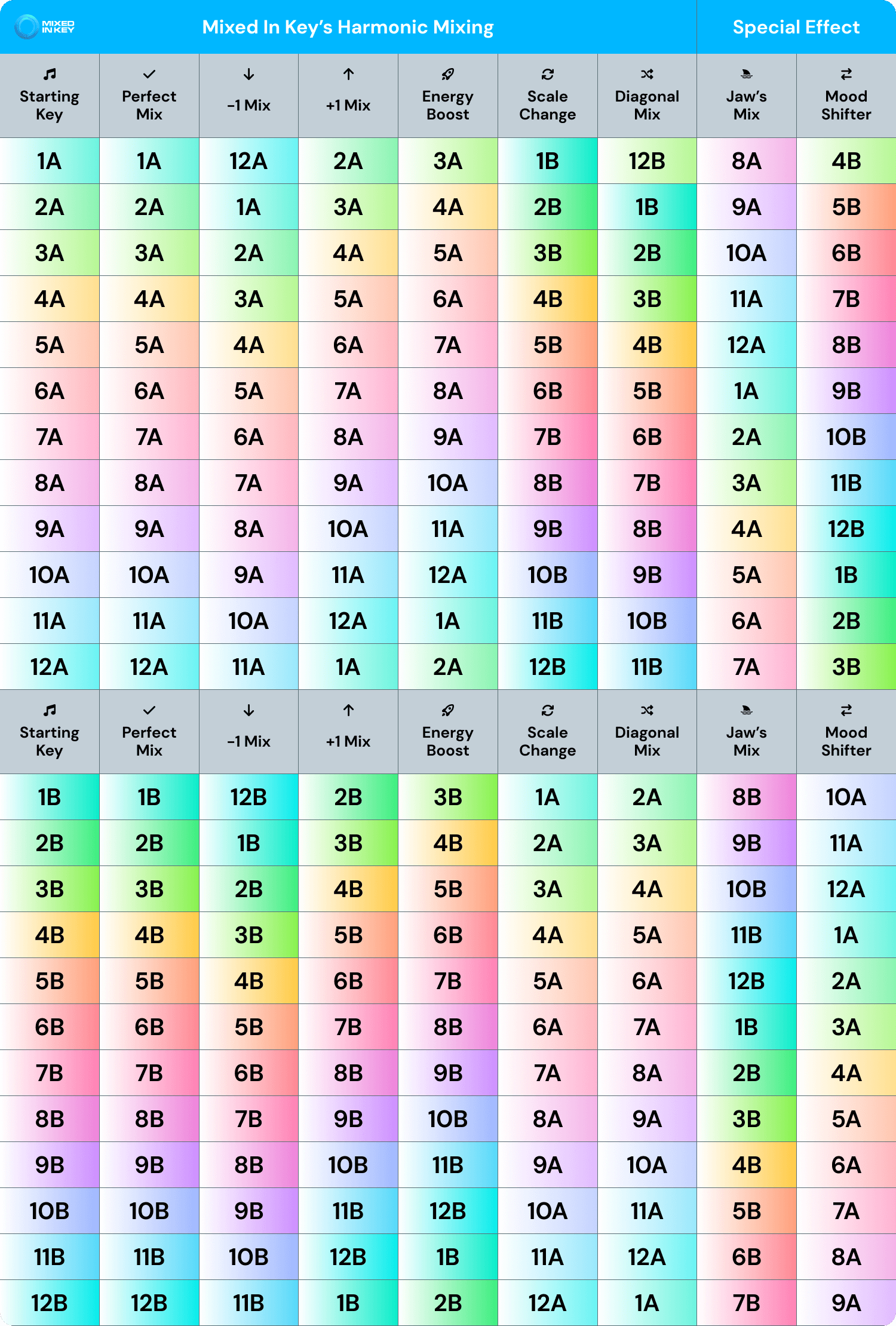
| Number | A — minor | B — major |
|---|---|---|
| 1 | G♯ minor / A♭ minor | B major |
| 2 | D♯ minor / E♭ minor | F♯ major / G♭ major |
| 3 | A♯ minor / B♭ minor | D♭ major / C♯ major |
| 4 | F minor | A♭ major |
| 5 | C minor | E♭ major |
| 6 | G minor | B♭ major |
| 7 | D minor | F major |
| 8 | A minor | C major |
| 9 | E minor | G major |
| 10 | B minor | D major |
| 11 | F♯ minor | A major |
| 12 | C♯ minor / D♭ minor | E major |
Find the keys
with Mixed In Key.
Both Standard and Pro analyze your tracks and display Camelot notation. Standard covers library preparation. Pro adds tools for testing track combinations and developing mashup ideas.
Mixed In Key
Standard
Analyze key, BPM, energy and cue points. Organize your library and bring the results into your DJ software using its integration workflow.
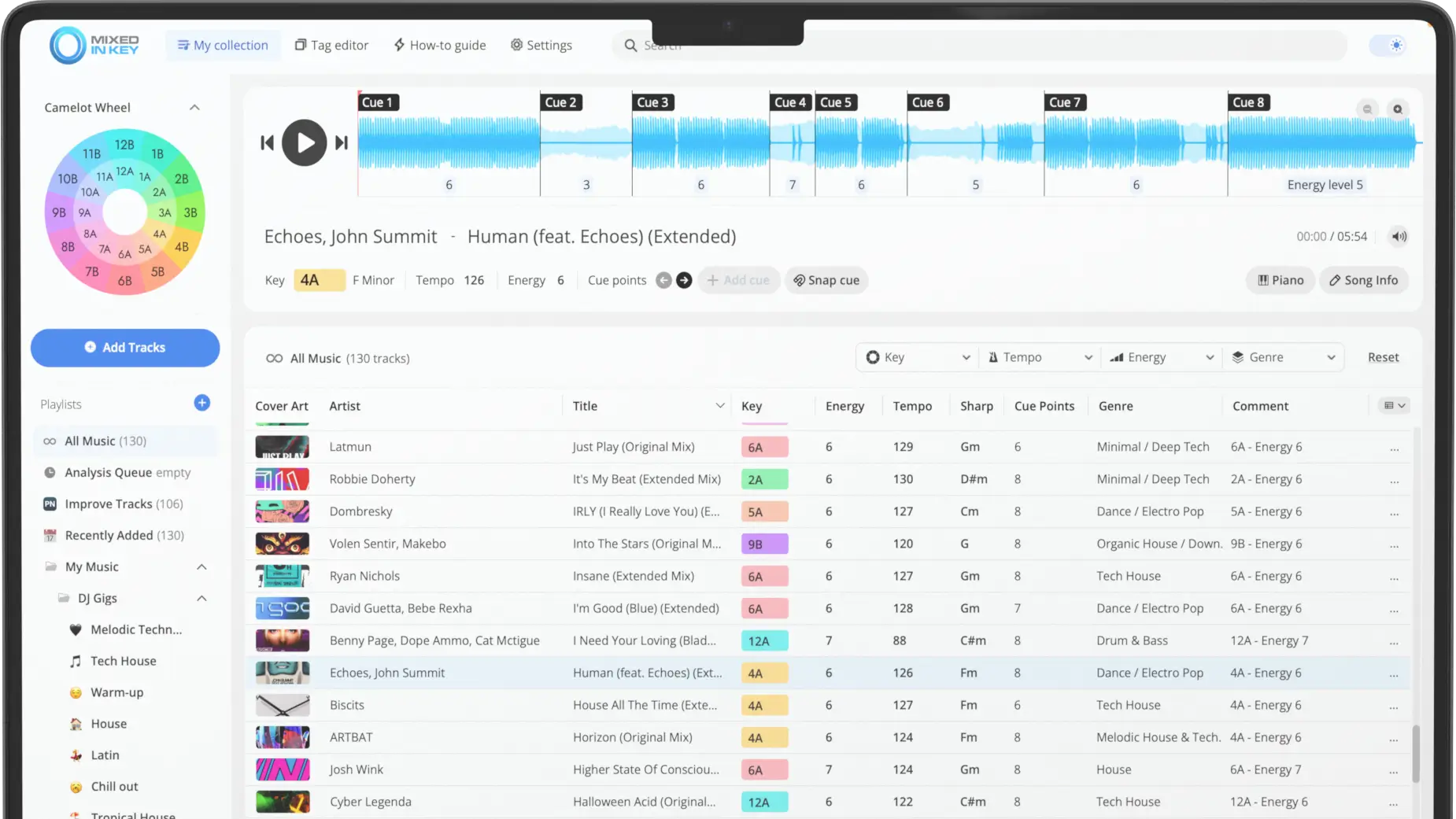
Mixed In Key
Pro
Use the same analysis tools, plus deck players, mashup suggestions, stems, looping and key changes. Audition a vocal against an instrumental before taking the idea into your DAW.
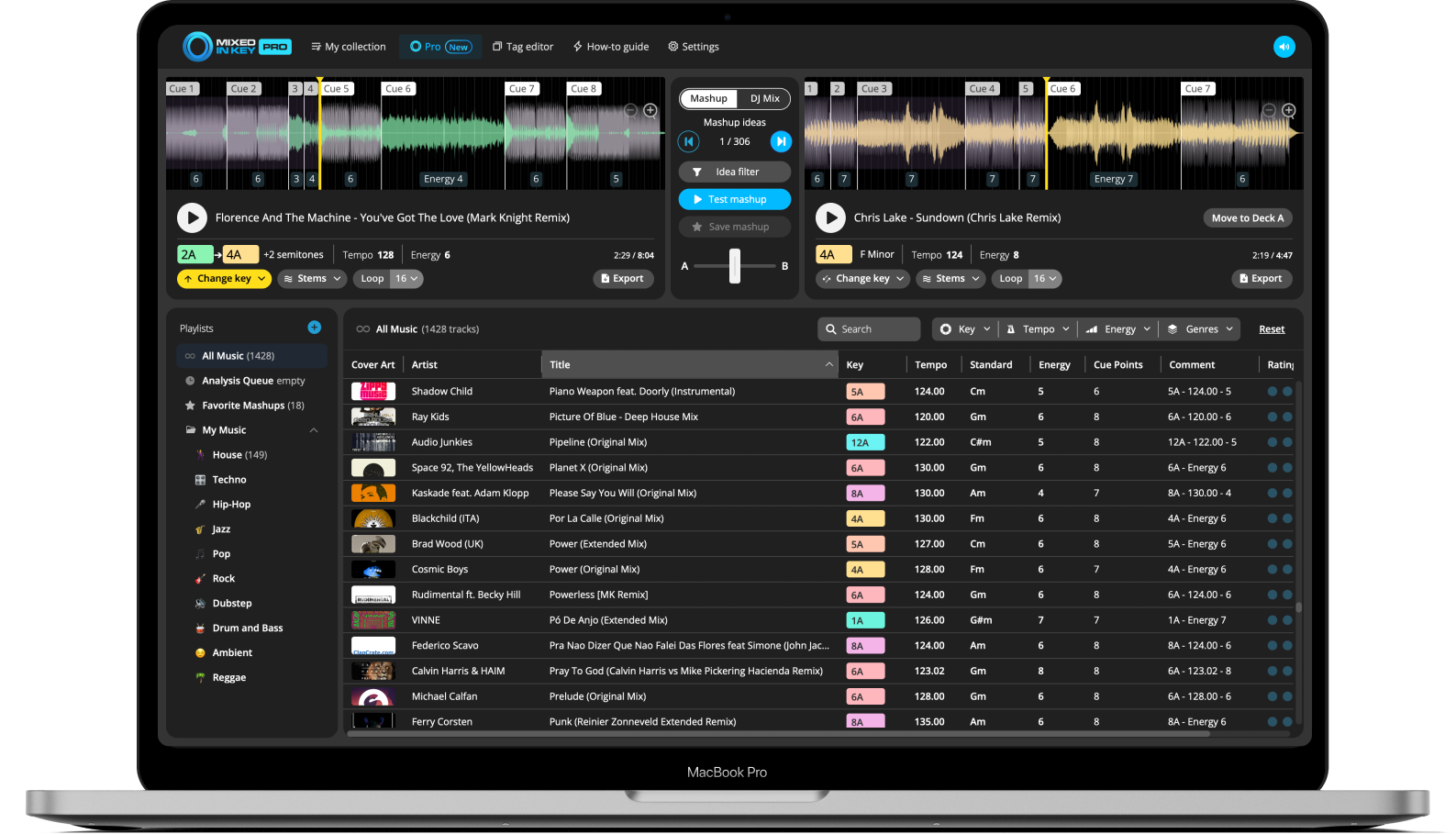
Camelot Wheel FAQs
What is the Camelot Wheel?
It is a way to represent musical keys with numbers and letters. DJs use the layout to find related keys and shortlist tracks for harmonic mixing.
What do A and B mean?
A represents minor keys, and B represents major keys. Keys with the same number and opposite letters are relative minor and major, such as 8A (A minor) and 8B (C major).
Which keys work with 8A?
Start with 8A, 7A, 9A or 8B. Then check the actual overlap, phrasing, tempo and energy. A compatible key is a useful starting point, not a guarantee that every section will blend.
What happens between 12 and 1?
The wheel is circular. From 12A, the adjacent minor keys are 11A and 1A. From 1B, the adjacent major keys are 12B and 2B.
Does moving one number mean moving one semitone?
No. Camelot numbers describe positions around the wheel. A move from 8A to 9A goes from A minor to E minor. Use musical key names or your software’s key-shift controls when transposing a track.
Do I need Pro to use the Camelot Wheel?
No. Mixed In Key Standard also analyzes tracks and displays Camelot keys. Pro adds creative tools such as deck players, stem separation and key changes.
Should every transition follow the wheel?
No. Use the wheel when harmonic parts overlap and you want related keys. Track selection, percussion, EQ, phrasing and deliberate contrast also shape a set. Listen to the result and choose what works.
Put it into practice.
Analyze a few tracks, look for the basic key relationships, and test the transitions in your DJ software. Keep the pairings that work for your set.