


How to Change Key for Better Mashups
When a vocal and instrumental nearly work, try a key change in Pro. Check the pitch-shifted sound and the actual overlap before exporting.
How to Change Key for Better Mashups
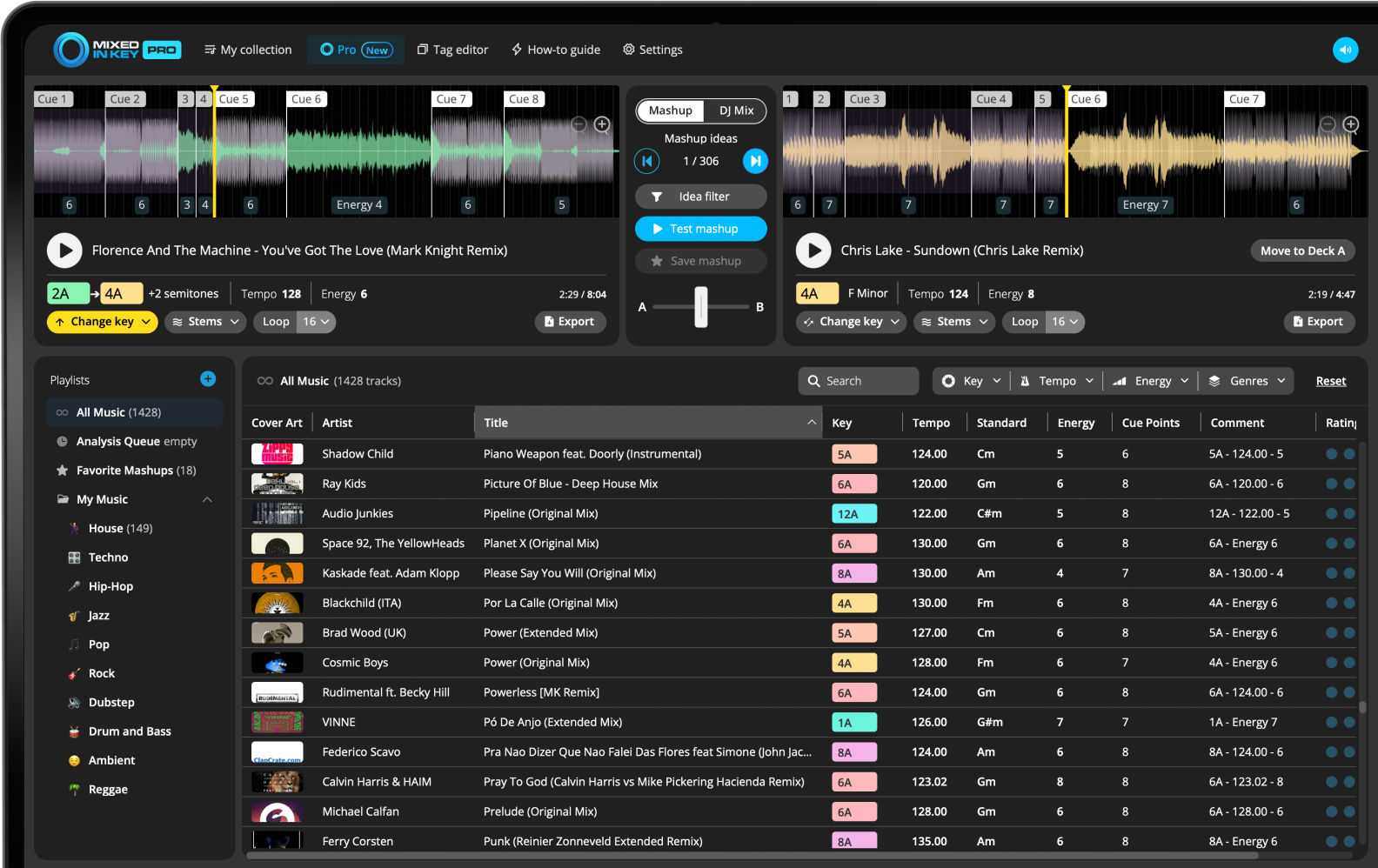
Load your reference track in Mixed In Key 11 Pro’s Mashup Mode and try a key change. Review the refreshed suggestions, then audition the vocal and instrumental at the sections you want to combine. Matching key narrows the search; timing, phrasing and pitch-shift quality still decide whether the mashup works.
Key, BPM, energy and automatic Cue Points are included in Standard and Pro. Mashup suggestions, deck players, stems and key changes require Pro. Compare Standard and Pro.
Why changing Key can unlock better mashups
Some mashup ideas are close, but the Key relationship is not right. Changing Key can move a vocal or instrumental into a better harmonic position.
In Mixed In Key Pro, changing Key can also reveal new suggestions. This makes it easier to find unique combinations that are not obvious from the original song Key.
Use Key changes to:
- Make vocals fit instrumentals
- Find new mashup suggestions
- Create more unique combinations
- Test ideas that are close but not perfect
Always check:
- Does the vocal still sound natural?
- Does the harmony feel better?
- Does the Energy Level still fit?
- Does the rhythm still work?
Change the Key on Deck A to generate new ideas on Deck B
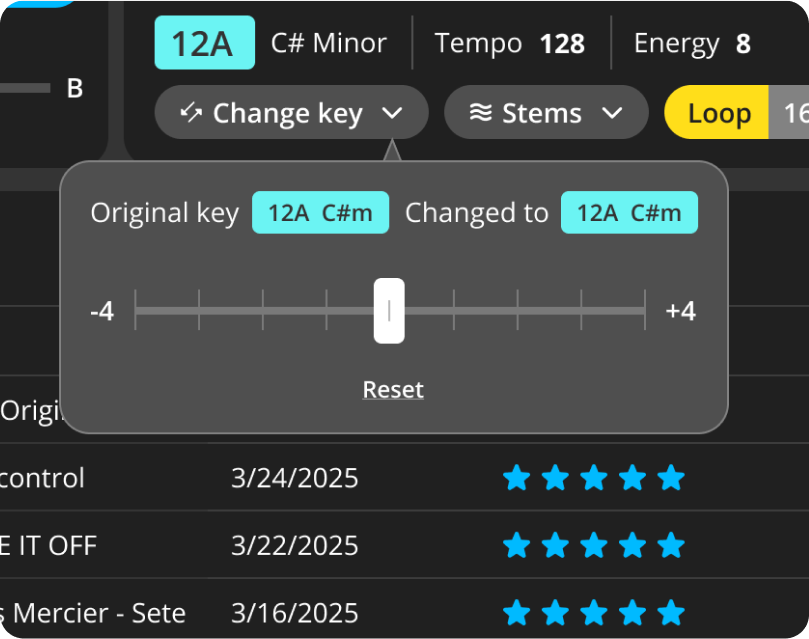
Mixed In Key Pro lets you change the Key of the track loaded on Deck A directly inside the Pro workflow. When you change the Key on Deck A, Mixed In Key Pro automatically refreshes the suggestions on Deck B using the new Key as the anchor for the idea search.
This means you are not limited to the original Key of the track. If a vocal or instrumental feels close to working, but the harmony is not quite right, change the Key and Mixed In Key Pro will show you a new set of mashup ideas based on that new harmonic position.
Use Key changes to unlock new suggestions
Start with the track you want to build around in Deck A. Change its Key, then review the new Deck B suggestions that appear. This can help you discover mashup combinations that would not show up when using the original Key.
Try small Key changes first and listen carefully. A small change can make a vocal and instrumental feel more natural together, while larger changes can create more unexpected ideas.
Use Camelot notation as your starting point
Camelot notation helps you understand which Keys are compatible. A means minor and B means major.
When changing Key, use Camelot compatibility as a guide, then listen to decide whether the result is musical.
Start with compatible Keys
Same Key and compatible Camelot moves are the safest starting points. More adventurous Key changes can work too, but they should be tested carefully.

Change Key and get new mashup suggestions
In Mashup Mode, change the Key of your track and Mixed In Key Pro can show new suggestions based on that new Key.
This can help you find less obvious mashup ideas from your own library.
Use stems when testing changed-Key ideas
Changed-Key ideas are easier to judge when you isolate the parts that matter. Try the acapella from one track over the instrumental from another.
If the vocal tone sounds unnatural after the Key change, try a smaller change or a different suggestion.
Export stems in the Key you need
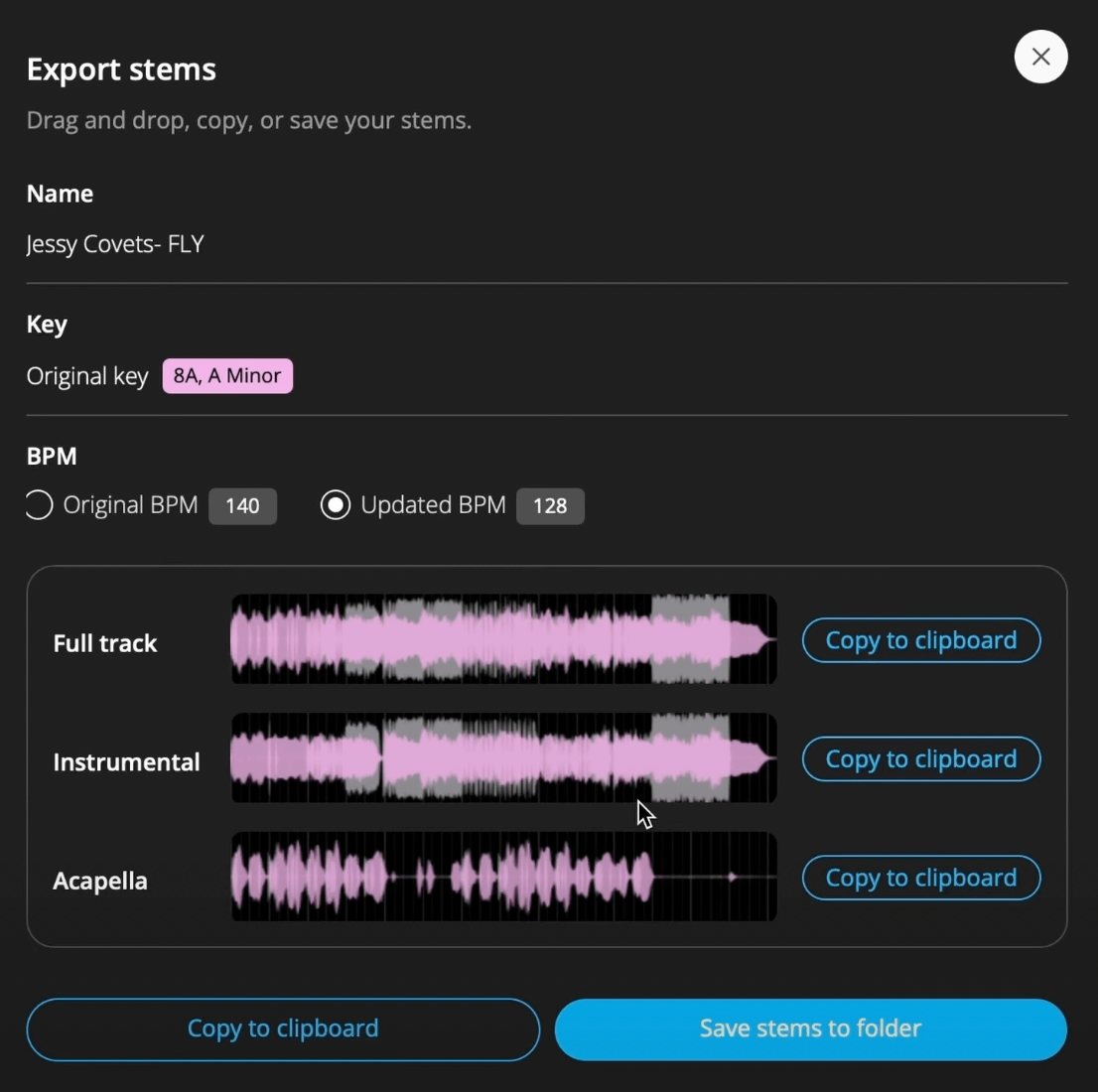
Once you find a changed-Key idea that works, export the stem you need and continue editing in your DAW.
Export after testing
Do not export every idea. Test the changed-Key version first, then export only the combinations that sound natural and useful.
How to change Key for better mashups
Analyze your music
Analyze your tracks so Mixed In Key Pro knows each song’s Key, BPM, Energy Level, and Cue Points.
Open Mashup Mode
Load a song you want to test into Deck A.
Change the Key
Change the reference track’s key, review the updated suggestions and compare against the original. Start with a small shift and listen to sustained vocal notes, bass and transients. A compatible key does not guarantee that a shifted voice will sound natural.
Test with stems
Use acapella and instrumental playback to hear the idea clearly.
Export the best result
Keep the original and the shifted preview as references. Export the stem you need, then check its pitch, tempo and start position in your DAW against the preview before arranging the full mashup.
Frequently asked questions
Yes. Mixed In Key Pro lets you change Key and test new suggestions based on that changed Key.
No. It can help, but you should always listen carefully and make sure the vocal, instrumental, and energy still feel right.
Use Key changes in Mixed In Key Pro to unlock better ideas.
Change Key, test new suggestions, and export stems when the idea works.
Updated