


In this article
MIDI carries performance information such as note pitch, timing and velocity. A MIDI generator or effect creates or changes that information; an instrument turns it into sound. VST describes a plugin format, so “MIDI VST” alone does not tell you how a particular tool must be routed.
Identify what enters and leaves the plugin
An audio compressor takes sound in and processes sound. An arpeggiator usually takes notes in and outputs a note pattern. A composition plugin may also include its own instrument, so you can hear its ideas before sending or exporting them elsewhere. Read the tool’s input and output description before assuming it belongs in an audio-effect slot.
Check the host and plugin format
Your DAW must support the installed format as well as the routing you need. Logic Pro uses Audio Units for third-party plugins; other hosts may offer VST or additional formats. A compatible format does not prove every MIDI-output workflow is identical across hosts. Check the current developer guide for your exact product, DAW and operating system combination.
Test with one note and one instrument
Create a simple source pattern and a plain destination sound. Confirm that the source makes notes, the destination receives them and only one intended sound is audible. If you hear two instruments, mute the source’s internal audio where the documented workflow allows it. If nothing plays, check monitoring and track selection before changing the musical pattern.
Understand live routing versus MIDI export
Live routing lets you hear edits as the source changes, but requires the correct host setup. Exported MIDI gives you notes to edit directly on another track. It does not include the original instrument sound or audio effects. Keep a reference bounce if the tone and processing are part of the idea you want to preserve.
Capture the version you intend to keep
Some generators can produce a different result on another pass. Save the source settings and record or export the selected notes when you hear a useful phrase. Reopen the captured part with a simple sound and inspect note lengths, overlaps and velocities. This also catches unwanted double notes that may have been hidden by a busy preset.
Use MIDI tools to make an arrangement
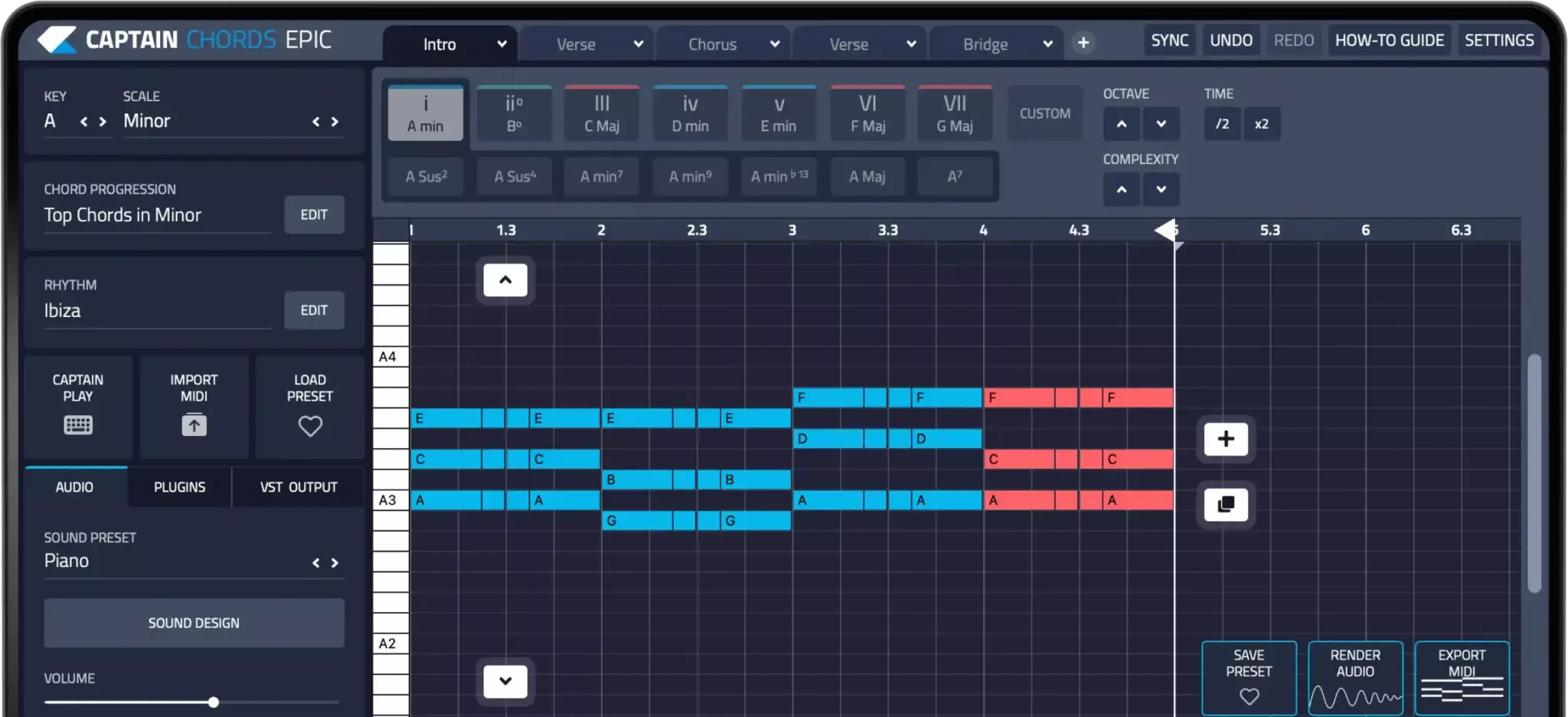
Turn the saved phrase into a section by choosing where it starts, stops and changes. Captain Plugins 8 provides tools for writing chords, melody, bass and drums; use the relevant guide for moving each result into your DAW. The practical goal is an editable musical part, not a complicated signal path for its own sake.
Try this in your project
Create a held C-major chord and pass it through an arpeggiator before a simple piano instrument. Capture or export the resulting notes using your DAW’s documented method. Compare the held chord, generated pattern and captured MIDI so you can identify what each stage contributes.
Quick reference
| Focus | What to try | What to check |
|---|---|---|
| MIDI | Pitch, timing and velocity information | Which notes enter and leave the tool |
| Instrument | Turns the performance into sound | Only the intended sound is playing |
| Capture | Save notes and a reference bounce | The phrase can be recovered later |
Work with Captain Chords
Use Captain Chords to sketch the harmony, edit its voicing and rhythm, then develop the arrangement in your DAW.
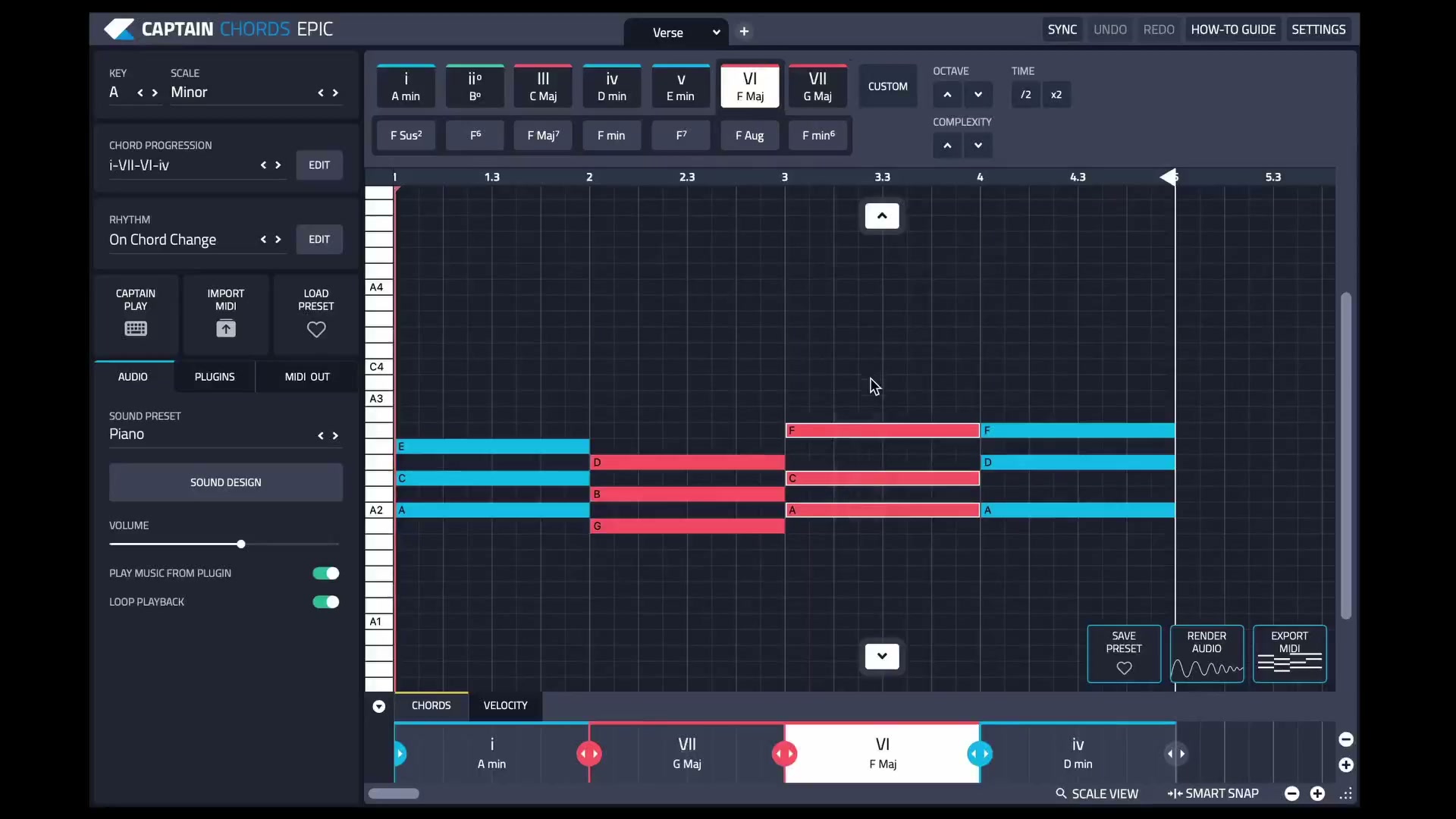
Captain Plugins 8 overview
See the update video for the current canvas and editing workflow.
Useful references
Common questions
Does a MIDI file contain the synth sound?
No. It stores musical performance data. You need an instrument to play it, and a different instrument can interpret velocity or note length differently.
Can I insert any VST into Logic Pro?
Logic uses Audio Units rather than loading VST plugins directly. Choose a compatible version supplied by the developer and follow its current installation instructions.