


How to Use Stems in Mixed In Key Pro
Hear the vocal and instrumental separately while testing a pairing. Keep the useful parts and finish the arrangement in your DAW.
How to Use Stems in Mixed In Key Pro
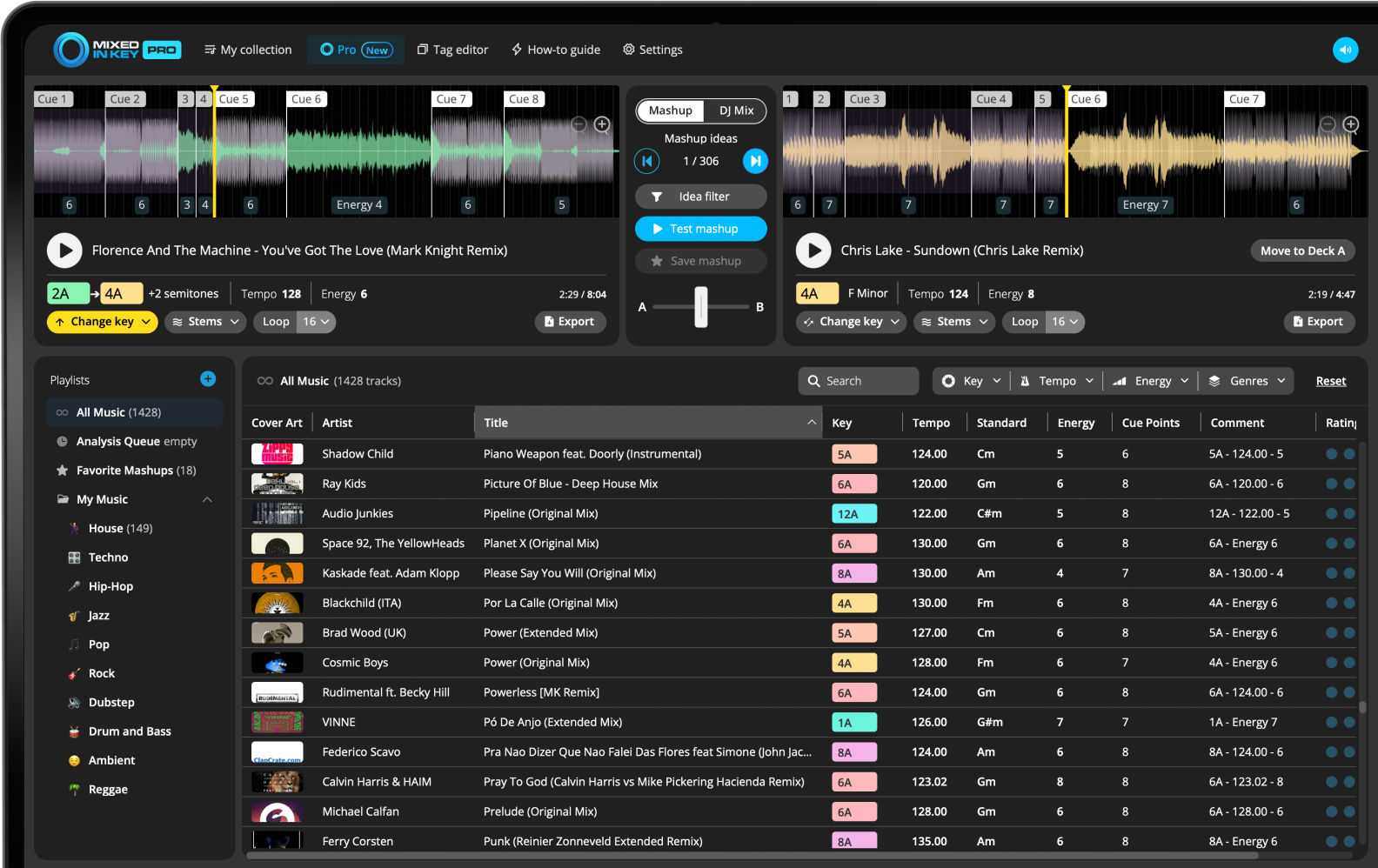
Mixed In Key 11 Pro provides stem playback for auditioning mashup and transition ideas. Compare a vocal with an instrumental partner, use cues and loops to test the phrase, and check any key change by ear. Export the part you need for further arranging. Stem separation can leave artifacts; the preview is a test of the idea, not a finished mix.
Key, BPM, energy and automatic Cue Points are included in Standard and Pro. Mashup suggestions, deck players, stems and key changes require Pro. Compare Standard and Pro.
What are stems in Mixed In Key Pro?
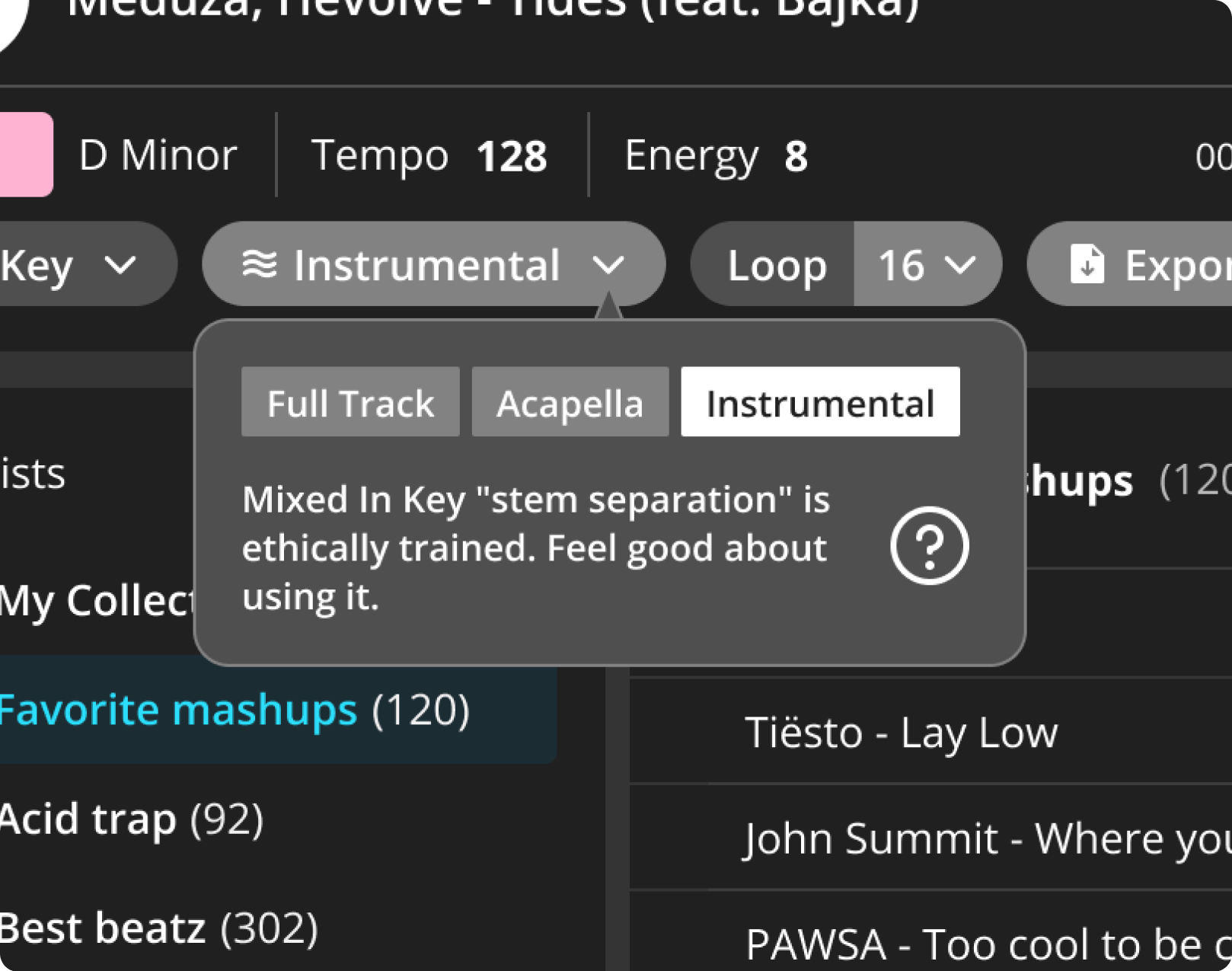
Stems are separated versions of a song that let you focus on specific parts of the track. In Mixed In Key Pro, you can switch between full track playback, acapella playback, and instrumental playback.
This is especially useful for mashups because you can test how a vocal works over a different instrumental, or remove a vocal from one deck when it competes with another vocal.
Use stems to test:
- Acapella over instrumental ideas
- Instrumental-only mashup combinations
- Full-track playback ideas
- Cleaner vocal and instrumental pairings
- Key-shifted mashup options
Why stems help
A mashup can sound crowded if both tracks have vocals or busy melodic sections playing at the same time. Stems let you isolate the parts that matter so you can judge the idea more clearly.
Choose between full track, acapella, and instrumental
In Mixed In Key Pro, each deck gives you stem playback options. You can listen to the original full track, isolate the acapella, or play the instrumental only.
This makes it much faster to test whether a vocal fits over a different song, or whether an instrumental gives you enough space for another vocal.
Switch stems while testing ideas
Try an acapella on Deck A and an instrumental on Deck B. If Deck B has a vocal that gets in the way, switch Deck B to instrumental only.
This helps you hear the actual mashup idea instead of judging a messy combination of two full songs playing at once.
Use stems in Mashup Mode
Mashup Mode is one of the best places to use stems in Mixed In Key Pro. Load a track into Deck A, choose the stem playback you want, and use the suggested ideas to find songs from your library that could work in Deck B.
For example, you can play an acapella on Deck A, then test different instrumental suggestions on Deck B. This gives you a fast way to audition mashup ideas before moving anything into a DAW.
Example workflow
- Load a vocal track into Deck A
- Switch Deck A to acapella
- Choose a suggested track for Deck B
- Switch Deck B to instrumental if needed
- Test the mashup and save the best ideas
What to listen for
- Does the vocal sit well over the instrumental?
- Does the Key feel compatible?
- Does the Energy Level feel right?
- Does the rhythm feel natural?
- Is the idea worth exporting?
Remove competing vocals with instrumental playback
One of the most useful stem workflows is switching one deck to instrumental only. This is helpful when the track on Deck B has a vocal that competes with the acapella or vocal phrase on Deck A.
Instead of judging two vocal parts on top of each other, switch the second deck to instrumental and listen to whether the music supports the vocal.
Use instrumental playback when:
- Two vocals are clashing
- A vocal distracts from the acapella
- You want to test a cleaner mashup idea
- The instrumental groove works better by itself
Use full track playback when:
- You want to hear the original arrangement
- The songs do not have competing vocals
- You are testing a DJ transition idea
- You want to compare full song energy
Change Key to unlock new stem and mashup ideas
Mixed In Key Pro lets you change the Key of a track and then discover new suggestions based on that changed Key. This can reveal mashup ideas that you might not find by using the original Key only.
This is powerful when an acapella and instrumental feel close, but not quite right harmonically. Try a Key change, listen again, and decide whether the combination works better.
Use Key changes to:
- Find new compatible suggestions
- Make an acapella fit an instrumental
- Explore less obvious mashup ideas
- Create more unique combinations
Check before exporting
Always listen carefully after changing Key. A Key-shifted idea can be harmonically useful, but the vocal tone, groove, and arrangement still need to feel right.
Use Cue Points and loops to test stem ideas faster
Stem testing becomes more useful when you combine it with Cue Points and looping. Instead of listening through the full song, jump directly to the sections you want to test.
Use Cue Points to jump to intros, breakdowns, drops, and mix-out sections. Then use loops to hold the part of the track you want to audition against another stem.
Use Cue Points to test:
- Intros
- Breakdowns
- Drops
- Mix-out sections
Use loops to:
- Hold a useful instrumental section
- Repeat a vocal phrase
- Compare multiple suggestions quickly
- Test whether a mashup idea stays interesting
Export stems from Mixed In Key Pro
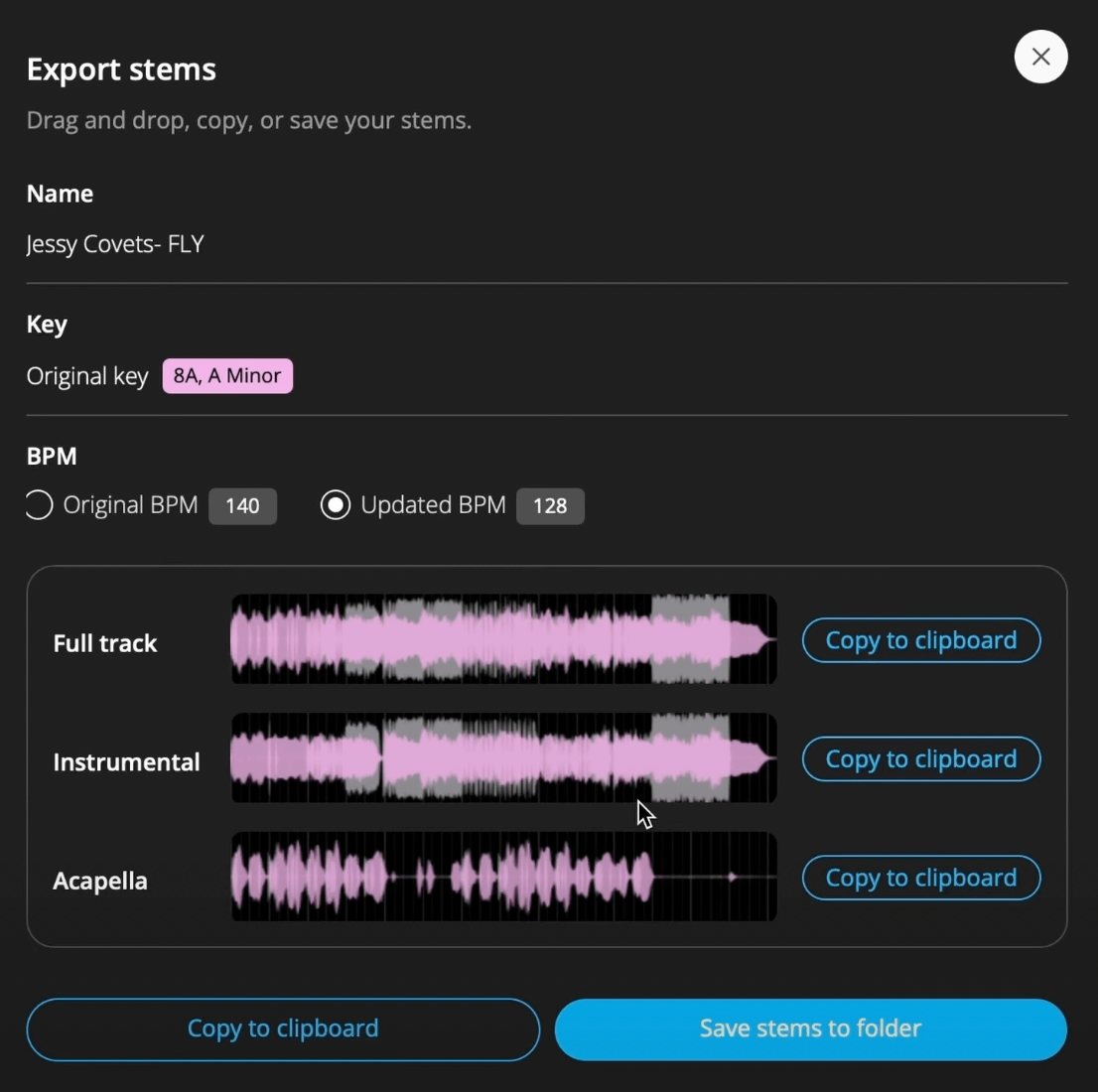
When you find a stem idea you like, use the export dialog to save the audio for your production or DJ workflow. Mixed In Key Pro can export the full track, instrumental, or acapella.
This makes it easy to move the idea into a DAW such as Ableton, Logic, or another production workflow so you can finish the arrangement, edit, or mashup.
Choose what you want to export
Export the full track when you want the complete audio. Export the instrumental when you want the music without the vocal. Export the acapella when you want to work with the vocal by itself.
If you changed the Key during your workflow, use the export options that match the idea you want to finish.
How to use stems in Mixed In Key Pro
Analyze your music in Mixed In Key
Start by analyzing your tracks so Mixed In Key can show Key, BPM, Energy Level, and Cue Points.
Open the Pro tab
Go to the Pro workflow and choose the track you want to start with.
Choose Mashup Mode
Use Mashup Mode when you want to test vocals, instrumentals, and song combinations from your own library.
Select a stem playback option
Choose the full track, vocal or instrumental playback option offered for the deck. Solo the relevant part across the whole phrase and listen for bleed or missing detail before judging the pairing.
Test suggested combinations
Use the suggestions in Mixed In Key Pro to test how your selected stem works with other songs in your library.
Use Cue Points and loops
Jump between Cue Points and loop useful sections so you can quickly audition different parts of the track.
Change Key if needed
If the idea is close but not quite right, change the Key and test the new suggestions.
Save and export the best idea
Keep a reference to the pairing and export the vocal or instrumental you need. In your DAW, compare pitch, tempo and start position against the preview before editing the arrangement. Check the current Pro requirements for stem features.
Ways DJs and producers can use stems in Mixed In Key Pro
Stems can be useful for quick idea discovery, serious mashup preparation, and building more polished edits.
Find acapella + instrumental ideas
Test a vocal over different instrumental suggestions and save the best combinations.
Remove clashing vocals
Switch one deck to instrumental when two vocal parts compete with each other.
Create unique mashup ideas
Change the Key and listen to new suggestions that would not appear in the original Key.
Prepare DAW edits faster
Export acapellas, instrumentals, or full tracks, then finish the idea in your DAW.
Test transitions
Use stem playback to hear whether parts of two tracks work together before committing to an edit.
Build better performance ideas
Save strong combinations and use them as inspiration for DJ sets, edits, or mashup sections.
Common mistakes when using stems
Testing two full vocal tracks at once
If two vocal parts clash, switch one deck to instrumental so you can hear the idea more clearly.
Ignoring Key
Stems can make mashup testing easier, but Key still matters. Use Key and Camelot notation to avoid clashing combinations.
Ignoring Energy Level
A vocal and instrumental may be compatible, but the idea can still feel wrong if the Energy Level does not fit.
Not using Cue Points
Cue Points help you test the best sections faster. Do not judge a mashup idea from only one random playback position.
Forgetting to save ideas
Save strong combinations as you find them so you can return to them later.
Skipping the DAW finishing stage
Mixed In Key Pro helps you discover and export ideas. For a polished mashup or edit, finish the arrangement and mix in your DAW.
Frequently asked questions
Mixed In Key Pro lets you switch between full track, acapella, and instrumental playback while testing ideas.
Yes. You can test acapellas over instrumentals, remove competing vocals, change Key, save combinations, and export stems for further editing.
Yes. Mixed In Key Pro can export full tracks, instrumentals, and acapellas for use in your DAW or DJ workflow.
Yes. Mixed In Key Pro lets you change the Key and test new suggestions based on that changed Key. You can then export the audio you need for your idea.
Mixed In Key Pro is designed to help you discover, test, and export ideas. For a polished mashup, edit, or finished arrangement, you can export stems and continue working in your DAW.
Find cleaner mashup ideas and export the stems you need.
Use full track, acapella, and instrumental playback to test ideas faster, then export stems for your DAW or DJ workflow.
Updated